
Learn from text
Teach the keyboard your words from something you already wrote: it lists the words it doesn't know, and you add them in one go.
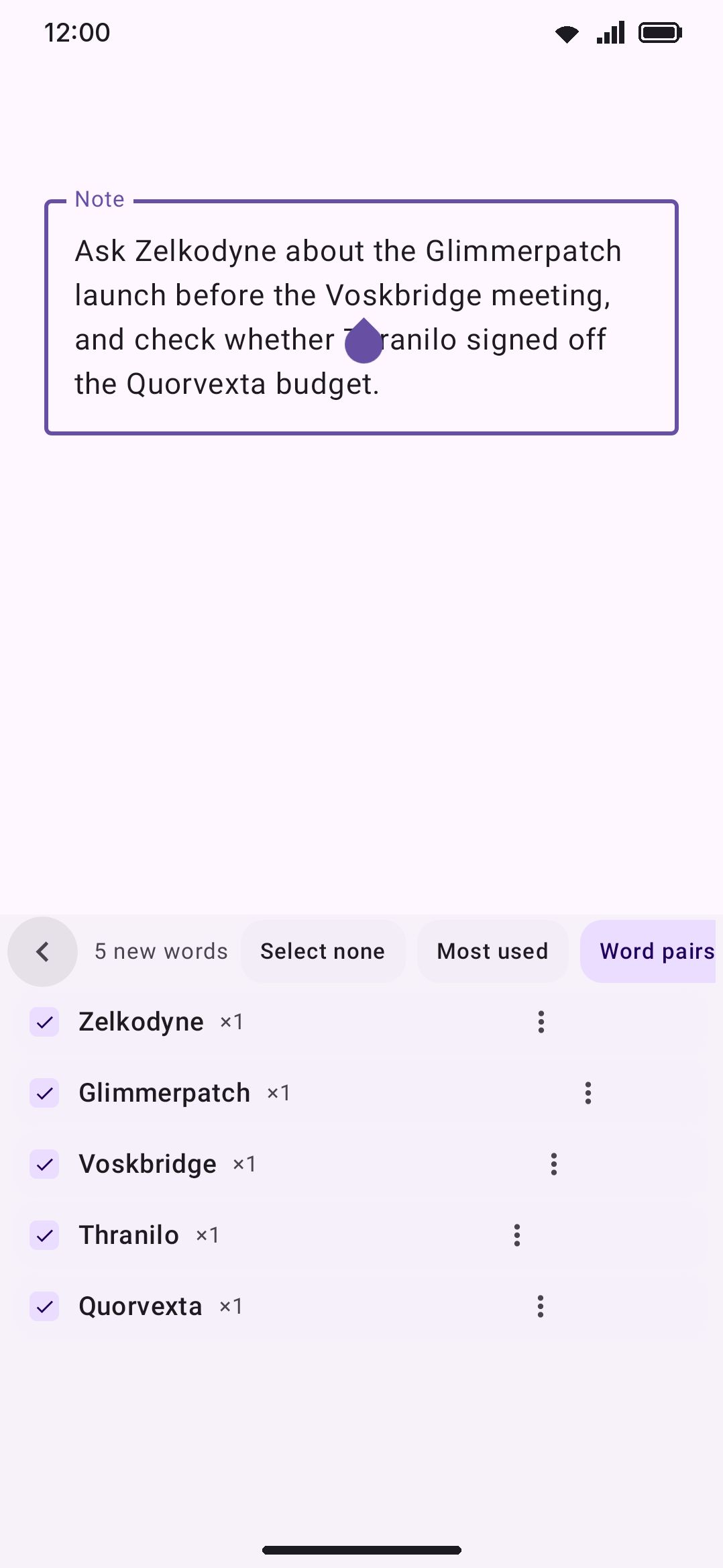
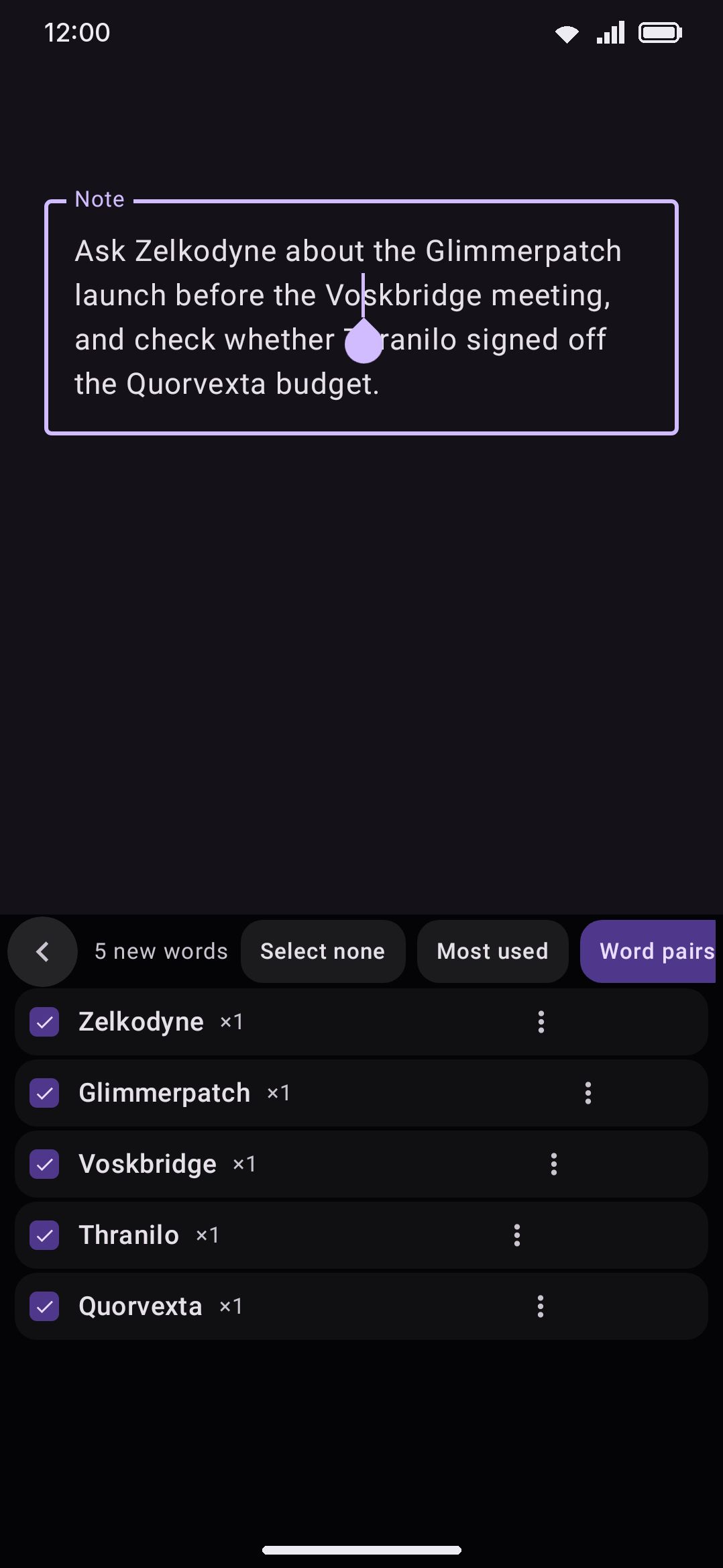
A new keyboard doesn’t know your names, your slang or the jargon of your job, and normally it only picks them up one sighting at a time as you type. Learn from text skips the wait. Open it in a note, an email draft or anything else you wrote, and it reads the text, lists every word the keyboard doesn’t know yet, and lets you add the ones you want to your personal dictionary at once.
What it reads
Section titled “What it reads”It starts switched off, whatever you picked during setup, so turn it on first in WM Keyboard Tools. Then open Learn from text from the toolbar, or from the toolbox if it isn’t pinned (see the toolbar). It reads the text you have selected. With nothing selected, it reads the whole field. It never moves your cursor and never changes the text.
A few things are left out on purpose:
- Password fields. The panel says so and reads nothing.
- Words the keyboard already knows. That means words in the word lists for your current language and its secondary languages, your imported lists, your personal dictionary, Android’s personal dictionary, your contacts and your app names.
- Words on your blacklist.
- Things that aren’t words: numbers, single letters, links, email addresses and @handles.
- Chinese, Japanese, Thai and other scripts written without spaces, where the run of letters between two spaces is a phrase rather than a word.
Some apps only hand a keyboard part of a long field. When that happens a line at the top says only part of it could be read. Select the part you care about and open the tool again. The list stops at 2,000 words, and a note says so when a text has more.
A word only in a language that isn’t in your current mix shows up as new. Switch to that language first, or add it as a secondary language, if you’re reading text in it.
The list
Section titled “The list”If the text holds nothing the keyboard doesn’t already know, the panel says so, and under that it points the other way: the words already learned are not listed here but in the personal dictionary in Settings, which Open the dictionary takes you to. This tool is for adding words, not for reviewing them.
Every word gets a row, and every row starts checked. Each row shows the word, how many times it appears in the text (×4), and seen 2 when the keyboard has already seen it while you typed but hasn’t learned it yet (see Words wait their turn).
Tap a row to check or uncheck it. The header holds the rest:
- Select all / Select none flips every row at once.
- The sort chip cycles through Most used, Text order and A to Z. The panel remembers your choice for next time.
- Word pairs decides whether adding words also teaches the word pairs in the text (below).
- Add N adds the checked words.
The word’s spelling comes from how the text writes it away from the start of a sentence. “Zelda” written mid-sentence is added with its capital, and the capital is kept for good. A word you only ever wrote at the start of a sentence is added in lowercase, because that capital says nothing about the word.
Row actions
Section titled “Row actions”The ⋮ on a row opens four actions under it:
- Edit fixes the spelling before you add it:
tehbecomesthe. The keys come up while you type. Press Enter or Done to keep the new spelling, or Cancel (or Back) to leave the word as it was. The row then reads teh → the. Only what gets added changes, never your text. - Show in text selects the word’s first appearance in the field, so you can see how it was used. Some apps don’t tell the keyboard where text sits, and the action is greyed out there.
- Never suggest puts the word on the blacklist and takes the row away.
- Ignore hides the row for this list only. Open the tool again and the word is back, and typing it still counts toward learning it the usual way.
Adding
Section titled “Adding”Add N (or Learn text when no new unknown words remain) puts every checked word in your personal dictionary and compiles the document’s word and n-gram usage statistics. Each new word is marked as added by hand, so it’s safe from autocorrect straight away and reads “You added this word” on the dictionary screen. It leaves the waiting room, comes off the blacklist if it was on it, and is copied to Android’s dictionary too when Add words to the system dictionary is on. Known words and n-grams in the text also have their usage counts learned into your typing history, building your personal language model. The added rows disappear, and a line at the top says what happened: “Added 5 words · 12 word pairs”.
With Word pairs on (the default), the same tap teaches the pairs the text holds, the way typing the text would have: two-word pairs, three-word contexts and the word two back. So “see you soon” helps predict “soon” after “see you”. The same rules as typing apply:
- Both ends of a pair have to be words the keyboard knows once your words are in. A word you left unchecked never becomes a next-word suggestion.
- A pair never crosses a full stop, a question mark, an exclamation mark, a danda or a line break.
- Each pair counts as many times as the text repeats it, the same as typing the text would have, so a phrase you use often in your writing is predicted sooner.
- Pairs follow Learn from typing. With learning off, or paused in incognito, words are still added (you asked for them) but no pairs are learned.
The panel closes when you move to another field, since what it read belonged to the old one.
Options
Section titled “Options”The tool has no settings page of its own beyond its Enabled switch and the toolbar hold action every tool has. Its two choices, the sort order and Word pairs, live on the panel and are remembered from one use to the next.
| Choice | Default | Where |
|---|---|---|
| Sort order | Most used | Panel header |
| Word pairs | On | Panel header |
To move words between your personal dictionary and Android’s own in bulk, use Import from Android’s dictionary and Export to Android’s dictionary on the personal dictionary screen.