
Suggestions & prediction
How the suggestion strip picks the words it offers you, and how it learns the ones that are yours.
The suggestion strip is the row of tappable words above the keys. It offers completions while you’re mid-word, corrections when what you typed doesn’t look like a real word, and next-word predictions once you’ve finished one. All three come out of the same on-device engine, which also learns your own vocabulary and phrasing the more you type.
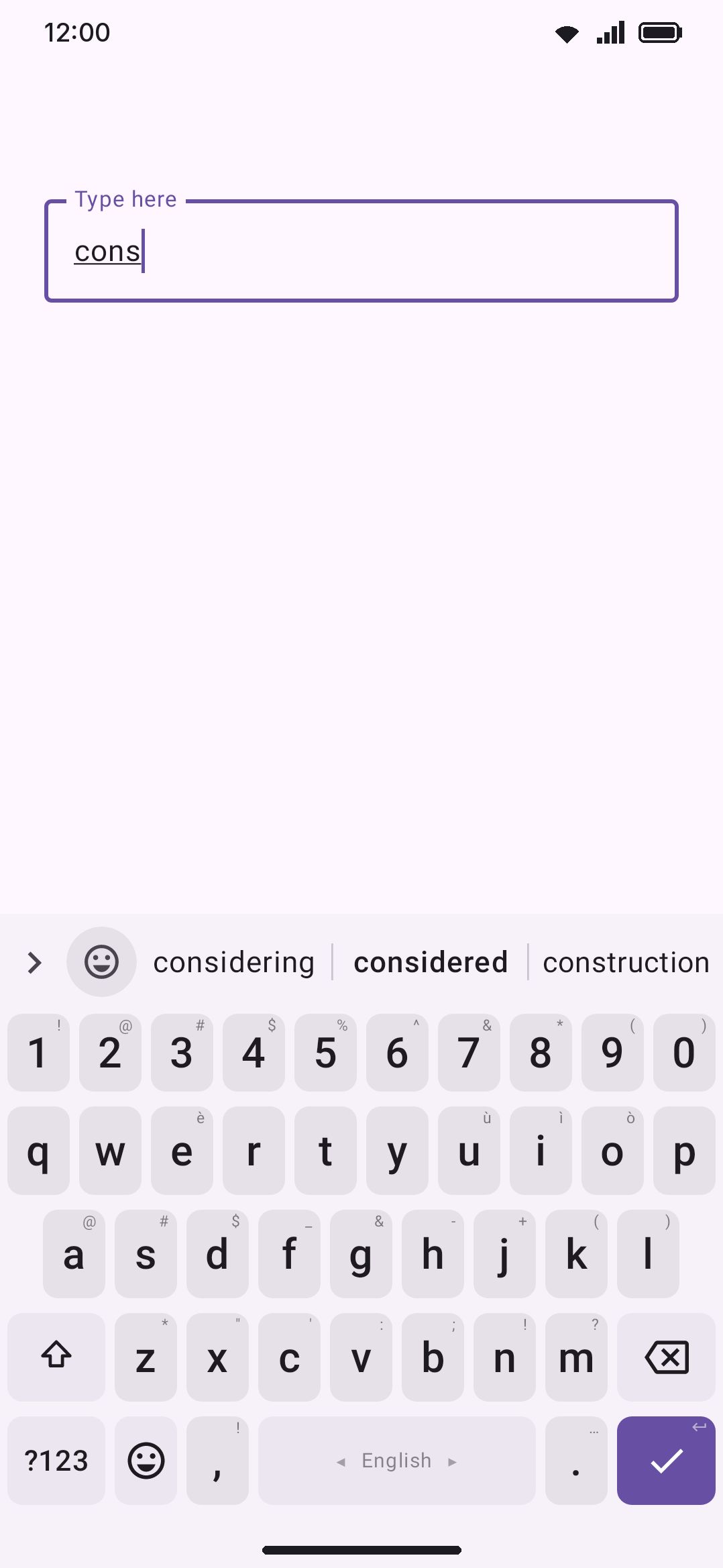
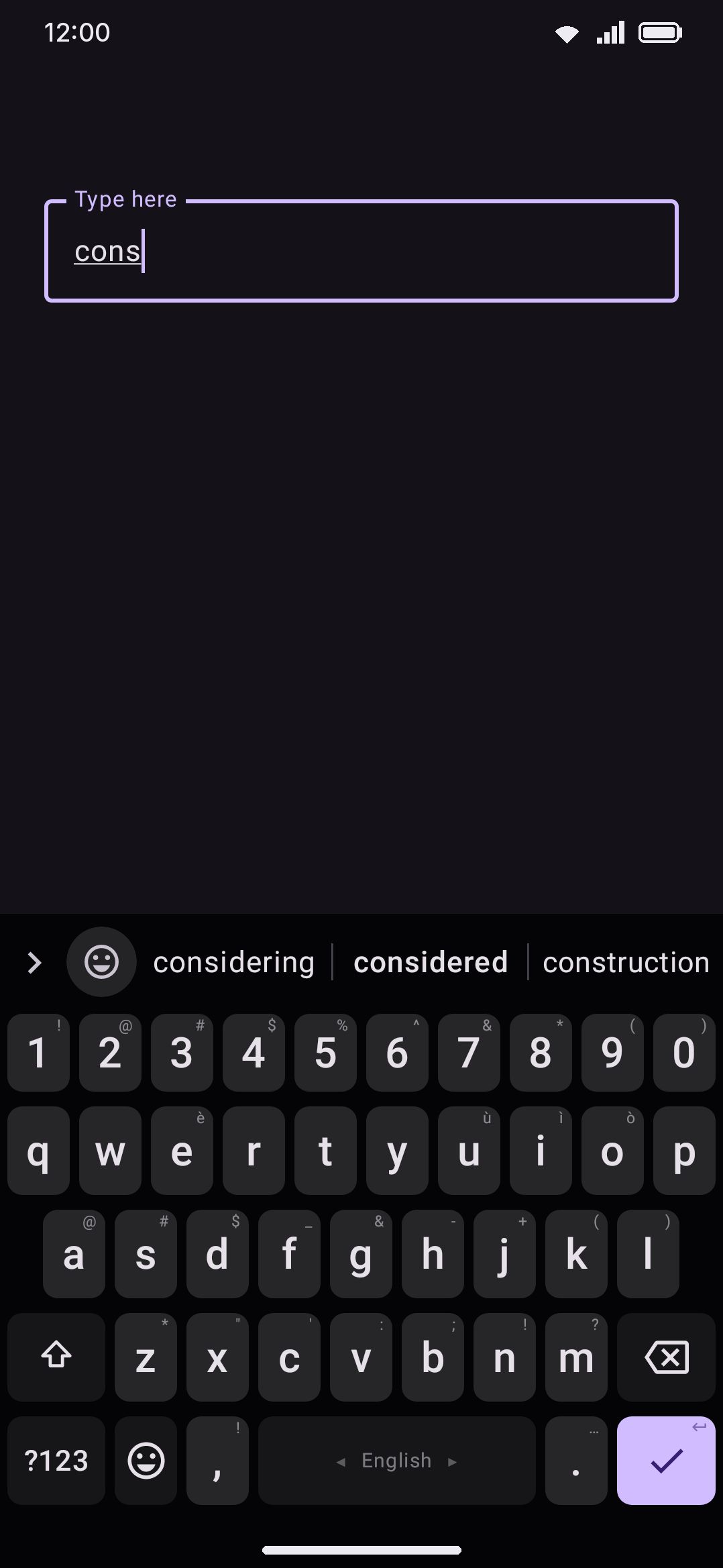
This page covers the strip itself: its layout, the completion/correction/prediction engine, and how ranking adapts to you. A few things that also live in the strip have their own pages: autocorrect’s confidence math, the personal dictionary screen, the suggestion blacklist, smart chips (calculator, currency, unit conversion), password-manager chips and smart replies, contact and app-name suggestions, and emoji suggestions. Each is linked from the relevant section below rather than repeated here. Everything on this page is about the Latin/English-style strip. A conversion IME like pinyin or kana→kanji draws a different, scrolling candidate row that isn’t covered here.
What’s on the strip
Section titled “What’s on the strip”Word candidates fill three slots by default. Number of suggestions (see Options) takes that as low as two or as high as six. The strongest candidate, the one autocorrect would pick, sits in the middle with the runner-up to its left. That’s the layout most keyboards use. Turn off Best suggestion in the middle and the candidates rank left to right instead.
Swipe down for more suggestions (off by default) is for the words that don’t fit. Swipe down on the strip while it has words and a grid of up to 24 candidates covers the keys, best first, the strip’s own words leading. Tap one to use it as if you’d tapped it on the strip. Swipe the strip again, or tap Back to the keys at the top of the grid, to close it. With this on, a downward swipe over suggestions opens the grid rather than hiding the keyboard; over an empty strip it still hides it if that setting is on.
Swipe up for more suggestions (off by default) works the way HeliBoard’s does. Swipe up on the strip while it has words and up to 12 more candidates open just above it, over the app, without covering the keys. Keep your finger down and slide it onto the word you want; the word under your finger lights up. Lift on it to use it, or lift anywhere away from the words (back down on the strip, say) to close them without picking anything. The best of the extra words sit in the row nearest the strip, so they’re the shortest slide away.
More suggestions in a grid (off by default, shown once either swipe is on) lines the extra words up in columns, one per suggestion slot, the way the strip itself is laid out, for both the swipe-down grid and the swipe-up words. Off, each word takes only the width it needs.
Slots are equal width, so a long word gets no more room than a short one. Rather than cut it off, the strip shrinks it to fit: the point size drops first, down to about two thirds of normal, and past that the letters themselves narrow a little. Most words that would once have read “internationali…” now fit whole, set smaller and tighter. The shrinking itself has no settings, though the size it shrinks from does: Suggestion text size under WM Keyboard Appearance Toolbar runs from 80% to 160%. Short words are never scaled, and a word that already fits is drawn at full size. Suggestion spacing, on the same screen, is the gap either side of each word inside its slot, 6 dp out of the box. Lower it and a long word has a little more room before it shrinks.
If you’d rather the strip never shrank anything, turn on Scroll the suggestions. Every word is then drawn at its natural size and the row scrolls sideways when the words overrun the strip. The row also runs on past Number of suggestions, through every word the keyboard found for what you typed, up to two dozen, so a word that ranked fourth (an Avro reading, say) is a swipe away instead of nowhere. A slot still gets at least its equal share of the width, so a set of short words looks exactly as it does with the setting off. It’s the setting for a narrow phone that wants five or six candidates: at fixed widths those slots are too tight to read. A new set of candidates always starts back at the left edge.
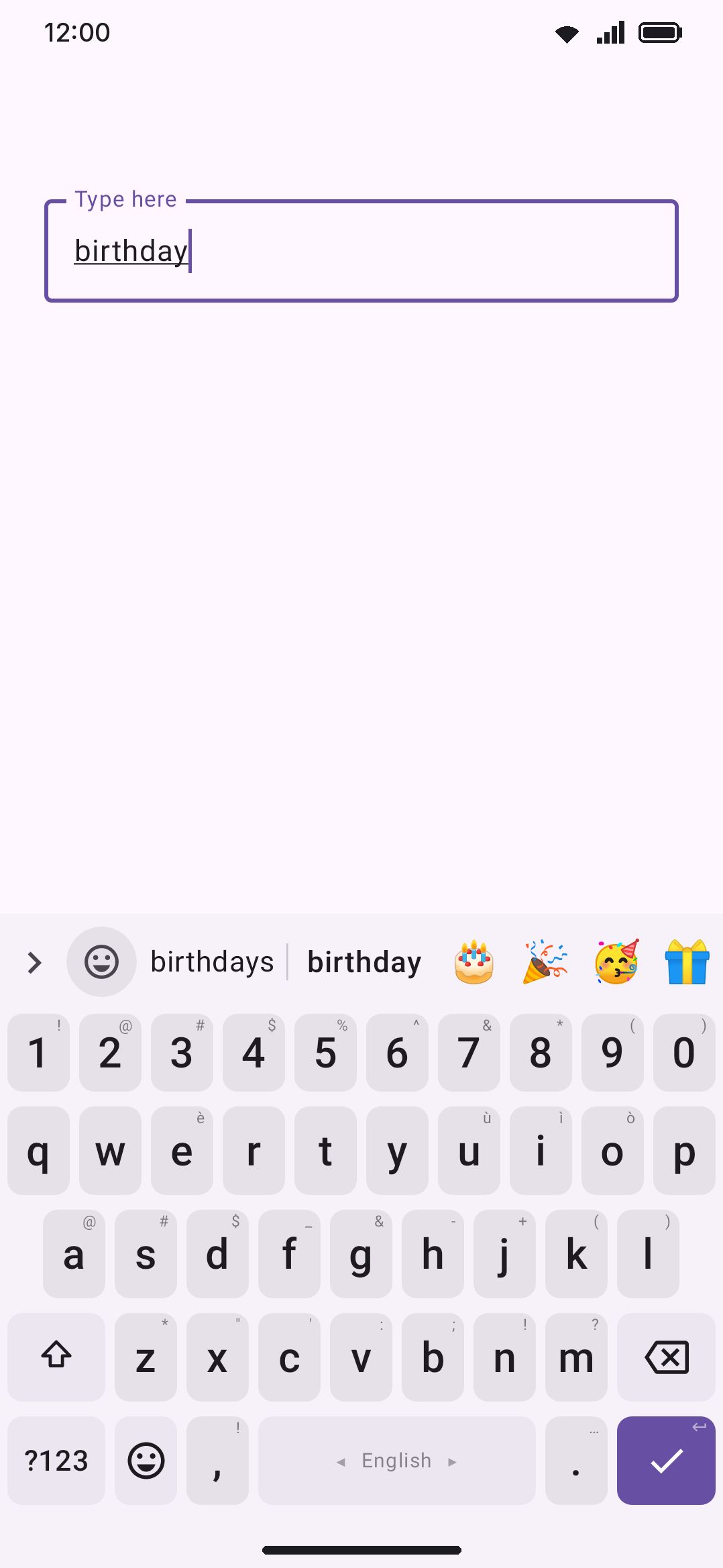
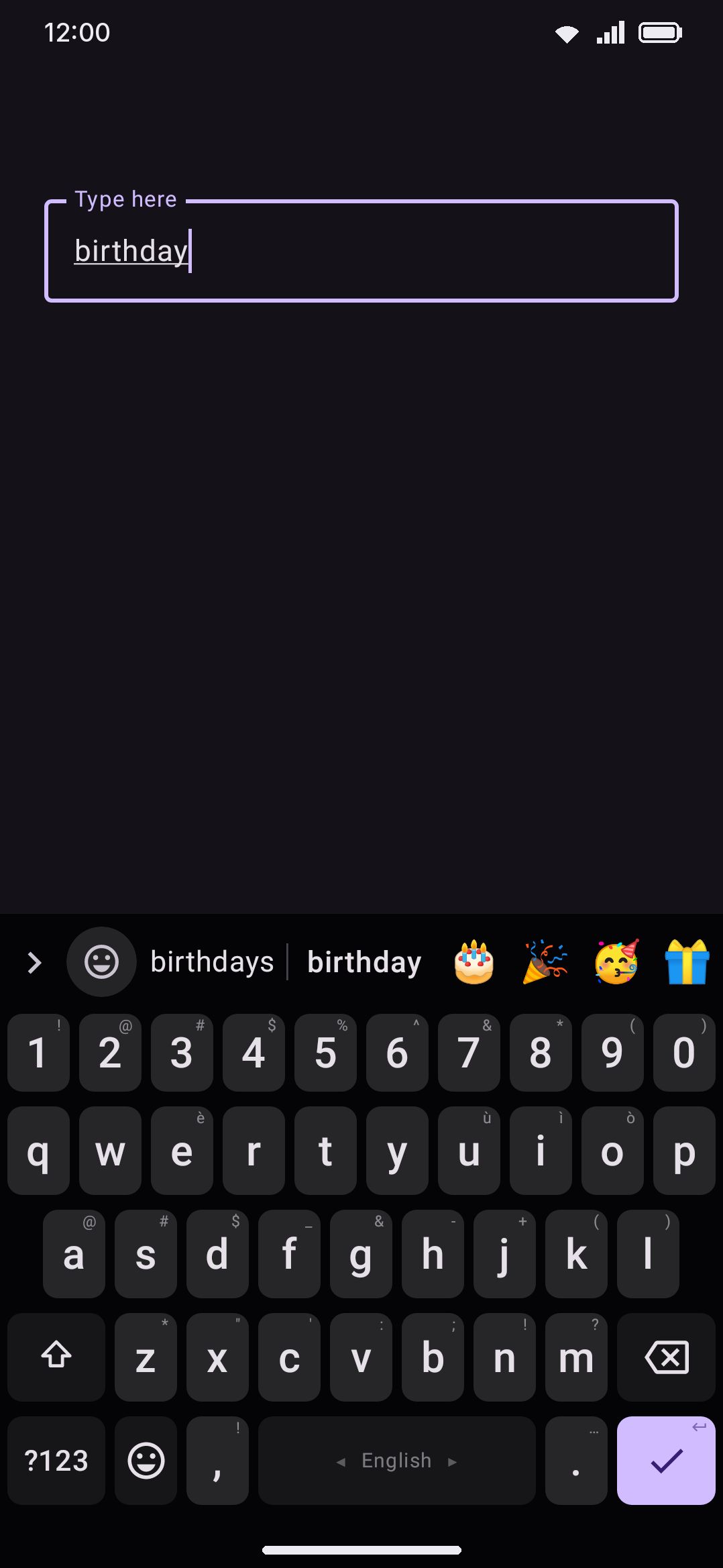
Up to four predicted emoji can ride after the word chips (see Emoji in the strip), and a row of punctuation marks can ride after that (see Punctuation chips), but never both at once. The emoji tail always wins the shared space. Punctuation only appears when no emoji prediction is offered. The tail sits on top of Number of suggestions: three words and an emoji is four chips. Turn on Emoji takes a slot (see Options) and the best emoji takes the last slot instead, the same width as a word, with one word fewer, so the strip never shows more chips than the number asks for. Suggested emoji sets how long the tail can get, from one emoji to four.
The words share the strip between them by default: two words split it in half, and an emoji tail, the punctuation marks, a tool’s keyword chip or a rewrite chip (join, revision, undo) takes room from them, so the best word can drift from one keystroke to the next. Turn on Keep suggestions in place and the strip is always cut into Number of suggestions slots of one width. A slot with nothing to show stays empty, and the best word keeps its slot. With Best suggestion in the middle on that is the second slot, the runner-up on its left and the third word on its right, exactly where they sit on a full strip. Anything that is not a word takes a slot of its own rather than pushing the words aside: a suggested emoji or the punctuation marks the last slot, a tool’s keyword chip or a rewrite chip the first. It has no effect while Scroll the suggestions is on, since that strip sizes each word to fit.
Coloured suggestions puts each word on a rounded pill in the theme’s accent colour instead of separating the words with thin lines, with the best word’s pill the deepest. With a Material You theme the colour comes from your wallpaper, the way SwiftKey shades its suggestion bar.
When one of the keyboard’s own text boxes has the keys (a panel’s search bar, the AI prompt, Find and replace, a plugin’s field), the strip moves to the row directly above the keys, since the panel has taken the toolbar’s row. It shows the same words for the box’s text that it would for your field, and tapping one replaces the word at the box’s caret. The exception is the emoji panel’s search box, which is querying the emoji catalogue rather than writing prose: its strip offers emoji search terms instead of dictionary words. See Panels and captured keys.
The strip shares its row with the toolbar, and several other features can claim that row instead of word candidates. A smart chip (calculator, currency, unit conversion) takes the full row when it has an answer. Autofill chips take it over completely on a login field. The system’s smart replies take the row when nothing is typed, then ride the tail once you start typing. A “paste your last copy” or one-time-code chip can appear from the clipboard tool. Typing : turns the row into inline emoji search. Any of these counts as “the strip has something to show,” so the row rests on suggestions rather than falling back to the toolbar. Suggestion strip always visible (see Options) keeps the strip as the resting view even before any of them has anything to offer.
Completions, corrections, and predictions
Section titled “Completions, corrections, and predictions”One engine produces everything in the word-candidate slots, drawing from several sources depending on what you’ve typed:
- Completions. While you’re mid-word, every source that has a word starting with what you’ve typed contributes a candidate: the active dictionary, any downloaded or custom-imported dictionary, a secondary language’s dictionary if you type bilingually, your own personal dictionary of learned words, and (if you’ve turned them on) contacts, contact emails, and app names. If the only thing wrong with what you typed is a missing space, as in “ofthe”, an “of the” candidate is offered too.
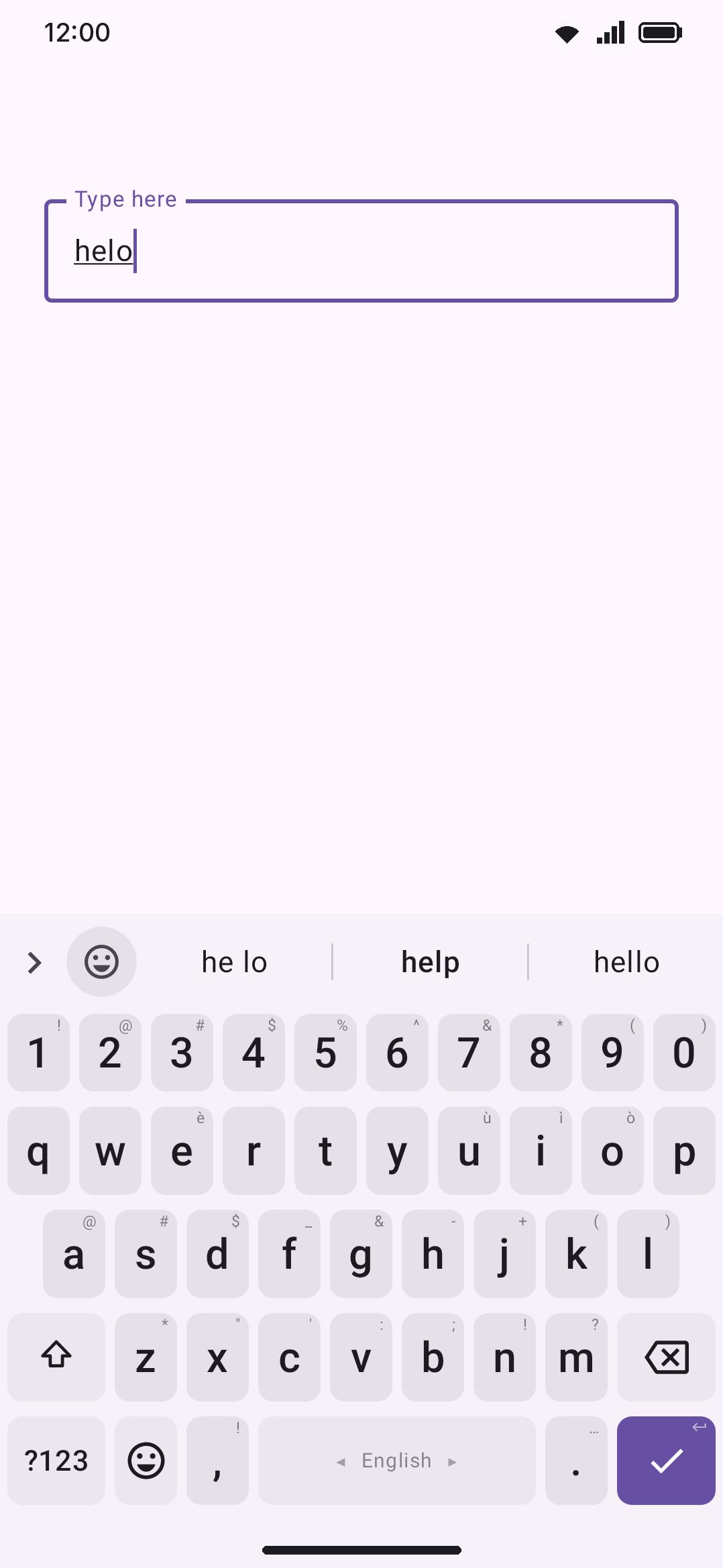
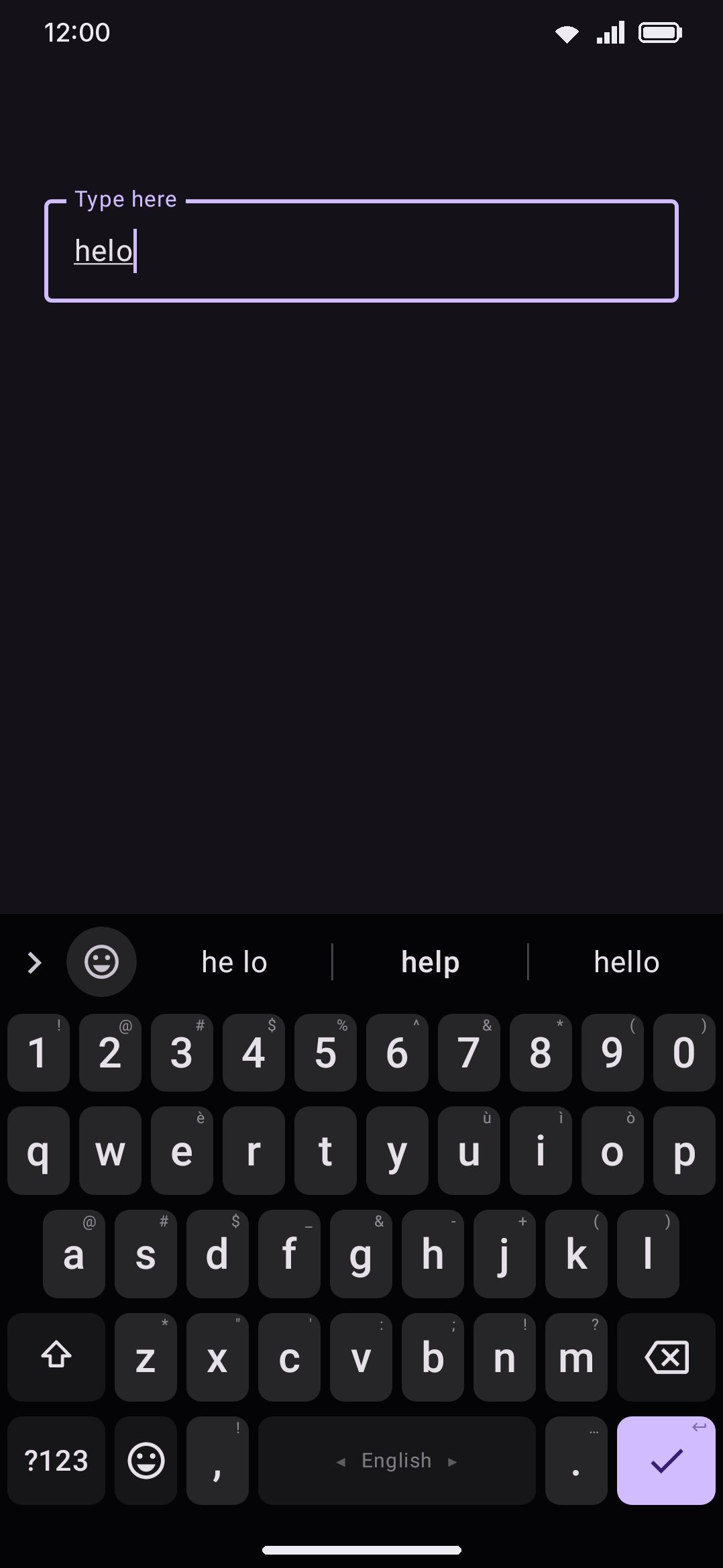
- Corrections. If what you’ve typed matches no known word anywhere, the engine walks the dictionaries for words a short edit away: a letter dropped, added, doubled, swapped with its neighbour, or substituted. A word of five letters or more may be reached in two such edits; anything shorter gets one, since a two-edit fix on a four-letter word explains almost anything. Each candidate is scored by how plausible that slip is on your active keyboard layout, and by where your finger landed. The best-scoring one appears as an ordinary tappable candidate, not only as a silent autocorrect target. So an ambiguous typo like “helo”, evenly split between “hello” and “help”, still gets you both real words to pick from, even when autocorrect itself stays quiet because neither candidate clearly wins.
- Predictions. With nothing composing, right after you finish a word, the strip predicts what comes next instead. Your own learned pairs come first, the three-word context ahead of the two-word one. Next comes the following part of a contact’s name, if the previous word matched one. Then your own gappy habits: what has tended to follow the word two back one word later, and the word three back two words later, so “how can someone” can still offer “help”. Then a downloaded n-gram pack for your language, if you have one installed. Last is a small bundled set of common English pairs, so a fresh install has something to offer before you’ve typed anything of your own. If nothing knows the word you just typed, a name or a typo, the strip falls back to what tends to follow the word before it rather than going quiet.
- Openers. An empty field, and the space just after a full stop, are both the start of a sentence, and the strip predicts from that the same way it predicts from a word: the openers you use come first, then a bundled set of common English ones, so there is something to tap before you have typed a letter. The word you pick is learned as an opener too, so the list becomes yours.
Candidates from every source merge into one ranked list, and the sources don’t count equally. Each is weighted well above plain dictionary frequency, so a source that’s more clearly you (or more clearly what you’re reaching for) dominates once it has anything to offer:
| Source | Weight |
|---|---|
| Bundled/downloaded dictionary | baseline. A downloaded list counts words on a far bigger scale than the built-in one, so it’s scaled down until its commonest word matches the built-in list’s, keeping its own order |
| Custom-imported dictionary | ×100, or scaled down the same way if the list carries real word counts |
| Secondary-language dictionary | ×40, scaled 0.5×–2× by how much you mix that language in. A downloaded list with real word counts is capped lower, so its commonest word sits at half the primary’s commonest and never buries a word you typed in full in your main language |
| Your personal dictionary | ×500 |
| App names | ×400 |
| Contact names | ×3,000 |
| Contact emails (2+ character prefix) | flat 4,000 |
Tap a candidate to insert it (see Options for the space that follows). It’s cased to match what you typed: a leading capital gives you a capitalized candidate (“Hte” → “The”), and typing in all caps gives you the candidate in all caps (“HTE” → “THE”). Anything else is inserted as stored.
When the chip is replacing a word that’s already sitting in the field, it takes that word’s capitals instead. This is the strip after a swipe or after handwriting, where the chips are other readings of the word that just landed, and it’s also a word you tapped back into mid-sentence. So if auto-capitalization gave you “Van” at the start of a sentence and you swap it for “can” off the strip, you get “Can”, and swapping a shouted “VAN” gets you “CAN”.
When the cursor lands in a word
Section titled “When the cursor lands in a word”Put the cursor inside a word you have already written, by tapping it or by walking the caret back with the spacebar, and the strip stops predicting the next word and answers about that one instead. You get its completions and corrections, the same as if you were typing it, plus the word itself as the top candidate, which with Best suggestion in the middle on is the middle chip.
Right after a word counts too, as in next word| to. There the word is normally picked back up as if you were still typing it, so a letter you type goes on the end of it. Some apps won’t let the keyboard do that, and in those the strip still answers about the word: picking a chip replaces it, and typing adds to the text.
That chip is there for the hold, not the tap. Tapping it would replace the word with itself, so it does nothing but put the strip away. Holding it opens the word menu, which is how you add the word to your dictionary, open its card to respell or re-rank it, delete it, or block it, all without leaving the sentence. Holding any other chip reaches the same menu, and its Add and Search all words items are about the word the cursor is in rather than the chip you held.
Only offer new words (WM Keyboard Typing Suggestions, off) takes that chip away, the same way it takes away the slot the word you are typing normally holds. With it on, every slot offers something different from what is already there, and the word menu is then only a hold on some other chip away.
A word a swipe wrote gets one thing more: the strip leads with that stroke’s other readings instead of respellings of the letters standing in the field. See Going back to a misread swipe.
Punctuation chips
Section titled “Punctuation chips”Turn on Punctuation suggestions (off by default) and a short row of marks (. , ? ! ’) rides after the word candidates, set off by a thin divider. Tap one and it commits exactly as typing that key would, so a full stop or comma is one tap away without switching to the symbols layout. Those five marks are only the default. A Punctuation marks text field appears under the toggle and takes up to twelve characters, one chip per character, so a Bengali danda or the Spanish inverted marks can sit here instead. Clearing the field puts the five back.
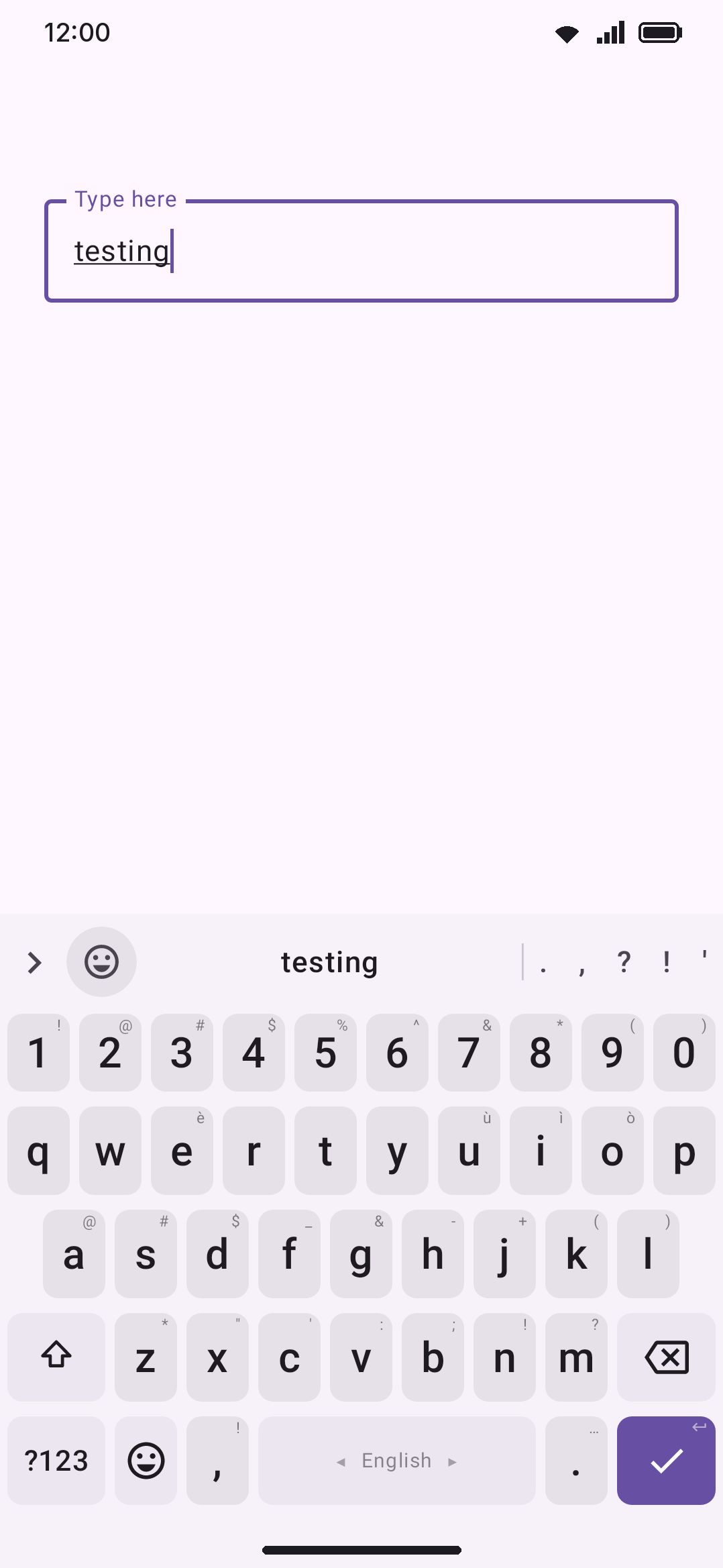
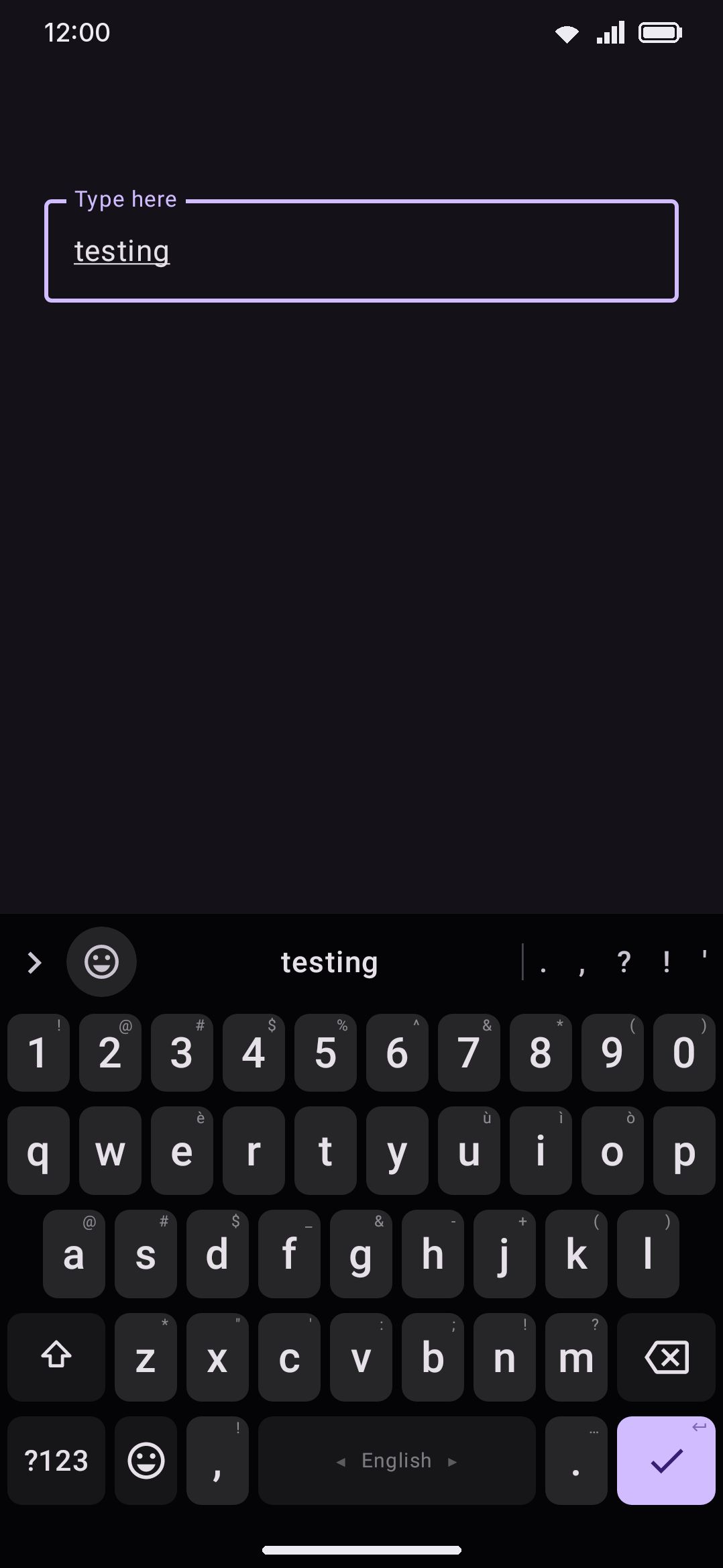
The row only appears while word candidates are already showing, and only when no emoji prediction has claimed the tail instead.
Shift re-cases the strip live
Section titled “Shift re-cases the strip live”Arm Shift and every chip in the strip re-cases in real time to match what would be typed if you tapped it right then. Shift is a latch rather than a hold, so one tap gives you Title Case, a double tap (caps lock) gives you UPPERCASE, and another tap goes back to lowercase. The chips follow the shift state, so they revert the moment it clears, which includes the letter or suggestion that spends it. The whole row follows, not only the top candidate. One thing is left alone: a contact-email suggestion, meaning anything containing @, since an address isn’t meant to change case.
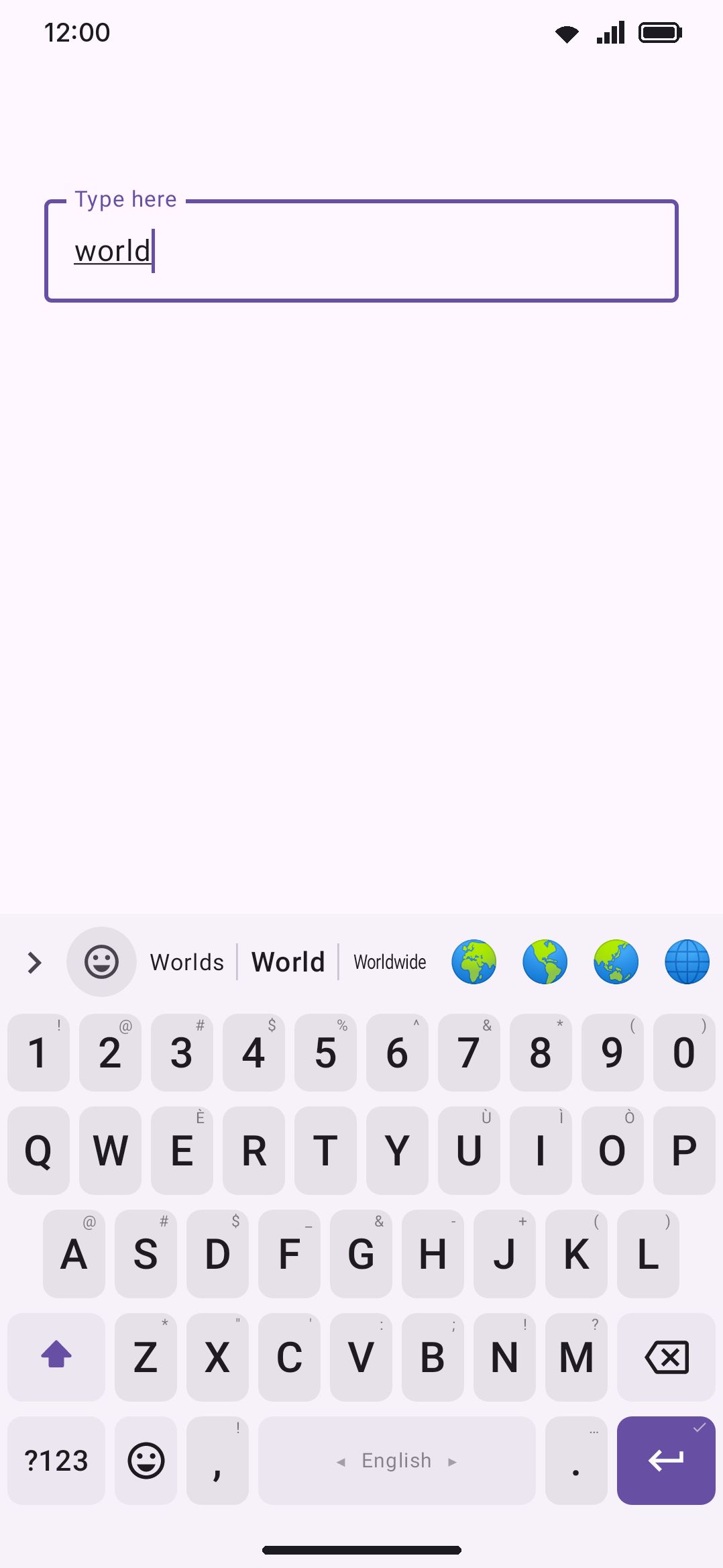
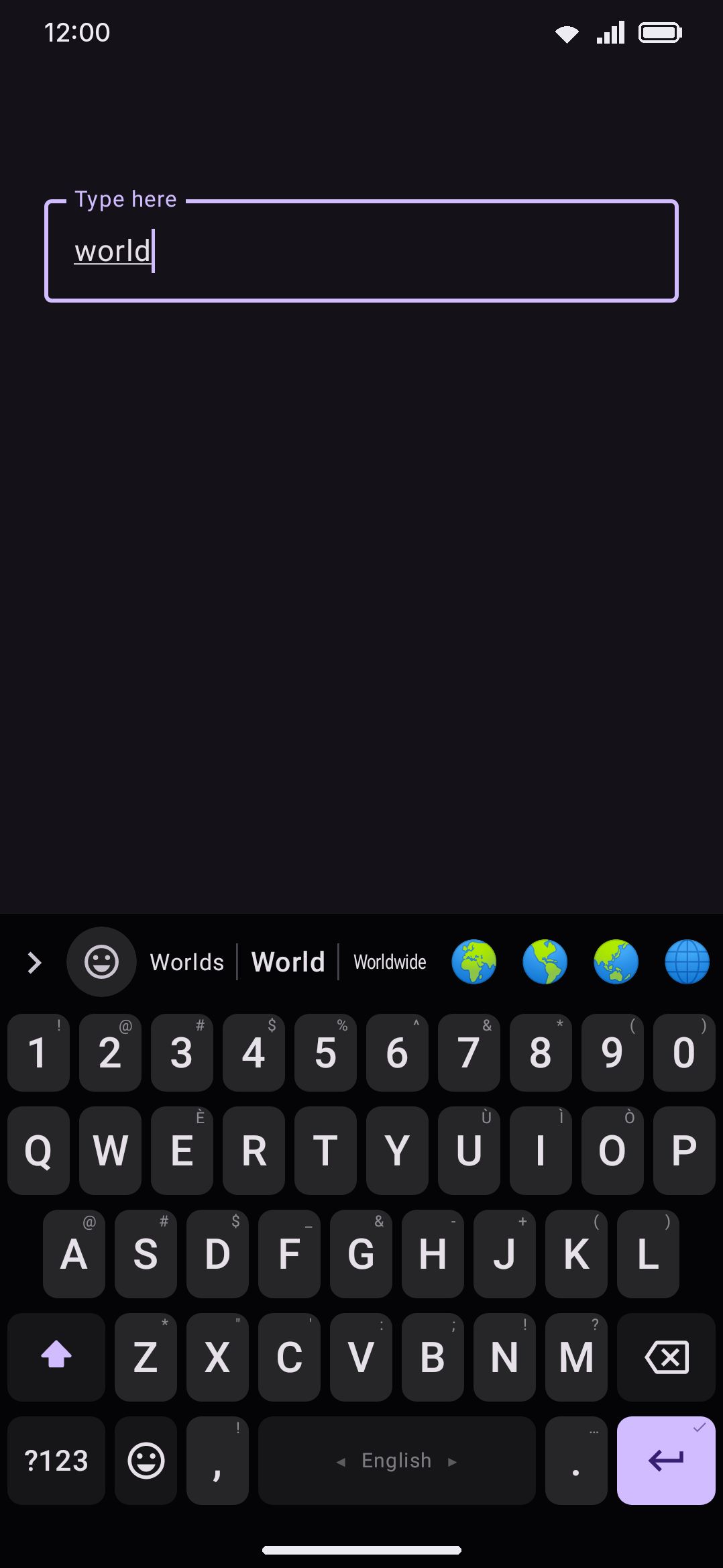
This is a display rule only. It doesn’t reject or change which candidate is offered, and it’s unrelated to reverting an autocorrected word with backspace.
Emoji in the strip
Section titled “Emoji in the strip”Matching emoji append to the end of the word candidates once you finish typing a whole word. The same mechanism can offer an emoji on an empty buffer once it has learned that a word you often type is usually followed by one. Emoji suggestions have their own settings and their own page: see Emoji suggestions while typing for the toggle, the default, and how tapping or holding one behaves. What matters here is the tail of the strip, which fits up to four emoji. The emoji tail and the punctuation chips both want that space, and emoji always wins.
Learning from what you type
Section titled “Learning from what you type”Every word you commit, and every pair of words you type back to back, feeds a private on-device vocabulary. Both the completion ranking above and next-word prediction draw from it. How strongly a word is taught depends on how deliberately you typed it. Tapping a suggestion from the strip teaches harder than a word that was merely typed and committed, and a word autocorrect chose for you earns no credit at all, only the word pair around it. The Personal dictionary page covers that grading in full, along with adding, removing, and clearing what’s been learned. What belongs here is what learning does to ranking: a learned word carries a ×500 weight (see the table above), so it competes with common dictionary words almost immediately instead of needing to be typed dozens of times first.
Removing an unwanted suggestion
Section titled “Removing an unwanted suggestion”Press and hold the word on the strip. The menu that opens has Never suggest “word”, which puts it on the suggestion blacklist, and Delete “word” for a word the keyboard can forget: one you learned, one still waiting to be learned, one in Android’s dictionary, one you adjusted the rank of, or one from a word list you imported. Synonyms lists words with the same meaning, and tapping one puts it in place of the word. Edit opens the word card, which carries Never suggest and Delete and the rank controls besides. The Personal dictionary page describes the menu and the card in full, and Word menu under WM Keyboard Typing Suggestions picks which of the optional items it shows.
The same two lists are editable from settings, if you would rather not chase the word on the strip: the Personal dictionary screen for learned words, and the suggestion blacklist screen for words that should never be offered or corrected to, whether or not they were ever learned.
Options
Section titled “Options”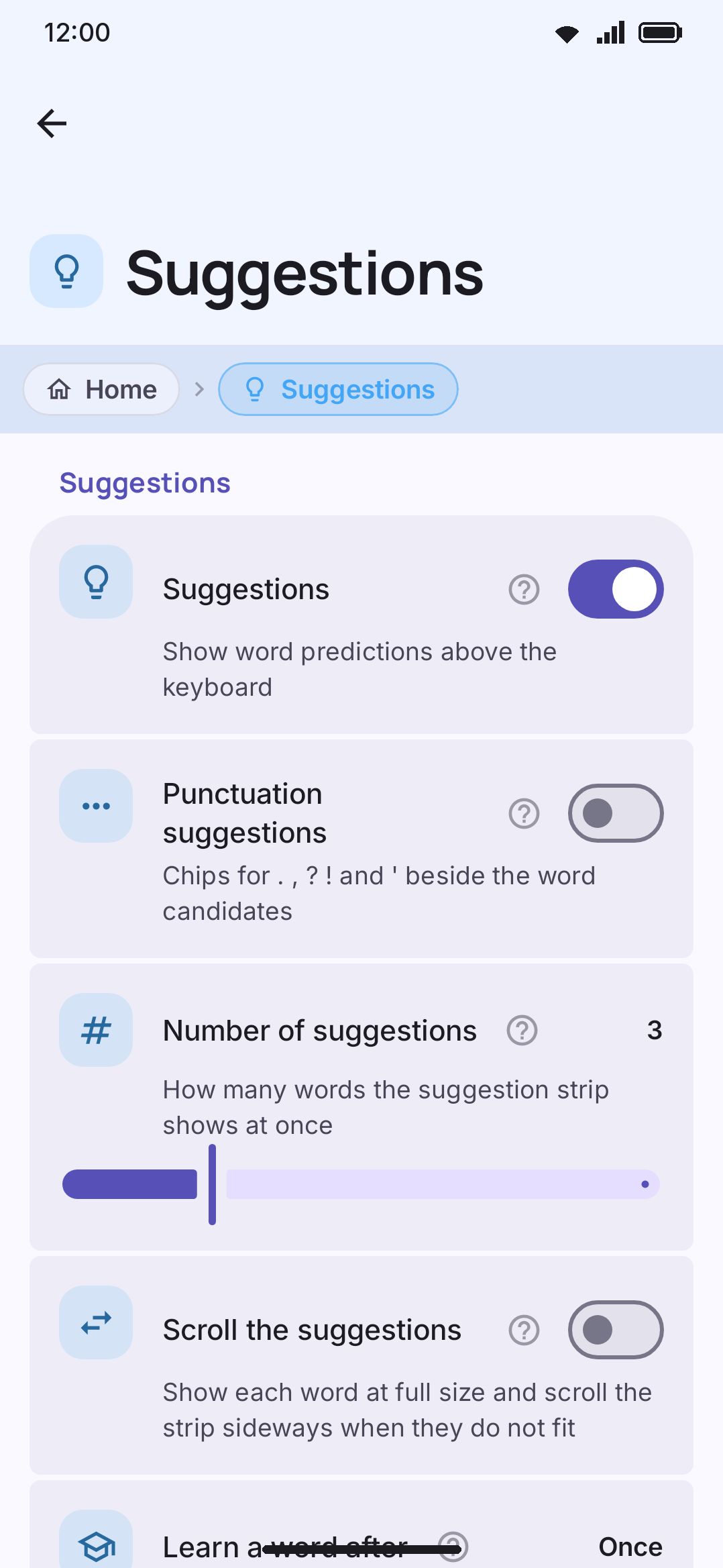
| Setting | Default |
|---|---|
| Suggestions | On |
| Punctuation suggestions | Off |
| Number of suggestions | 3 (range 2–6) |
| Swipe down for more suggestions | Off |
| Swipe up for more suggestions | Off |
| More suggestions in a grid | Off |
| Emoji takes a slot | Off |
| Suggested emoji | 4 (range 1–4) |
| Keep suggestions in place | Off |
| Coloured suggestions | Off |
| Scroll the suggestions | Off |
| Suggestions in every field | On |
| Suggestion strip always visible | Off |
| Best suggestion in the middle | On |
| Shorten long words | In the middle |
| Numbers from the letter keys | Off |
| Remember numbers you type | Off |
| Space after a suggestion | On |
| Block offensive words | On |
| Context-aware suggestions | On |
| Adapt to app tone | On |
| Suggestion blacklist | Empty |
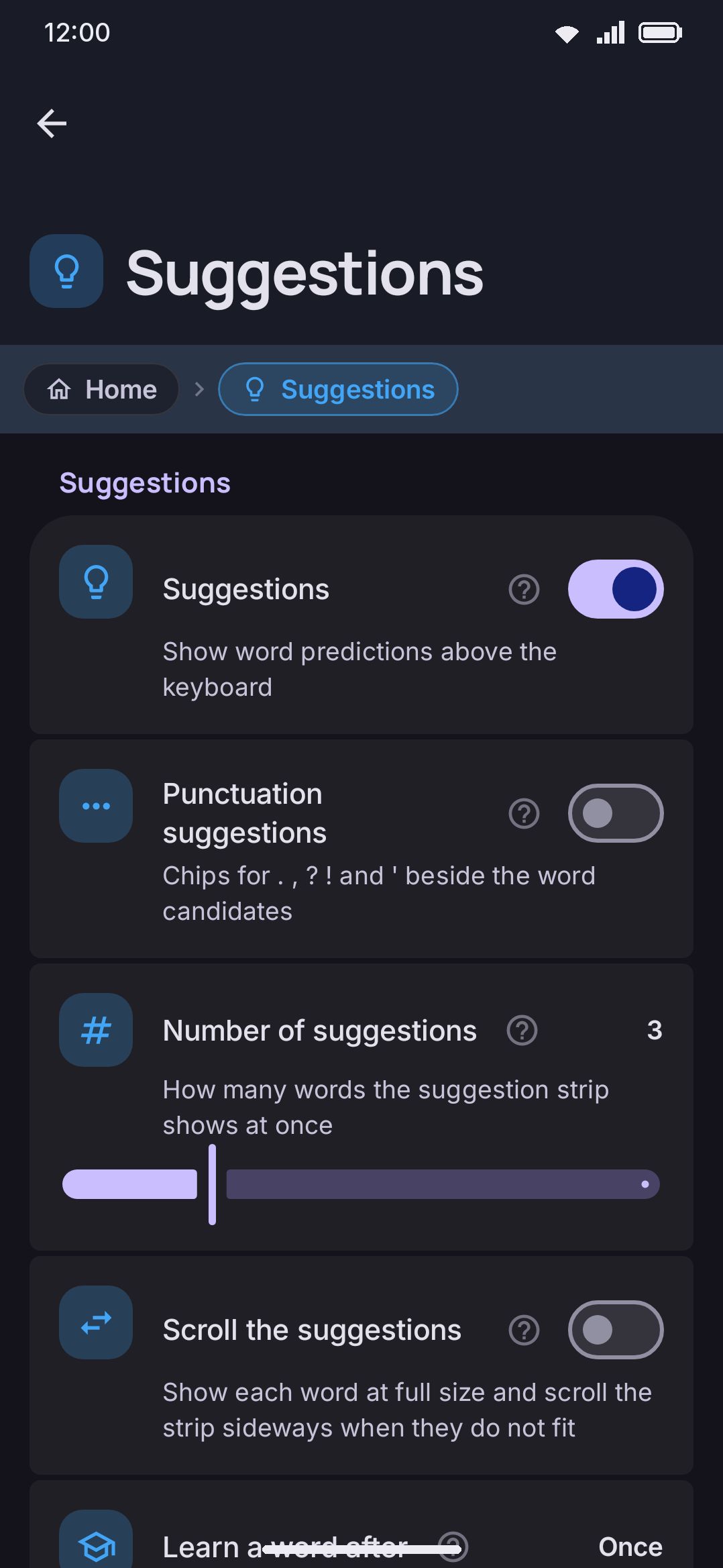
Suggestions is the master switch for the whole strip described on this page. Turn it off and completions, corrections and next-word prediction all stop. On an ordinary Latin layout it takes autocorrect with it: with suggestions off the keyboard stops composing the word you’re typing, so there’s nothing for autocorrect to inspect when you press space. Autocorrect still has its own toggle, but leave Suggestions on if you want autocorrect to fire. Number of suggestions is how many word slots the strip splits itself into. Three suits a phone; a tablet or a landscape screen has the room for more, at the cost of each candidate getting narrower. Scroll the suggestions drops the fixed slots for a row that scrolls sideways, so more candidates cost nothing in legibility (see What’s on the strip). Suggestions in every field overrides the handful of apps that ask the keyboard to hide suggestions on an ordinary text field. It also covers a browser’s address bar: with it on, the words you type there are completed on the strip, though never autocorrected. Password fields and structured keypads (number, phone, and similar) never show suggestions whatever this is set to. Space after a suggestion adds a trailing space when you tap a candidate, the same as finishing a word yourself would. When the word you picked already has a space after it, as it does when you go back and fix a word mid-sentence, no second space is added. The caret moves past the space that’s there instead, so the next word you type starts after it rather than running into the one you just picked.
None of these reach a conversion keyboard. Chinese, Cantonese and Japanese put the composer’s own character candidates on the strip, and that list is how the language is typed rather than a guess about it, so it survives Suggestions being off, a field that asks for a silent strip, and a password box alike. See Chinese, Japanese & Korean.
Numbers from the letter keys (off) is for boards with the number row hidden, where each top-row letter carries a small digit in its corner. When every letter of the word you’re typing sits on one of those keys, the strip’s last slot also offers the number those digits spell: qwe on QWERTY offers 123 beside the words, and one tap types it. It reads the keys you pressed rather than the letters, so AZERTY’s azerty spells 123456 and a layout with no digit hints offers nothing. The number is never the first slot, never what a space commits and never an autocorrect target. Two letters at least, so a lone I stays a word rather than an 8. Five digits or more are grouped the way the number chip groups them, under its Grouping style, as long as Group long numbers is on. With the number row shown the digits have keys of their own and nothing is offered.
Remember numbers you type (off) completes the numbers you type often, the way Samsung’s keyboard does. A number of three digits or more that stands on its own is kept when you press space or enter after it, or leave the field. The next time you type its first digits, the strip shows the numbers you’ve typed that start with them, the most used first, and one tap replaces your digits with the whole number. No space follows it, since a number is as often followed by a full stop as by a word. A number is only one of its own after a space, at the start of the text, or after +, ( or #, so the 880 of +880 counts. Digits stuck to letters (win10) and the pieces of a number split by a comma, a colon or a dash (1,234, 12:30, 0171-234) are left alone. Nothing is kept from a password field, in incognito, or while Learn from typing is off. Number and phone fields have no strip at all, so this works in ordinary text fields. The list stays on the phone, holds up to 100 numbers, and is deleted with the other learned data under Storage.
Four of the rows above aren’t in the Suggestions group at all. They live under WM Keyboard Typing Automatic corrections, and they’re listed here because what they do is change the strip:
- Space after a suggestion (on) is described above, and sits with the other spacing rules rather than with the strip.
- Block offensive words (on, and only visible while autocorrect is on) uses the same filtering mechanism as the suggestion blacklist to keep a bundled list of profanity and slurs out of the strip, not only out of autocorrect.
- Context-aware suggestions (on, also only visible while autocorrect is on) reorders the top eight candidates using the words you typed before them: your own learned word pairs and triples, a downloaded n-gram pack if you have one, common English pairs, and words already used in this conversation. It only reorders when there’s real evidence to reorder on, so an unfamiliar context keeps the usual order. It never changes which word autocorrect would apply.
- Adapt to app tone (on, and visible whatever autocorrect is set to) tilts ranking by where you’re typing. Chat-speak like “lol” and “gonna” ranks a little higher in messaging apps and a little lower in email apps and email fields. It’s ranking only: no word is ever hidden or blocked, and autocorrect doesn’t change.
A physical keyboard can also pick a strip candidate by number without touching the screen (see Hardware keyboard for how that’s bound).
Details & edge cases
Section titled “Details & edge cases”- A correction candidate only appears when the typed word isn’t already known. Anything in the active dictionary, a custom or secondary-language dictionary, or your personal dictionary is offered as-is. Edited candidates are thrown away for a word the engine already recognizes, so only plain completions reach the strip.
- A dictionary word and a contact name can collide on capitalization. A contact’s name keeps its own capitalization (“Wasi”) independent of how a dictionary word would be cased. If the same word would otherwise appear twice, once lowercase and once capitalized, only the better-scored one is shown.
- Missing-space splits need a real word on both sides. “ofthe” only becomes “of the” if both halves are independently known words. An arbitrary split of an unknown word never appears as a candidate. Turn off Add missing spaces under autocorrect and no split appears at all, so “history” half-typed is never offered as “his to”.
- The word as typed keeps a slot. Unless Only offer new words is on, the strip always holds what you have typed so far, exactly as typed, in the slot left of the middle, even when the engine has no idea what the word is. A long word the dictionary lacks no longer empties the strip.
- Shrinking a word has a floor, and past it the ellipsis is back. The two stages together fit roughly twice the slot width. A word longer than that is cut, and so is one in a slot squeezed narrow by a long smart reply or a full row of predicted emoji riding the tail. The cut goes in the middle of the word by default, as most keyboards do, so its start and its ending both stay readable: “Punct…tion”. Set Shorten long words to At the end for “Punctuat…” instead.
- Only the word candidates scale. Conversion candidates (Pinyin, kana, jyutping) keep their fixed larger size, since Han and kana need it, and they scroll instead of splitting the bar evenly. Predicted emoji, punctuation chips and the clipboard pill are all fixed-size too.
- The strip fades rather than snapping. The composing buffer or field can empty out completely: you delete back to nothing, clear the field, or back out of a
:emoji search. The last set of candidates stays visible and fades out over a short animation instead of disappearing instantly. - A contact-email suggestion is never added to your personal dictionary, since an address isn’t a word to learn. Tap it inside a field the keyboard recognizes as an email input and it commits with no trailing space, because the address is usually the whole field. Tap it from an ordinary text field and it gets a trailing space like any other suggestion. Contact-aware typing has that behavior in full.
For the word-typo confidence math, and for how a correction is applied automatically instead of only offered, see Autocorrect. Personal dictionary has the full story on what gets learned, how strongly, and how to review or clear it. To keep a specific word out of the strip entirely, see the suggestion blacklist.