
Statistics
The typing counts screen: your level and achievements, the tap heatmap, what gets counted, the charts, when counting pauses, and how to delete the lot.
Statistics is the running tally of how much you type: characters, words, backspaces, time spent typing, and a speed figure worked out from those. On top of the counts sit a level that climbs as you type, a set of achievements in the style of SwiftKey’s, and a heatmap of where your thumbs land. It’s counted on the device and stored on the device. Nothing you typed is kept, only the totals.
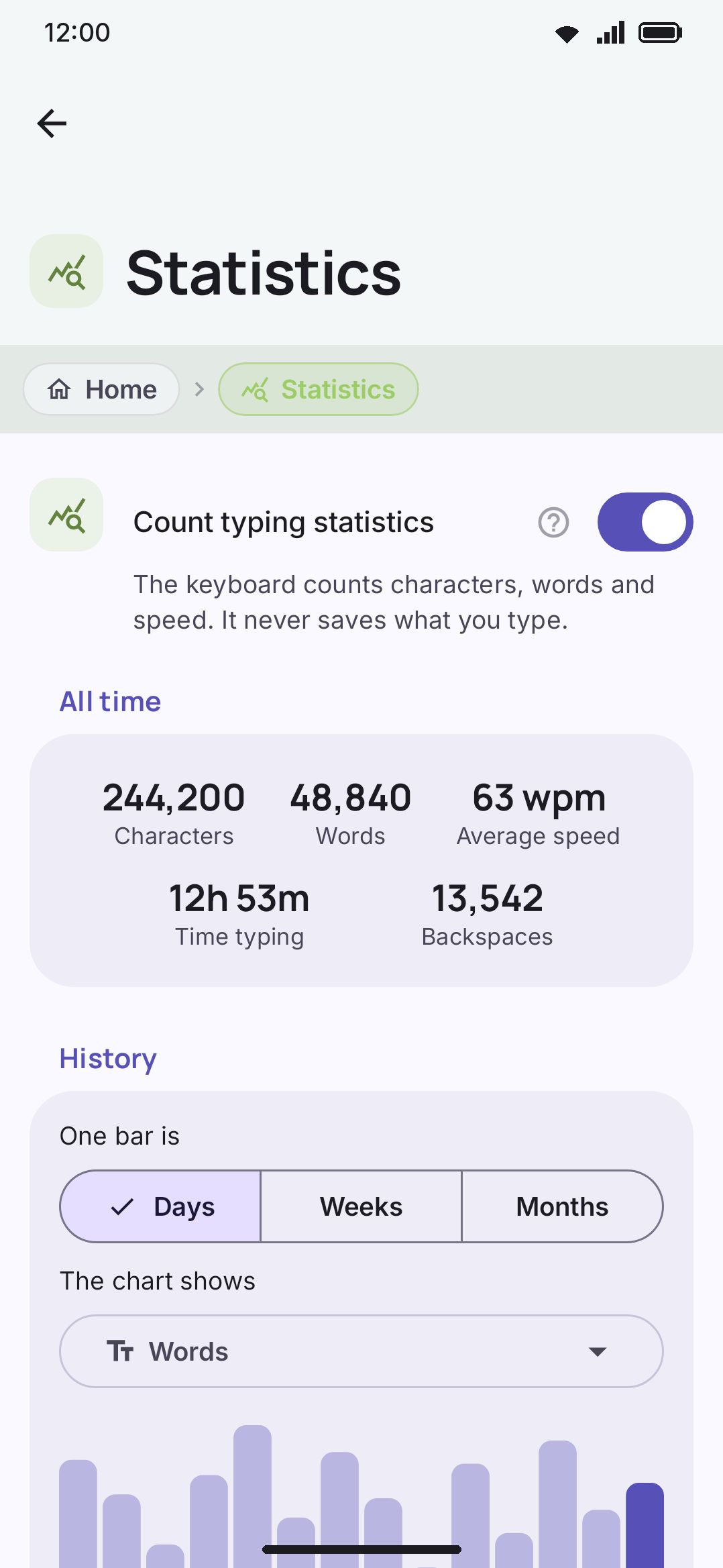
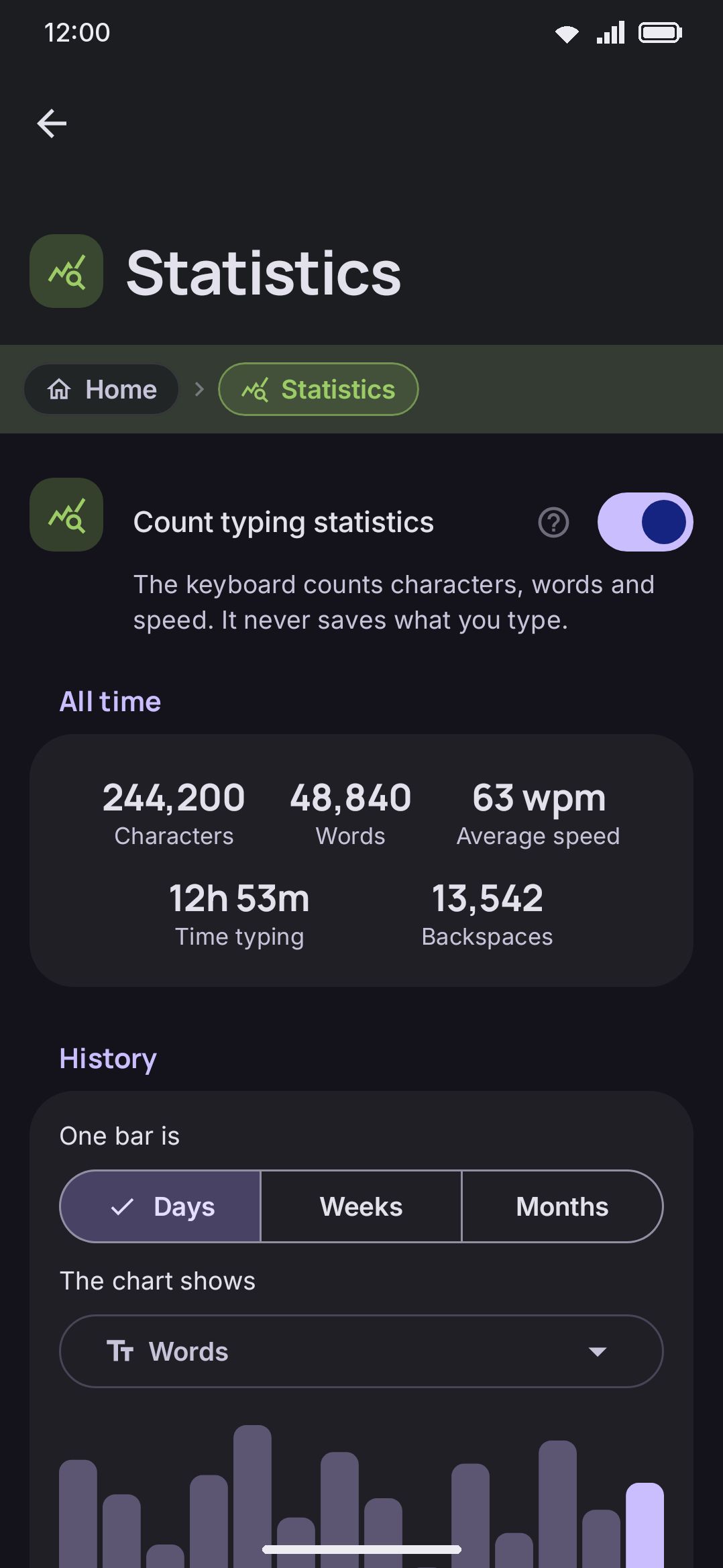
There are two other ways in. The Statistics tool opens this screen straight from the keyboard: add it to the toolbar or leave it in the toolbox like any other tool (see The toolbar). And WM Keyboard About Storage Typing statistics is the storage row that owns these files, where Open the settings for this at the bottom lands you on the same screen.
What counts as typing
Section titled “What counts as typing”A keystroke counts when its text reaches your text field. Soft keys, a physical keyboard, braille and morse all take the same path, so they all count. A word you pick off the suggestion strip or draw with a glide counts as a word, but it adds no characters and no time. Counting characters you didn’t type would make the speed figure a fiction.
Insertions aren’t typing, and they’re left out on purpose: voice input, handwriting, and anything a panel puts in the field, whether that’s emoji, a clipboard entry or a translation. Backspaces are counted separately and never subtract, because the statistic is work done rather than text that survived. A word-delete swipe counts as one backspace.
Time is measured in bursts. The gap between two keystrokes joins your typing time only when it’s 5 seconds or shorter. Anything longer is you thinking, switching apps, or putting the phone down, and it adds nothing. Speed is then the usual arithmetic: characters ÷ 5, over the minutes of typing time.
What lands on disk is only ever aggregate: one bucket per calendar day, the lifetime sums, the achievement counts, a lifetime hour-of-day histogram, and for each layout a count of taps per quarter-key cell. No text, no per-app split, no timestamp finer than the day, and nothing that says which key followed which. Day buckets are kept for 370 days, counted back from the newest day recorded. Pruning them costs you nothing at the top of the screen, because the all-time totals are stored separately.
Your level
Section titled “Your level”The screen opens on your level: its number, its name, and a bar to the next one, with your XP and the XP still needed written under it. The info button beside the heading repeats how XP is earned.
- 1 XP for every word you type, however it got into the field.
- 1 more XP for every word the keyboard predicted, finished from a few letters, or read from a glide.
- 100 XP for every achievement step you reach (see below).
Each level costs 500 XP more than the one before it. Level 2 starts at 500 XP, level 3 at 1,500, level 4 at 3,000, level 5 at 5,000, and so on without a top. The name changes in bands that widen as the levels spread out:
| From level | Name |
|---|---|
| 1 | Beginner |
| 3 | Novice |
| 5 | Apprentice |
| 8 | Regular |
| 12 | Skilled |
| 17 | Adept |
| 23 | Expert |
| 30 | Master |
| 40 | Grandmaster |
| 50 | Legend |
Nothing about the level is stored. It’s worked out from the counts every time the screen opens, so it can never disagree with them: deleting the statistics takes you back to level 1, and restoring a backup brings your level back with the counts.
Achievements
Section titled “Achievements”Under the level are six achievements, one row each. A row says what it counts, which step you’re on (“Step 2 of 9”), your count against the next target (“43/200”), and a ring that fills towards it. Once every step is done the row says so and the ring stays full, and the count keeps climbing.
| Achievement | What it counts | Steps |
|---|---|---|
| Words typed | Every word, however it got there | 500, 2,000, 10,000, 50,000, 100,000, 250,000, 500,000, 1,000,000 |
| Keystrokes saved | Taps that suggestions and glides did for you | 200, 1,000, 5,000, 20,000, 50,000, 100,000, 250,000, 500,000, 1,000,000 |
| Words predicted | Words picked from the suggestions before you typed a letter | 200, 1,000, 5,000, 20,000, 50,000, 100,000 |
| Words completed | Words finished from the suggestions after a few letters | 100, 500, 2,000, 10,000, 50,000, 100,000 |
| Glide typing | Words drawn with one stroke | 200, 1,000, 5,000, 20,000, 50,000, 100,000 |
| Glide distance | How far your finger has travelled gliding, in metres | 20, 100, 500, 1,000, 5,000, 10,000, 42,195 (a marathon) |
How the keyboard decides what each pick was:
- Predicted means you picked a suggestion with nothing of the word typed yet. Completed means you had typed some of it and the pick was longer. A pick no longer than what you typed, like a correction of “teh”, counts as a word and nothing more.
- A pick that replaces a word you just glided, or the word under the caret, is fixing a word rather than predicting one. It counts as a word only.
- A flick up off a key that shows a word counts the same way as a pick from the suggestions.
- Keystrokes saved for a pick are the word’s letters plus the space the keyboard adds after it, less the letters you had already typed and less one for the tap on the suggestion itself. A glided word saves all its letters but one, for the stroke.
- Glide distance is the length of the stroke on the glass, measured with your screen’s own pixel density, so a bigger phone doesn’t make the distance grow faster.
The rings are hidden from screen readers. The count beside each one already says the same thing in words.
Where you tap
Section titled “Where you tap”Where you tap is a heatmap of every key press on the letters layer, drawn over the letters of that layout. Warmer, brighter colour means more taps. Under it are the total number of taps on that layout and the five most tapped letters.
- Every key on the letters layer counts, space, backspace and shift included, because the map is about where your thumbs land rather than what they typed. The symbols layer and a secondary layout are left out, since they put other keys under the same spots, and so is anything you type while a panel is open.
- Each tap is counted in the part of the key it landed in, a quarter of a key each way. Positions are measured in keys across and rows down, so a tap in portrait and the same tap in landscape land in the same place.
- Each layout gets a map of its own. With more than one, chips above the map pick which one to show (up to the four you tap most). The keyboard keeps maps for up to eight layouts, and a ninth makes room by dropping the one you tap least.
- A tap more than three quarters of a key from every letter, like one on the space bar, is on the map but not in the “Most tapped” list.
The map itself is hidden from screen readers, and the “Most tapped” line is its version in words.
Reading the screen
Section titled “Reading the screen”After the level, the achievements and the heatmap, the screen shows its counts. All time is five tiles, three to a row: Characters, Words, Average speed, Time typing, and Backspaces. Average speed shows a dash until there’s at least 30 seconds of recorded typing time behind it. Below that, a words-per-minute number is noise rather than a measurement.
History is a chart with two rows of chips. The first picks the window: Days for the last 14, Weeks for the last 12, Months for the last 12. The second picks what’s plotted: Words, Characters or Speed. Words and Characters draw bars. Speed draws a line over a light grid. Quiet buckets still get a tick, so the axis reads as a run of days rather than a chart full of holes. Under the chart is one row per bucket that has something in it, newest first: the date, “N words · N characters”, and the bucket’s speed on the right whenever the bucket recorded any typing time at all. The 30-second floor applies to the all-time tile only, so a row can show a speed the tile still refuses to.
When you type is the 24-hour histogram, with your busiest hour named underneath in your own time format. It only appears once at least one hour has something in it.
Both charts are hidden from screen readers on purpose. Every number the history chart draws is restated in the bucket rows below it, so nothing there is available only as a picture. The hour histogram is the exception. Only its busiest hour is named in words, and the other 23 bars are shape alone.
When counting pauses
Section titled “When counting pauses”Three switches can stop the counting, and any one of them is enough:
| Setting | Where | Default |
|---|---|---|
| Count typing statistics | WM Keyboard About Statistics | On |
| Pause learning | WM Keyboard Tools Incognito | On |
| Typing statistics | WM Keyboard Tools Power saving | Off |
Pause learning is the incognito one, and it does what its name says for statistics too. With incognito on and that switch on, which is how it ships, nothing you type in an incognito session is counted. Turn the switch off and incognito stops mattering here.
Typing statistics under Power saving is off by default, so power saving doesn’t touch your counts unless you ask it to. When you do, it suppresses counting for as long as power saving is running. It never changes the setting on this screen, which is waiting for you when power saving stops.
A pause is a real pause, not a gap that gets filled in afterwards. When counting comes back on it forgets the previous keystroke’s timing, so the stretch you weren’t counted through can never land in your typing time. Not even when it was shorter than the five-second burst gap.
Deleting what’s been counted
Section titled “Deleting what’s been counted”Delete all statistics sits at the bottom, and it asks first: “This deletes every count and average. You cannot get them back.” It takes the achievement counts and the heatmaps with it, so your level goes back to 1. It’s greyed out while there’s nothing counted yet. Switching the counting off doesn’t hide what’s already there, so the tiles, the charts and a working delete button all stay put.
The same data can also go from WM Keyboard About Storage Typing statistics. It’s an ordinary section in Backup & restore too, listed there as Typing statistics, so you can include or leave out your counts when you export.
Options
Section titled “Options”| Setting | Control | Default |
|---|---|---|
| Count typing statistics | Toggle | On |
The row carries an info button repeating the privacy terms. The counts stay on your device, nothing you type is saved, nothing leaves the device, and counting pauses while incognito pauses learning. Turn it off and the screen keeps whatever it already has, with “Statistics are off. Turn them on to start counting.” underneath. It’s a normal settings row, so it has the restore control described in Putting one setting back.
Details & edge cases
Section titled “Details & edge cases”- Words are counted off the keystroke stream, not off the word the field ends up with. A letter or digit arms a word, and the next separator counts it. That works the same for scripts that compose as they go and for scripts that commit each letter. Finishing a half-typed word by tapping a suggestion counts it once, not twice.
- A word committed by a suggestion or a glide adds no characters and no time. Only the word tally and the achievement counts move, which keeps your average speed honest.
- The keyboard’s own boxes don’t count, heatmap included. Typing into the typing test or a panel’s search box adds no characters, no words and no taps, because none of it reaches your text field.
- The settings screen only ever reads the file. It never saves, so opening Statistics can’t race the keyboard into losing counts. Deleting works the other way round. The file is emptied, then a counter is bumped that tells the keyboard to drop its in-memory copy instead of writing the old numbers back over your deletion.
- A fresh install starts from zero. The counts live in the app’s own storage, so uninstalling takes them with it. A backup that includes the statistics section is the only thing that carries them to a new phone.
- Nothing here is edition-gated. Counting, the level, the achievements, the heatmap, the charts and the delete action work identically on full and lite builds.
See Privacy at a glance for what does and doesn’t leave the device. Incognito & secure fields covers exactly when the pause kicks in, and About & diagnostics covers the rest of the About tree.