
Stickers
Sticker search, custom packs, stickers offered as you type, and saving stickers straight from the keyboard.
The sticker tool searches KLIPY and GIPHY. Where the app on the other end supports them, results go out as real stickers, and you can build your own packs from photos already on your phone. It sits right next to GIFs in the toolbox and shares most of its settings.
Searching and sending
Section titled “Searching and sending”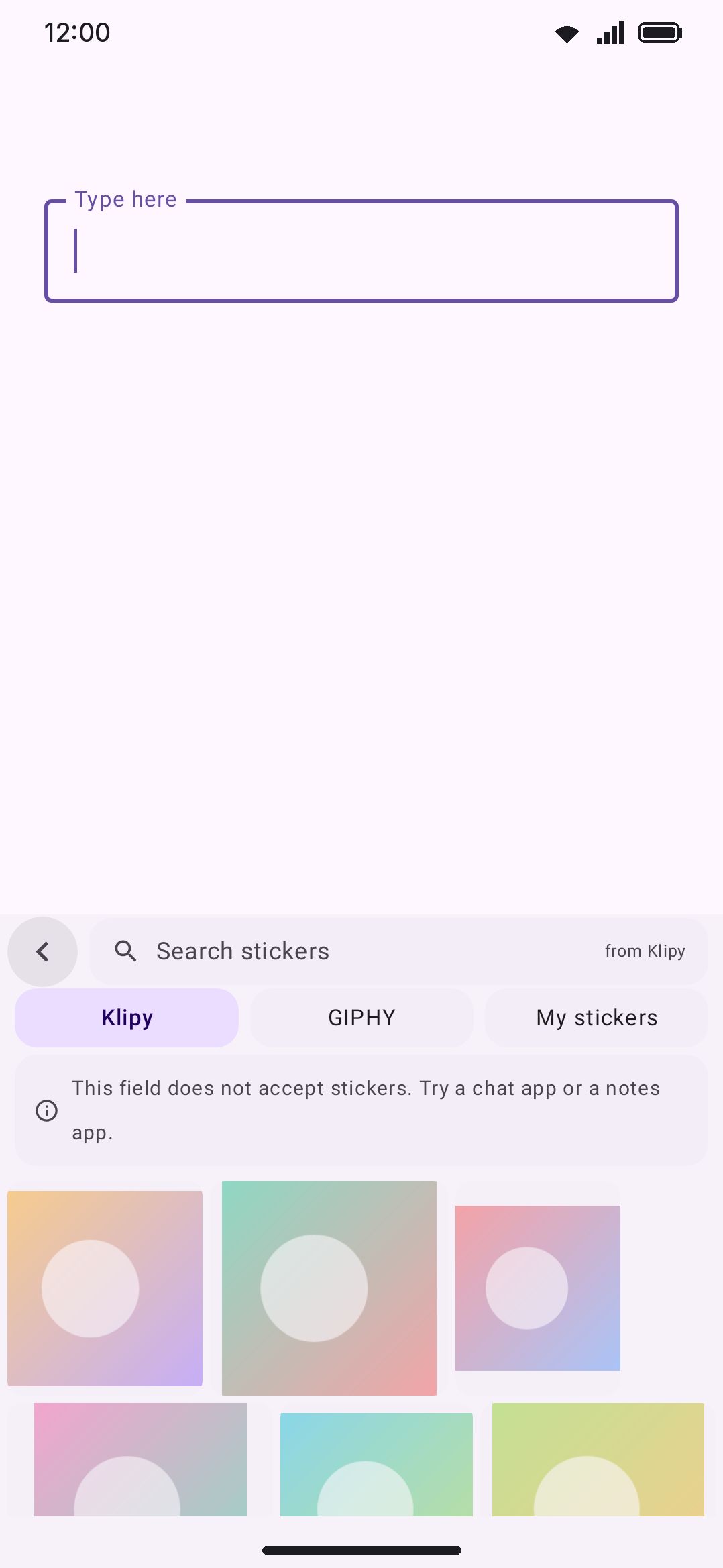
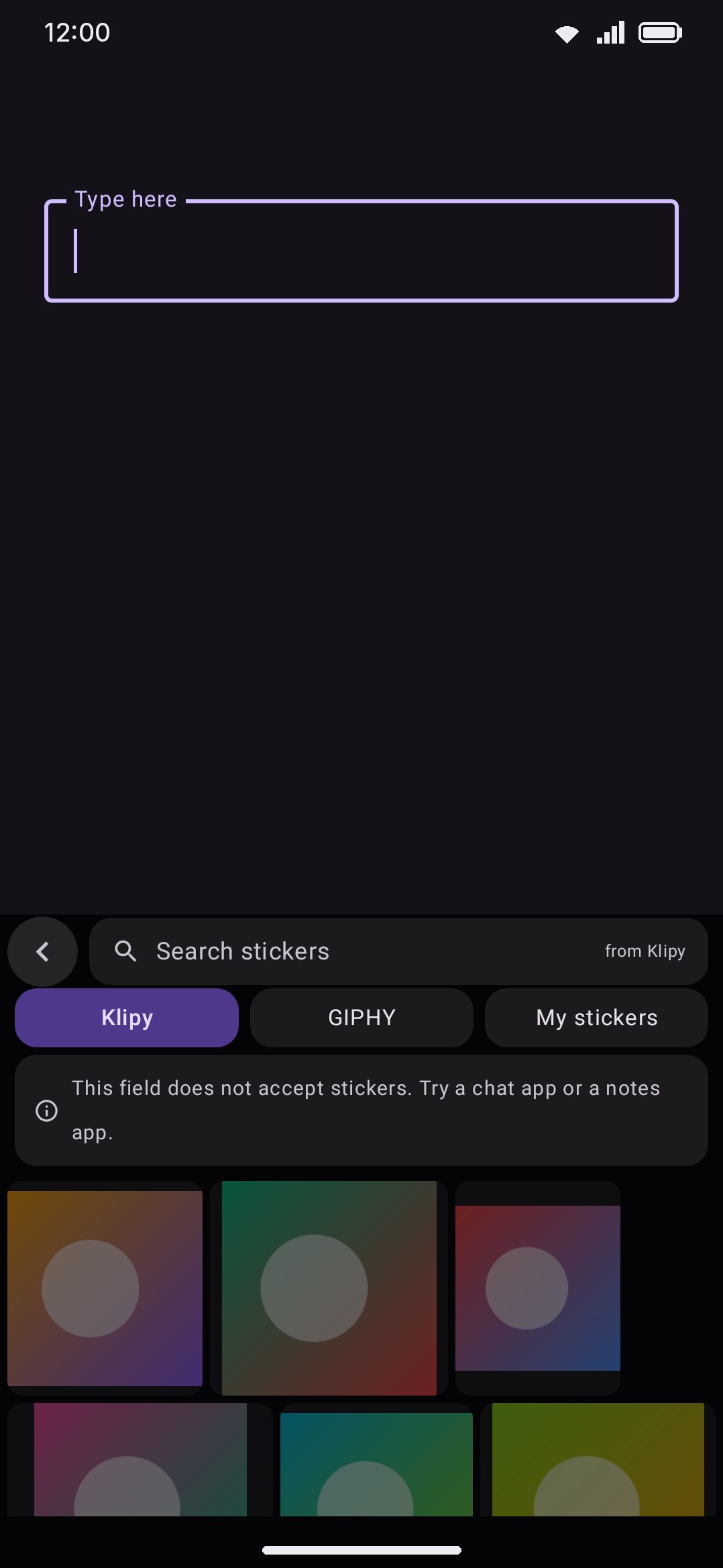
Open the tool from the toolbox, or from the toolbar once you’ve pinned it there. Type to search KLIPY and GIPHY, or switch to My stickers for packs you’ve built yourself. Tap a result to download and insert it. While it downloads, the tile dims and shows a spinner over the preview. Tap more while it does and they queue up behind it, numbered in the order they’ll be sent, then go out one by one. Tapping a numbered sticker again takes it out of the queue. This works for your own stickers too, and the queue is dropped if you move to another field before it finishes.
The emoji and GIF panels are one tap away. The bottom row under the results holds ABC, a switch to emoji, GIFs and stickers, space and backspace, the same row the emoji panel ends in. A swipe to the right across the results goes to the GIF panel. That setting can put the switch next to the search box instead, or turn it off; the ABC, space and backspace stay. Like the GIF panel, the sticker panel is a panel layout you can rearrange: its component is Sticker search and results. It opens as tall as the emoji panel’s Panel height setting makes it, and like the GIF panel it has a bar across its top that drags it taller or shorter. Hide the search when you scroll folds the search box and the chip rows away while you scroll down the results, as on the GIF panel.
With the search box empty, a scrollable row of category chips (Trending, Love, Happy, Sad, Cute…) sits above the grid. Tap one to run it as a search, and tap the active chip to go back to trending. It works the same as the GIF panel’s row, and like that one it steps aside as soon as you type. My stickers doesn’t get the row, because its pack chips already fill that job.
Android has no dedicated “this is a sticker” flag. The only signal a receiving app gets is the file’s MIME type, and WhatsApp in particular only recognizes its own private image/webp.wasticker type, not plain image/webp. So with Send stickers as set to Sticker, the keyboard offers that WhatsApp type first and falls back to a normal image if the field doesn’t advertise it. A source that isn’t WebP, an animated GIF result say, can never go out with the sticker MIME, because the keyboard sends a GIF as the GIF it is rather than re-encoding it. Those always send as a plain image whatever that setting says.
If the field can’t take images at all, the tool doesn’t download first and fail after. It vibrates once and shows a standing notice. Results stay visible underneath at 45% opacity, so you can still long-press one to save or copy it (see Long-pressing a sticker below).
An animated sticker is its own case. Accepting image/webp and playing an animated one are two different things, and nearly every chat app does only the first: Messenger and Telegram both take the file and show one frame of it. A field can’t be asked which kind it is, so the keyboard goes by the one type that is a promise. Where the field offers WhatsApp’s sticker type, an animated sticker goes out as the animated WebP it is, and WhatsApp plays it. Anywhere else that takes GIFs, it goes out as a GIF, because a GIF moves in all of them. The keyboard draws the animation frame by frame and writes a 512×512 GIF with a transparent background. A toast says so, since the first send of a sticker takes a moment. The GIF is kept in the cache, so sending the same sticker again is immediate. A GIF is a rougher picture (256 colours a frame, and edges that are either there or not), and in Telegram it arrives as a GIF and not as a sticker. That is the price of it moving. If the GIF can’t be made, the WebP is sent after all, still. If you’ve moved to another field by the time the conversion is done, the sticker is not dropped into a field you didn’t send it to.
If the field does take images but rejects a still sticker, the keyboard tries a format the field does take before it gives up: a still WebP goes as a PNG. Only when nothing gets through does the file land on the system clipboard with a toast telling you to paste it. That’s the same thing the clipboard tool’s own image and file commits do when a field refuses them.
Long-pressing a sticker
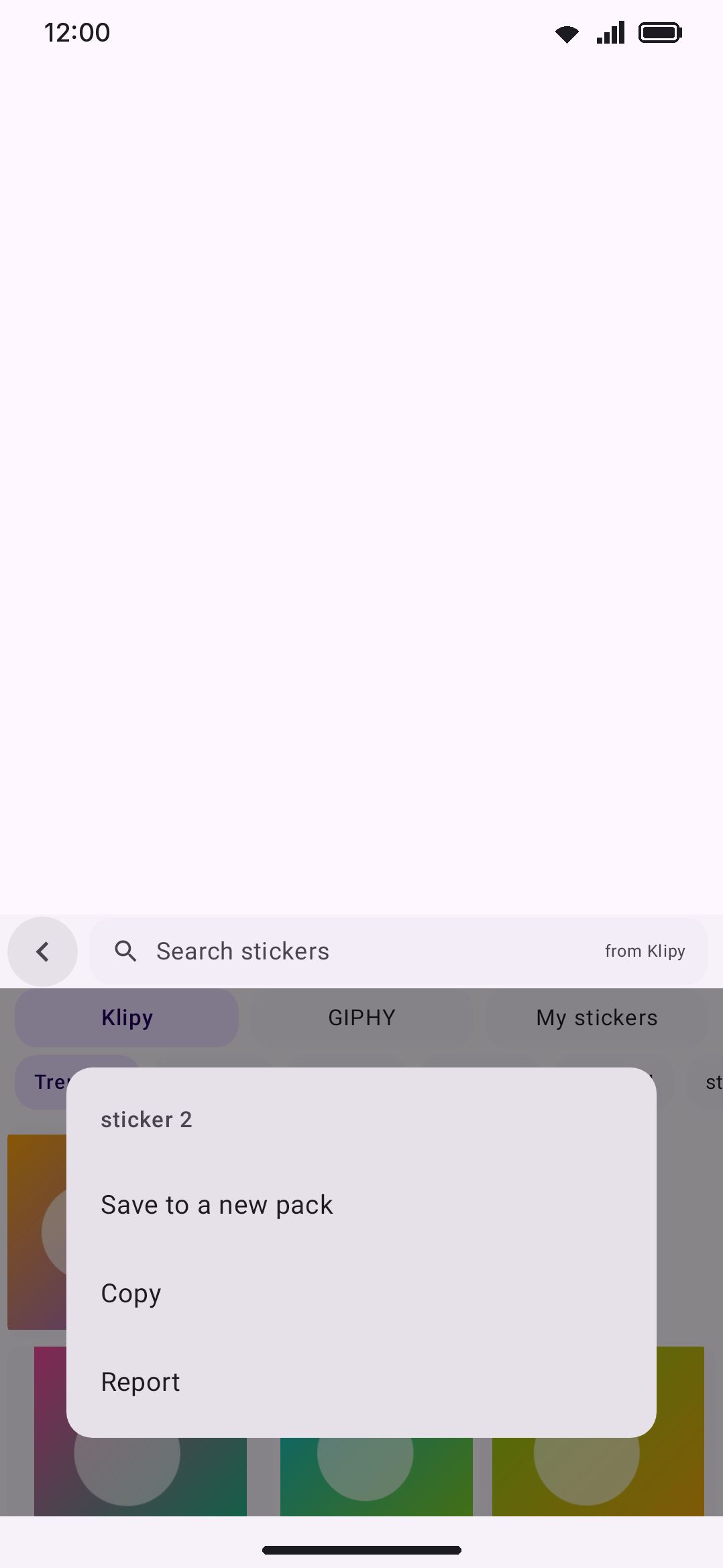
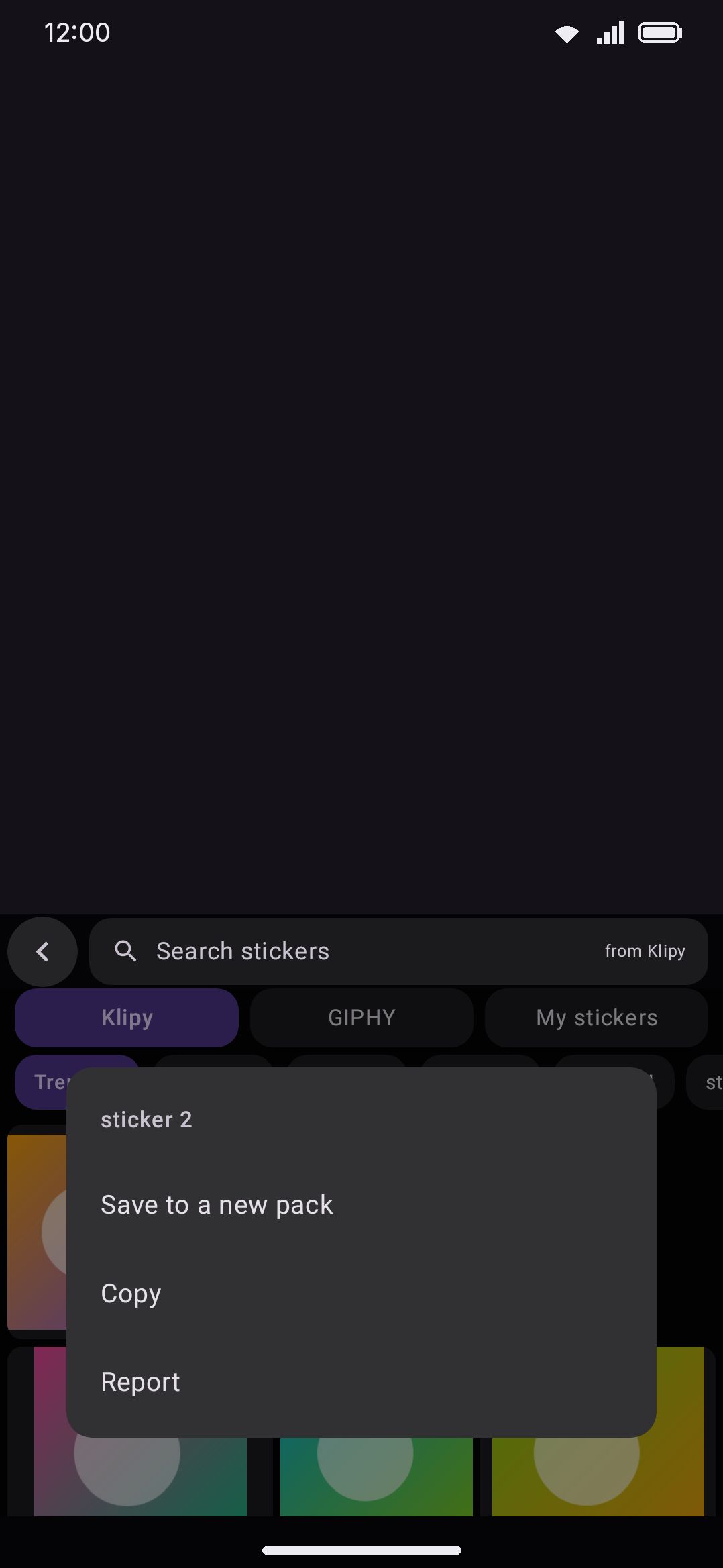
Section titled “Long-pressing a sticker”Long-pressing a KLIPY or GIPHY result opens a menu with three kinds of row. Above them, a GIPHY sticker whose uploader GIPHY names says who made it (“by @name”).
- Save to a pack, shown as “Save to a new pack” if you have none yet, or “Save to
<pack name>” for each pack you’ve made. The keyboard can’t pull a sticker back out of a chat someone sent you. To keep one of those, save it to your phone from the chat app, then add it with the + chip under My stickers. - Copy puts the sticker on the system clipboard instead of into the field, to paste wherever you like.
- Report opens a mail draft to the maintainer naming the provider, your search term, and the sticker’s id and URL, with room at the top to say what’s wrong with it. Nothing leaves the device on its own. The draft sits in your mail app for you to read, edit, or drop. KLIPY and GIPHY search their own catalogues, so results arrive unvetted, and this is where a bad one goes. GIFs have the same menu, minus the save rows.
Long-pressing a sticker from My stickers starts with what the sticker is and what finds it: its title (or “No title”), the pack it’s in, its keywords, and its emoji. Below that it shows “Manage packs” (which jumps straight to the pack management screen covered below) and Copy. There’s no save row, since you already have it, and no report row, since it’s your own file and there’s nobody to report it to.
My stickers and your own packs
Section titled “My stickers and your own packs”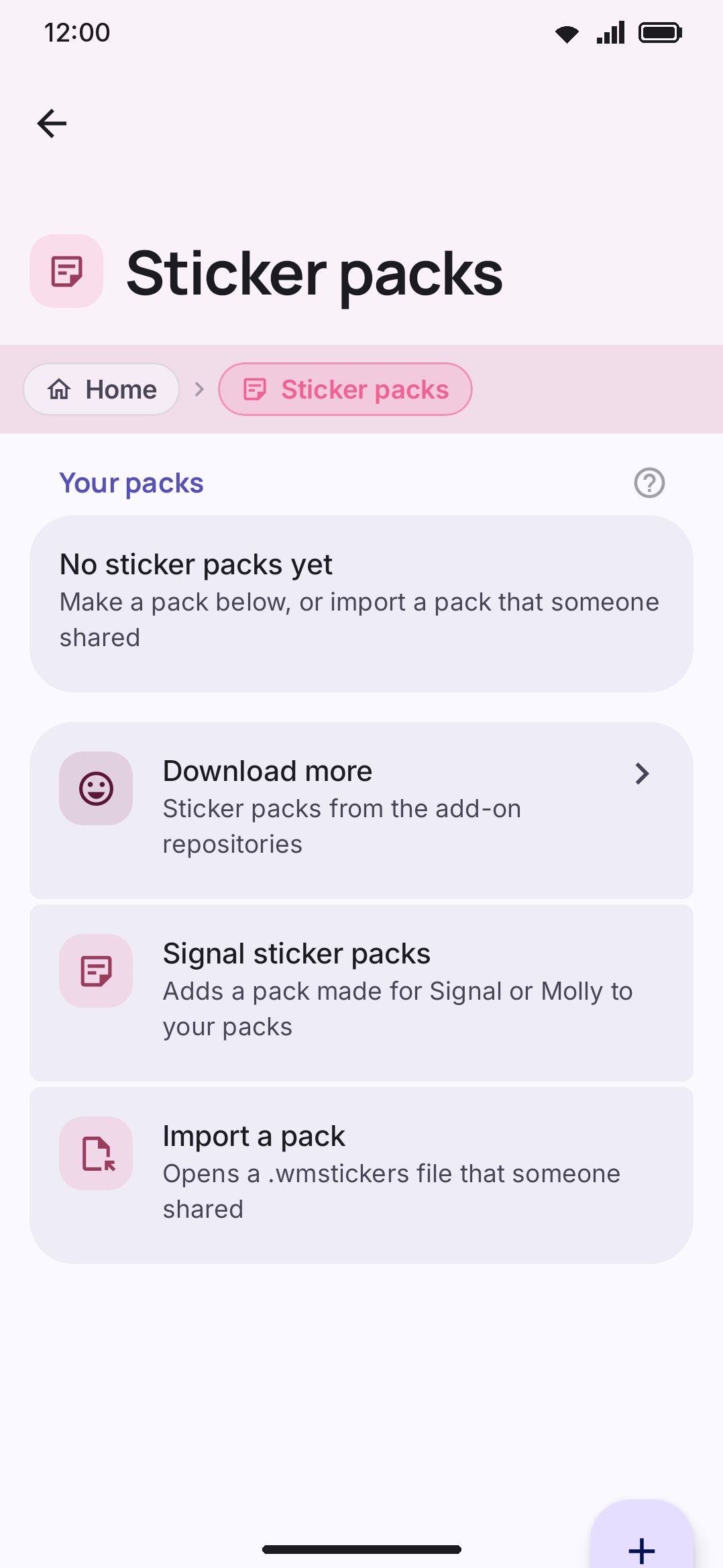
My stickers is always its own tab or chip. Your packs are never interleaved into the KLIPY or GIPHY grid, in either source layout mode. With more than one pack, a second row of filter chips (All, then one per pack name) appears above the grid, and search there matches a sticker’s title, its keywords and its pack name together.
The + chip at the end of the source chips’ row, beside My stickers, is the quick way to add a sticker. It opens the app on the pack with the photo picker already up, so adding one sticker is a tap and a pick. The pack is the one you filtered the grid to, or your only pack if you have one. Under All with several packs, it asks which pack first. It sits on the source chips’ row so that a single pack, with nothing to filter, costs no row of its own. When My stickers is your only source and there are no source chips, the + chip starts the pack filter row instead. With no packs yet, the empty grid’s Manage packs button is the way in instead.
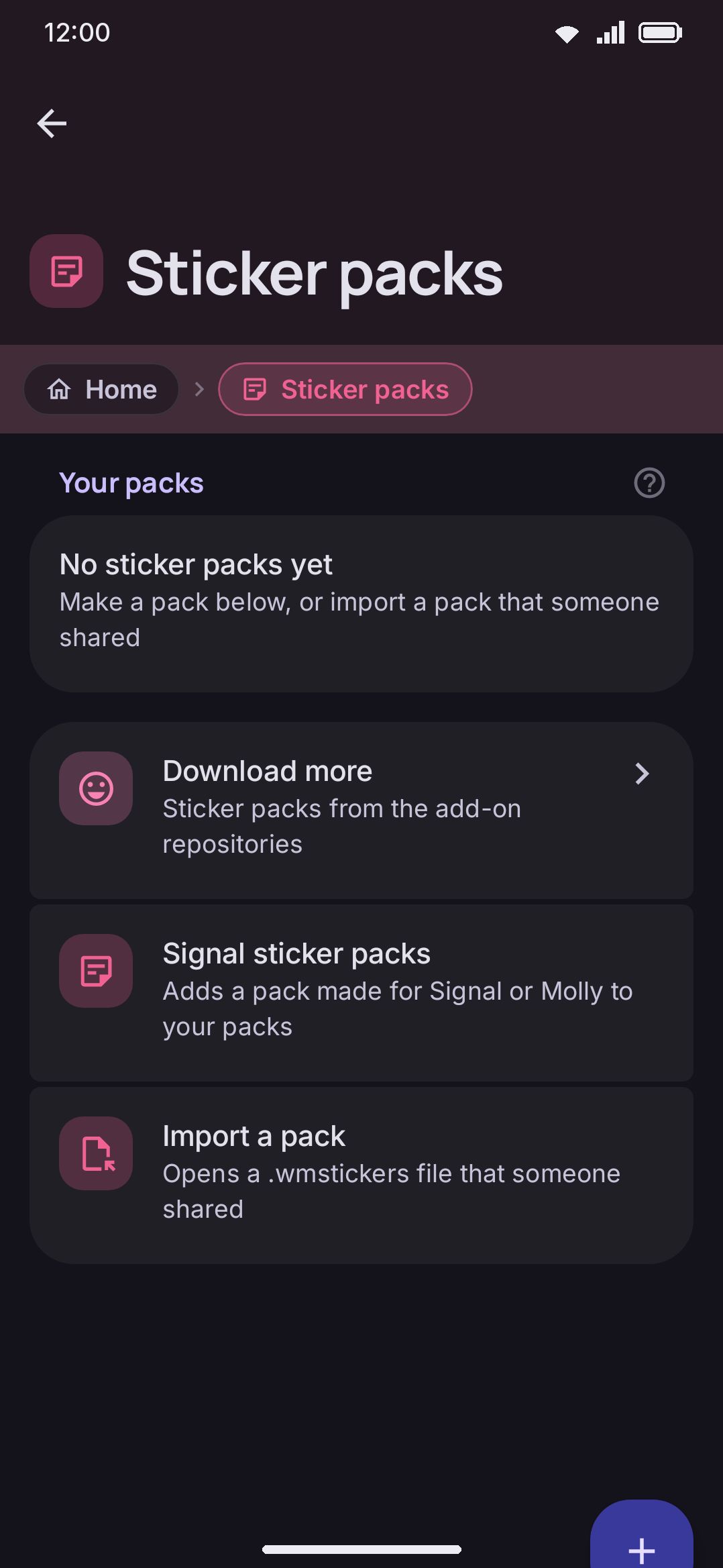
Building and managing packs happens in the app, not the keyboard, under WM Keyboard Tools Stickers Your stickers Sticker packs.
- New pack starts one empty. Import a pack reads a
.wmstickersfile, or a.wastickersfile made for WhatsApp. Signal sticker packs adds a pack made for Signal from its link, as described below. Telegram sticker sets does the same for a Telegram set, as described below. WhatsApp stickers brings in a WhatsApp pack file or the stickers WhatsApp has saved on the phone, as described below. - Inside a pack, Add stickers opens the photo picker for up to 30 images in one trip. Each one is processed automatically. A still image is resized to 512×512 and re-encoded as WebP, trying progressively lower quality (90 down to 50) until it lands under 100 KB, matching WhatsApp’s static sticker spec. An animated source, GIF or animated WebP, is stored byte-for-byte instead, since re-compressing one would only cost quality. Those are capped at 2 MB rather than the 100 KB still budget. An animated PNG (APNG) is the one animation that is converted: nothing on Android plays an APNG and no app takes one as a sticker, so its frames are read out and rebuilt as a 512×512 animated WebP, aiming for WhatsApp’s 500 KB animated budget. If the conversion fails, the first frame is kept as a still, and the result says how many stickers that happened to. Any single source file over 12 MB is refused before processing even starts.
- Pick exactly one still image and it opens in the sticker editor first, instead of being added as-is. Pick several and they’re all added the old way, because an editor thirty times over isn’t a flow anyone wants. Either way the photo behind each sticker is kept for later editing, as described below.
- Per sticker, you can set its title and its keywords, reorder it within the pack, move it to a different pack, or delete it. The title is the sticker’s name, and it’s what a screen reader reads out for it. Keywords are anything else you’d want to type to find it: words, short phrases or emoji. Put a comma between words and phrases (“cat, good night”). Emoji need nothing between them, so ”😂🐱” is two keywords. Both fields feed the search in My stickers, and both can offer the sticker while you type.
- Per pack, you can rename it, export it as a
.wmstickersfile to share or back up, or delete it. Deleting warns you to export first if you want to keep a copy. - A pack tops out at 200 stickers. You can have up to 50 packs in total.
The sticker editor
Section titled “The sticker editor”The editor opens two ways: picking a single still image from Add stickers, or tapping a sticker you already have and choosing Edit the image. Animated stickers don’t get it at all, since there’s no still to edit and the editor works on one picture, not on a run of frames.
Everything happens on the 512×512 sticker canvas, and there are four tabs:
- Crop: drag to move the picture, pinch to zoom. The part inside the square is what’s kept. Anything that isn’t square gets transparent bars rather than being stretched.
- Erase and Restore: a round brush with a size slider. Erase clears pixels to transparent, and Restore paints them back. A ring the size of the brush appears in the middle of the canvas when you switch to either tab or move the slider, then fades once you stop, so you can see what you’re about to paint with before you paint with it. Undo goes back one stroke at a time, twelve deep.
- Border: the white or black outline that hugs the cut-out shape, WhatsApp-style, with a width slider from 0 (off) up to 24px. It traces whatever is left after erasing, so it’s most useful once the background is gone. The border is a setting rather than a stroke. Sliding it back to 0 is its own undo, which is why the Undo button doesn’t touch it.
Remove the background does the cutout in one tap. It’s in the full build only, and even there the model isn’t in the APK, so the first tap offers a download with a progress bar and then runs. On a phone with Google Play services the model is Google’s and comes from Play services on demand. On a phone without them, or with a stand-in such as microG that doesn’t carry that module, the app downloads its own instead: U²-Net-P, an open (Apache-2.0) 5 MB network, fetched from the project’s data repository, checked against a fixed SHA-256 before it’s used, and run entirely on the phone. On the Play Store build the interpreter that runs it is itself an extra part that Google Play delivers first (about 2 MB, shared with offline voice typing), and the one progress bar covers both. Google’s is the better of the two, which is why it goes first where it’s available. The downloaded model shows up as Background remover under Stickers on the storage screen, and deleting it there only means the next cutout downloads it again. If no model can be fetched, the brushes still work and the screen says so. If it finds nothing recognizable as a subject, or would keep the entire image, it says that too and leaves your picture alone rather than erasing everything. In the lite build the button isn’t there at all.
Within one editing session an edit is destructive. Cropping again after you’ve erased something warns you first, because a new crop throws the erasing away. Nothing is written until you press Save.
Between sessions it isn’t. When you add a sticker from a photo, the keyboard keeps that photo (resized to 1536px on its long edge, as WebP) alongside your packs, together with the edit you made: where you cropped, what you erased, the border, and even the brush size you were using. Edit the image reopens the photo with all of that still on it, so a second pass picks up where you left off instead of starting over. Change the border, widen the crop, erase a bit more, then save again.
A resumed edit opens on the Erase tab rather than Crop, since the crop is already made and a stray pan there is the one gesture that would throw the erasing away. Undo starts empty each time you open the editor, because it only covers the strokes of this session. “Crop again” is what clears an old cut-out, and it asks first.
Stickers that arrived some other way (saved from KLIPY or GIPHY, imported in a pack) have no separate photo behind them, so they reopen as themselves. The first time you edit one, the version you’re replacing is kept as its original, and from then on it resumes like any other.
None of this leaves the phone. Exporting a .wmstickers pack writes the manifest and the finished stickers only, the settings backup’s sticker section walks the same list, and Android’s own cloud backup and device transfer skip the folder entirely. It does take up space, so WM Keyboard About Storage Sticker packs lists it as its own row (“Images you made stickers from”). Delete only that row to get the space back while keeping every sticker. Deleting it costs the resumable edits too, and those stickers go back to reopening as themselves.
Stickers as you type
Section titled “Stickers as you type”You don’t have to open the sticker tool to send one of your own stickers. Type its title in a chat, or one of its keywords, or one of its emoji, and the keyboard shows it. Tap it and it’s sent. This is only for stickers in your own packs, and it all happens on the phone. Nothing is searched online.
- The title counts only when you’ve typed all of it. A sticker called “grumpy cat” shows up after “grumpy cat”, not after “grumpy”. If you want a shorter way in, add “grumpy” or “grr” as a keyword. A keyword can be as short as you like.
- Words have to be whole words. A sticker with the keyword “cat” shows up for “my cat” but not for “concat” or “cats”. Capitals don’t matter.
- Emoji work anywhere. A 😂 keyword fires right after “lol😂”, with no space needed. Skin tones don’t matter either way, so a 👍 sticker shows up for 👍🏽 too.
- The longest match comes first. With one sticker called “happy birthday” and another with the keyword “birthday”, typing “happy birthday” shows both, the first one first. Within one match, stickers whose title it is come before stickers that only have it as a keyword. Up to 24 show at once.
- Only in fields that can take a picture. If a chat app’s message box doesn’t accept images, nothing shows, because a sticker couldn’t be sent there anyway. Password fields never get it.
- It works from the emoji panel too. Pick an emoji in the panel that one of your stickers has as a keyword or title, and that sticker shows in a row above the panel. In the panel only emoji count. Words you typed before you opened it don’t.
Where they show has three choices:
- Tray (the default) is a row of large stickers at the top of the keyboard, above every other row. It slides in when something matches and slides away when nothing does, and the word suggestions stay where they are. The ✕ at the end hides it. To put it somewhere else, drag Sticker suggestions in WM Keyboard Rows & bars Row order. It can go anywhere, below the keys included.
- On the strip puts three small stickers on the suggestion strip, next to the word suggestions. If there are more, a +N button opens the tray with all of them.
- One chip is a small chip on the strip that says how many stickers match. Tap it to open the tray.
In the two strip styles, a long press on the stickers or the chip hides them.
Hold a sticker in the tray to see it bigger. It shows large above the keyboard, with its title under it. Keep your finger down and slide along the tray, and each sticker you pass shows large in turn. Lift your finger and it closes. Nothing is sent, so tap the sticker when you’ve found the one you want. A slide that starts before the hold scrolls the tray as usual. Turn this off with Hold to see them bigger, and a hold does nothing.
After you send one decides what happens to the text that asked for the sticker. Remove the typed text (the default) takes the title, keyword or emoji back out of the message box, so “see you 👋” becomes “see you ” once the 👋 sticker has gone out. Keep the typed text leaves it where it is. Either way, once you’ve sent a sticker or hidden the tray, the same text doesn’t bring it back. Type something else and it’s live again.
The sticker goes out the same way it would from the sticker panel, with Send stickers as deciding between a sticker and a plain image.
Importing a .wmstickers file
Section titled “Importing a .wmstickers file”A .wmstickers file is a ZIP with a pack.json manifest and one image per sticker. Import forgives hand-written or slightly malformed manifests, repairing what it can rather than rejecting the whole file, and it reports what happened:
- Imported successfully, with a note of anything it had to fix along the way.
- “The app cannot read any sticker in that pack.” if the manifest named stickers but none of them survived. Import reports that rather than quietly creating an empty pack.
- “That file is not a WM Keyboard sticker pack.” if the format tag doesn’t match.
- “You already have 50 sticker packs. Delete one first.” if you’re at the pack limit.
An import is also capped against oversized or booby-trapped files: at most 500 entries and 64 MB total per archive.
Signal sticker packs
Section titled “Signal sticker packs”Packs made for Signal (and for Molly, which is Signal under another name) can become packs of your own. Signal has no sticker shop. A pack is public to whoever holds its link, and the link is all there is: https://signal.art/addstickers/#pack_id=...&pack_key=.... The second half of that link is the key the stickers are encrypted with, so the link is both the address and the way in.
Open WM Keyboard Tools Stickers Your stickers Sticker packs Signal sticker packs. There are two ways in from there:
- Add a pack from a link takes a pasted link. The
sgnl://addstickers?...form that Signal itself opens works too. You can also share a pack link to WM Keyboard from a browser or a chat, or paste it into Import from a link on the Add-ons screen. All of them end up in the same place. The field never fills itself from the clipboard. - Find packs on signalstickers.org opens the community’s gallery in your browser. That is where the thousands of packs people have made are listed, with its own search and its Latest, Trending and Most viewed orders. Press Add to Signal on a pack there and Android asks which app should open it. Pick Add stickers to WM Keyboard. If Signal and Molly aren’t installed, it opens WM Keyboard straight away. The gallery is run by volunteers, not by Signal and not by this project, and the keyboard never reads it: you browse it like any other website.
The keyboard offers no list of packs of its own, not even the ones Signal ships with. A sticker stays the work of whoever drew it, and the packs built into Signal are art Signal commissioned and keeps the rights to. So a pack only gets here because you brought its link, the same as any picture you add to a pack yourself. Add packs you may use.
What opens next is a preview and not an import: the pack’s name, who made it, how many stickers it holds, and the stickers themselves. Nothing is kept until you press Add this pack. After that the pack sits in Your packs like any other. You can rename it, edit its stickers, export it as a .wmstickers file, and send from it in every app, not only in Signal. Each sticker keeps the emoji its maker gave it as a keyword, so typing 😂 in My stickers finds the ones tagged with it, and typing 😂 in a chat offers them. Open the same link again and the preview offers to open your copy instead of adding a second one.
The stickers come from Signal’s sticker storage, the same place a Signal client gets them from when you tap a pack link there. No Signal account is involved and nothing about you is sent, only the pack’s id. Every file is checked against the key from the link before it is opened, so a file that was changed on the way is refused. A link whose key doesn’t fit says so, and so does a pack that Signal no longer has. While Data saver is on, the preview asks before its first request. That one answer covers the pictures and the import.
Stickers are made to fit the same way as any other you add: a still that is already a 512×512 WebP under 100 KB is kept as it is, and anything else is resized and re-encoded.
Animated Signal stickers are APNG files, which Android can’t play and which no other app accepts as a sticker. Each one is converted to an animated WebP as it is added, frame for frame and with the same timing, so it moves in My stickers and goes out to WhatsApp as a real animated sticker. Other apps get it as a GIF, as described under Searching and sending. In the preview, before you add the pack, animated stickers already play, so you can tell what kind of pack it is. Every frame is encoded again, so this is the slow half of adding an animated pack, and it is what the “Adding N of M” half of the progress row is counting. On Android 8.1 and older the grid shows an animated WebP as a still, but it is still sent animated.
Telegram sticker sets
Section titled “Telegram sticker sets”Sticker sets made for Telegram, and its sets of custom emoji, can become packs of your own too. A set is shared as a link, https://t.me/addstickers/<name> (or https://t.me/addemoji/<name> for emoji), and the name at the end is all there is to it.
Unlike Signal, Telegram has no open storage that a set can be read from. The one way in that needs no Telegram account is a bot: a free Telegram account meant for programs, which the Bot API lets ask for any public set. So you make a bot once, and the keyboard asks Telegram for sets through it. The keyboard never signs in to your own Telegram account and does nothing else with the bot.
Open WM Keyboard Tools Stickers Your stickers Sticker packs Telegram sticker sets.
- Press Make a bot with @BotFather. It opens Telegram’s bot that makes bots. Send it
/newbot, then a display name, then a username that ends inbot. - @BotFather answers with a token, which looks like
123456789:AAE.... Copy all of it into Bot token. The field says so if what you pasted can’t be a token. - Add a set from a link now takes a pasted link, or only the set’s name. In Telegram, open a set, press the menu, and press Copy link to get one. The
tg://addstickers?set=...form Telegram opens works too, and Android offers WM Keyboard as Add stickers to WM Keyboard when you press Open in Telegram on at.me/addstickerspage in a browser. You can also share a set link to WM Keyboard, or paste it into Import from a link on the Add-ons screen. The field never fills itself from the clipboard.
The token is yours and stays on this device. It is left out of backups unless you turn on Include API keys, the same as the other keys. There is no built-in token: one token shared by every copy of the app would be one that Telegram could block for everybody at once. If you revoke the token in @BotFather, the screen tells you that Telegram no longer takes it.
As with Signal, what opens is a preview: the set’s title, how many stickers it holds, and the stickers, with the animated ones already playing. Video stickers show the still Telegram made of them. Nothing is kept until you press Add this set. Each sticker keeps its emoji as a keyword, so it is offered while you type like any other. Opening the same set again offers your copy instead of a second one. The keyboard offers no list of sets of its own. Sets are other people’s work, so add the ones you may use.
Telegram has three kinds of sticker, and each becomes one you can send in every app:
- Still stickers are WebP pictures, kept as they are when they are already 512×512 and small enough, and resized like any other picture when they are not.
- Animated stickers are
.tgsfiles: animations drawn from shapes, made in After Effects and saved for the Lottie player. No other app accepts one. Each is drawn frame by frame, at up to 30 frames a second, and saved as an animated WebP. - Video stickers are short
.webmvideos with a see-through background. Android’s video decoder throws the transparency away, which would put every one of them on a black square, so the keyboard reads the transparency out of the file on its own and puts it back on each frame. They become animated WebP as well.
Turning animated and video stickers into WebP is the slow part of adding a set, and the “Adding N of M” half of the progress row counts it. A sticker that cannot be converted is kept as its first frame, and the result says how many that happened to. Like animated Signal stickers, the result goes to WhatsApp as a real animated sticker and to other apps as a GIF.
The requests go to Telegram’s Bot API, api.telegram.org, and carry your bot token and the name of the set. While Data saver is on, the preview asks before its first request.
WhatsApp stickers
Section titled “WhatsApp stickers”WhatsApp doesn’t share its sticker packs with other apps. A pack gets into WhatsApp through another app’s content provider, and only WhatsApp is allowed to read that provider; the packs WhatsApp itself ships, and the ones you’ve marked as favourites, live in its private database. No app can read either without root, and this keyboard doesn’t try. Two things on the phone are open, and WM Keyboard Tools Stickers Your stickers Sticker packs WhatsApp stickers reads both. Nothing leaves the phone, and WhatsApp doesn’t learn about any of it.
- Open a .wastickers file. This is the pack file the sticker-maker apps export: Sticker Maker, Personal Stickers for WhatsApp, and the desktop tools that imitate them all write it. It’s a plain ZIP with a
title.txt, anauthor.txt, the tray icon as a small PNG, and one WebP (or PNG) per sticker. Export or share a pack from the app you made it in, then open the file here, tap it in a file manager, or share it to WM Keyboard from the share sheet. The confirm dialog shows the title, who made it, how many stickers it holds, and the first few pictures. The title becomes the pack’s name. The author is shown once and not kept, because a pack here has no author field. The tray icon is left out, found by its name (tray.png,cover.png,icon.png) or, when it’s named something else, by being the one PNG among WebPs. A pack made entirely of PNGs keeps every picture, so a tray named by a timestamp in one of those arrives as a small extra sticker rather than a real sticker being dropped. Import a pack on the Sticker packs screen takes the same file, so you don’t have to know which of the two formats you were handed. - Add the stickers that WhatsApp saved. WhatsApp keeps a copy of every sticker you’ve sent or received under
Android/media/com.whatsapp/WhatsApp/Media/WhatsApp Stickers(WhatsApp Business usescom.whatsapp.w4binstead). That folder carries a.nomediamarker, so the photo picker that Add stickers uses never shows these files. The system’s folder picker does, and this row opens it there. Confirm the folder and every WebP in it becomes one pack called “WhatsApp stickers”, newest first. A pack holds 200, so a fuller folder gets its newest 200 and the result says how many were left out. Stickers that were made for WhatsApp are already 512×512 WebP files, so they’re kept byte for byte, animated ones included. The keyboard reads the folder once and keeps no access to it afterwards. - Pick stickers for one of your packs opens the system’s file picker in the same folder with multi-select on, and adds the ones you choose to a pack you already have, or to a new one it asks you to name. The precise route when the folder holds far more than you want.
Neither the file nor the folder carries emoji or keywords, so stickers arrive with none. Give them some from the pack’s own screen if you want them offered while you type. Since WhatsApp packs are other people’s work as much as Signal packs are, add the ones you may use.
Options
Section titled “Options”Stickers isn’t pinned to the toolbar by default. It lives in the toolbox alongside GIFs until you pin it. Reach the settings below from Tools in the app.
- Sticker packs jumps to the pack management screen above. Only shown under Stickers, not under GIFs.
- Full-screen picker, under WM Keyboard Tools Stickers Layout, default on. The toolbar, emoji row, and symbol row step aside and the search box moves into the row they leave behind, so the grid gets the full keyboard height. Shared with the GIF tool.
- Stickers per row, under WM Keyboard Tools Stickers Layout, 1 to 6, default 3. The most stickers side by side. Fewer makes each one bigger. The GIF tool has its own GIFs per row.
- Gap between cells, under WM Keyboard Tools Stickers Layout, 0 to 12 dp, default 4 dp. The space around each sticker. Shared with the GIF tool.
- Panel height, under WM Keyboard Tools Stickers Layout, default Same as keyboard. The emoji panel’s setting, here too because the bar on top of the panel drags it.
- Hide the search when you scroll, under WM Keyboard Tools Stickers Layout, default off. Scrolling down the results folds the search box and the chips away, and scrolling up brings them back. Shared with the GIF tool.
- Panel layout, under WM Keyboard Tools Stickers Layout. Opens the sticker panel’s layout editor. Standard ends the way the emoji panel ends.
- KLIPY API key and GIPHY API key, under WM Keyboard Tools Stickers Sources and API keys, both blank by default and shared with the GIF tool. Either one alone is enough. Every source you’ve configured a key for shows up as a chip in the panel. KLIPY replaced Tenor after Tenor’s API was retired.
- Offer your stickers as you type, under WM Keyboard Tools Stickers Suggest while typing, default on. Only shown under Stickers. See Stickers as you type. While it’s on, two more rows sit under it:
- Where they show: Tray, On the strip or One chip, default Tray.
- After you send one: Remove the typed text or Keep the typed text, default Remove the typed text.
- Hold to see them bigger, default on: hold a sticker in the tray to see it large, and slide to see the others.
- Send stickers as, under WM Keyboard Tools Stickers Sending, Sticker or Image, default Sticker. Only shown under Stickers, since it governs what the sticker panel commits. The GIF panel has its own Send GIFs as on its own page.
- Multiple sources, Tabs or Mixed, default Tabs. Tabs gives every configured source its own chip, including My stickers. Mixed collapses the online sources into one “Online” chip and keeps My stickers as a chip of its own. GIPHY always keeps its own chip too, since its terms forbid mixing its results with another service’s.
- Content filter, Off/Low/Medium/High, default Medium. Maps to KLIPY’s and GIPHY’s own content rating.
- Results for each search, under WM Keyboard Tools Stickers Results: a slider from 6 to 48, default 24. It sets how many stickers one search or the trending view loads. Your own packs ignore it, so My stickers always shows everything that matches, however long the list. Shared with the GIF tool.
Both tools are among the ones the setup wizard suggests enabling, and neither needs a particular edition. What an API key gates is the online half. The GIF panel has nothing to show without one, while My stickers needs no key at all, so the sticker tool never lands on a “needs an API key” notice the way the GIF tool can.
Details and edge cases
Section titled “Details and edge cases”- The WhatsApp sticker MIME is an unofficial, undocumented contract.
image/webp.wastickerappears in no public spec. It’s a private convention both WhatsApp and Gboard happen to implement, and it can change without notice, which is why there’s a fallback chain rather than a single hardcoded rule. - A field that only takes images, not stickers, still gets a normal image. The sticker-versus-image choice is best-effort on top of whatever the field actually advertises. Nothing is dropped over a MIME mismatch alone. The clipboard fallback only kicks in when every image MIME candidate is rejected.
- Save and report don’t apply to your own stickers. Long-pressing something from My stickers offers pack management and Copy only. There’s nothing to save (you already have it) and nothing to report (nobody served it to you).
- A source already at spec is left alone. If a picked image is already a 512×512 WebP under 100 KB, it’s stored as-is rather than re-encoded.
- One process, one store, but two independent views of it. The keyboard and the settings app run in the same app process and share the same on-disk pack store, so every mutator saves immediately rather than batching. Each side still caches its own snapshot of the packs. The keyboard checks a cheap size-and-timestamp signal against the manifest and only reloads when that changed, rather than re-parsing it on every keystroke.
- Multiple sources and Content filter don’t get a restore button. Every other row on this screen grows a small restore button once you move it off its shipped value. Those two are drawn as a bare segmented row under a heading rather than as full setting rows, so there’s nowhere to hang one. Undo them by picking Tabs and the middle filter level back yourself. The KLIPY and GIPHY key fields have no button either, though clearing the box does the same job there.
- Packs need the device unlocked. Sticker packs live in app-private storage that isn’t available before you unlock the device after a restart, so the sticker tool isn’t usable from a locked-screen field the way some other tools are.
See also GIFs for the tool this one shares its settings and layout with, and Emoji picker & search for the other route into expressive content on this keyboard.