AI tools
A local LLM running on your device, or bring your own API key: your choice.
The AI tool runs a fixed set of one-tap writing actions against whatever text is in the field you’re typing in: rewrite, summarize, translate, and more. Where they run is up to you. Pick a cloud provider with your own API key, a self-hosted Ollama or LM Studio server on your network, or a model that downloads once and answers entirely on the device.
Using it
Section titled “Using it”Open AI from the toolbar or the toolbox. It isn’t pinned by default, so the first time you’ll probably reach it through the toolbox. Typing its ai keyword on the suggestion strip works too. On a hardware keyboard, use the leader key: double-tap Ctrl, then press A.
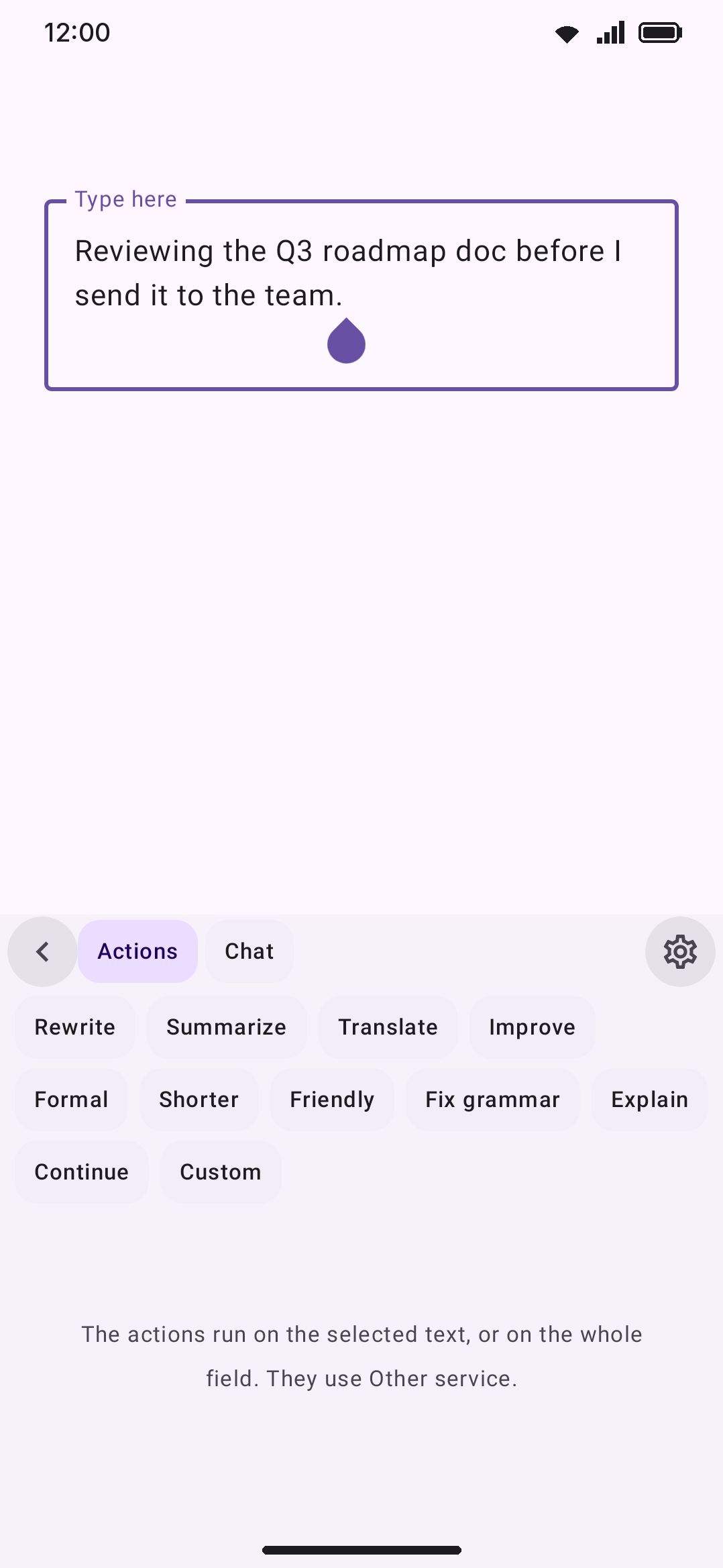
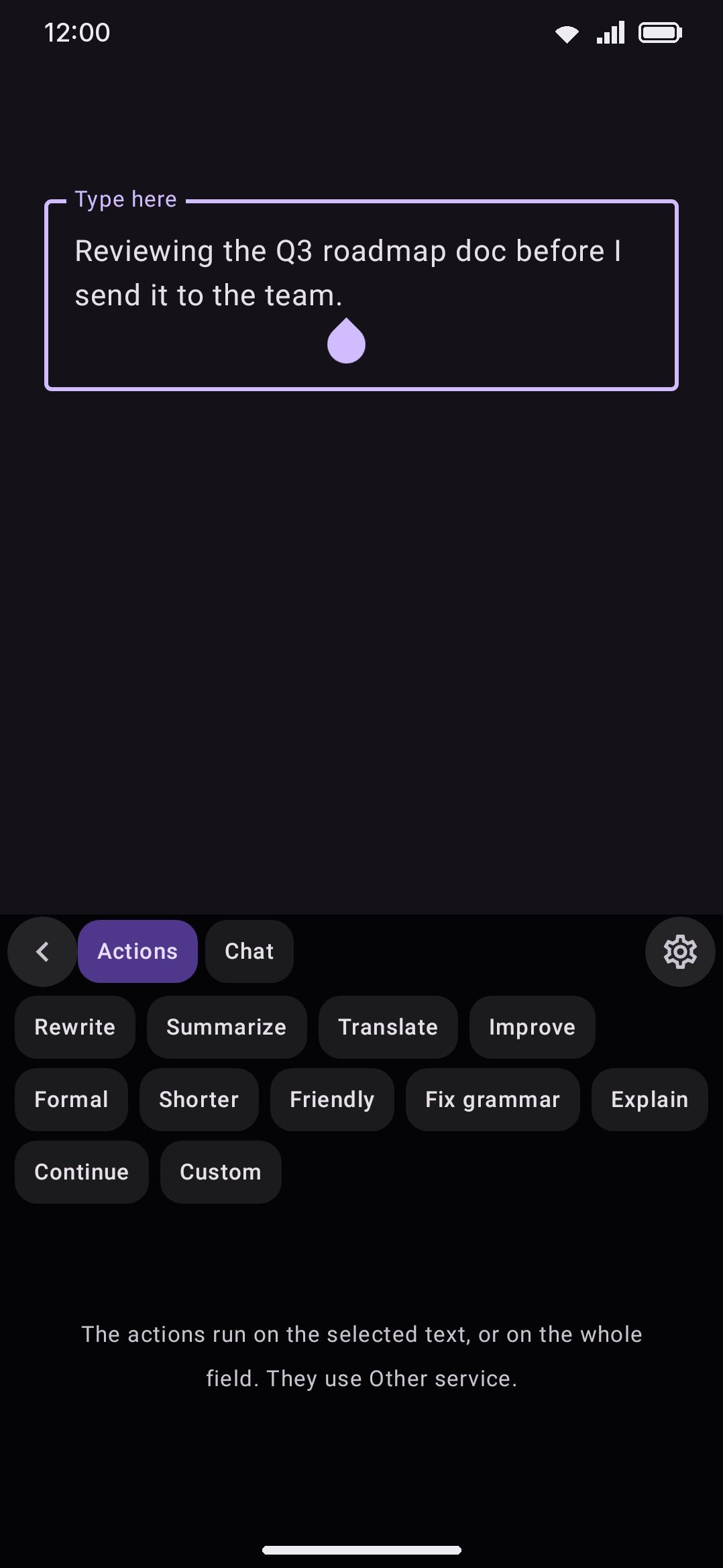
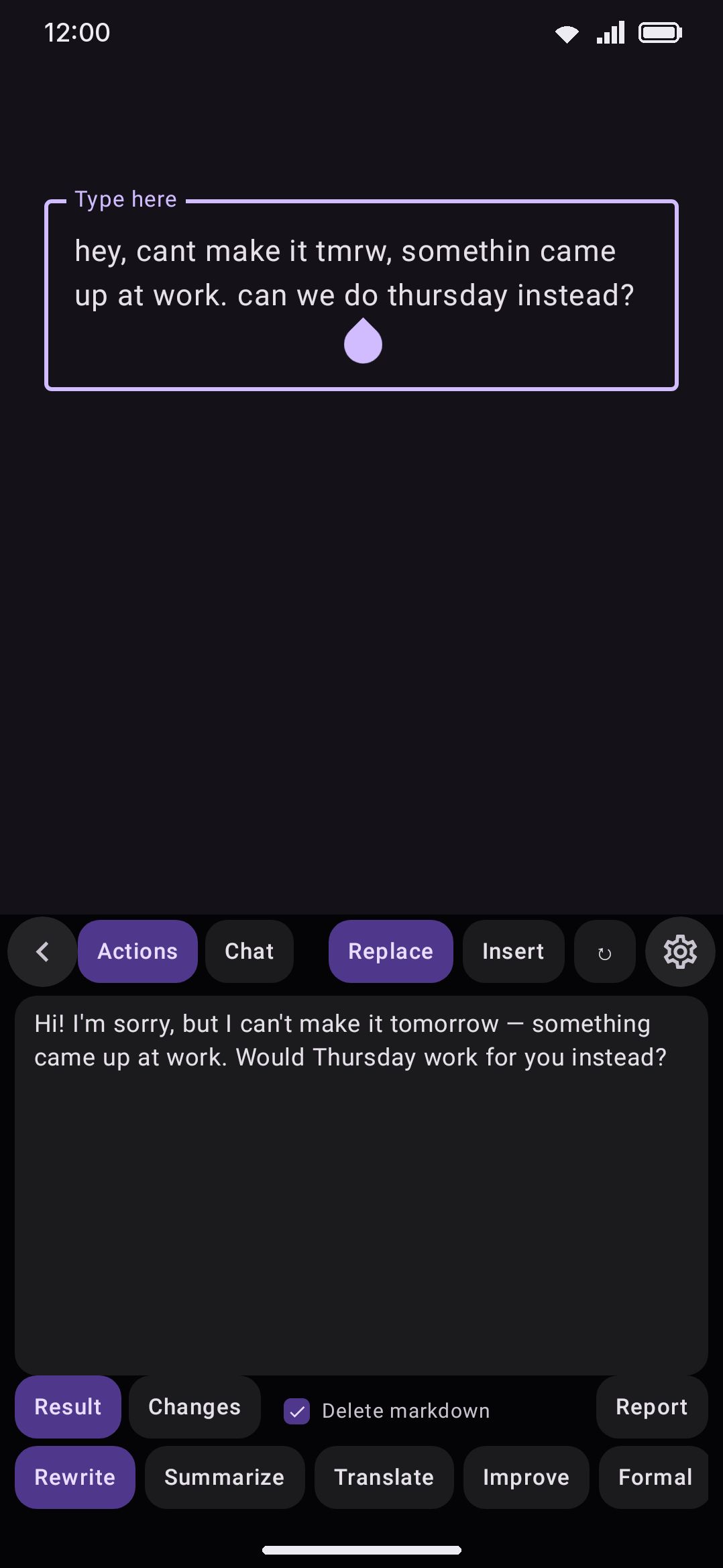
The panel opens on a row of action chips. Eleven ship with the keyboard, and the list is yours to change: rename them, rewrite their prompts, turn off the ones you never use, reorder them, or add your own. See Your own actions below.
- Rewrite, Summarize, Translate, Improve, Formal, Shorter, Friendly, Fix grammar, Explain, Continue: each needs text to work on and is greyed out on an empty field.
- Custom: the one chip that stays live on an empty field. Tapping it opens an instruction box on the keyboard itself. Whatever you type there is the prompt for that run, so Custom can write brand-new text from nothing instead of transforming what’s already in the field.
In a password field the chips that read the field are greyed out, and no action runs at all, Custom included. The text in a password box never goes to a provider, the same rule AI chat follows when it reads a field.
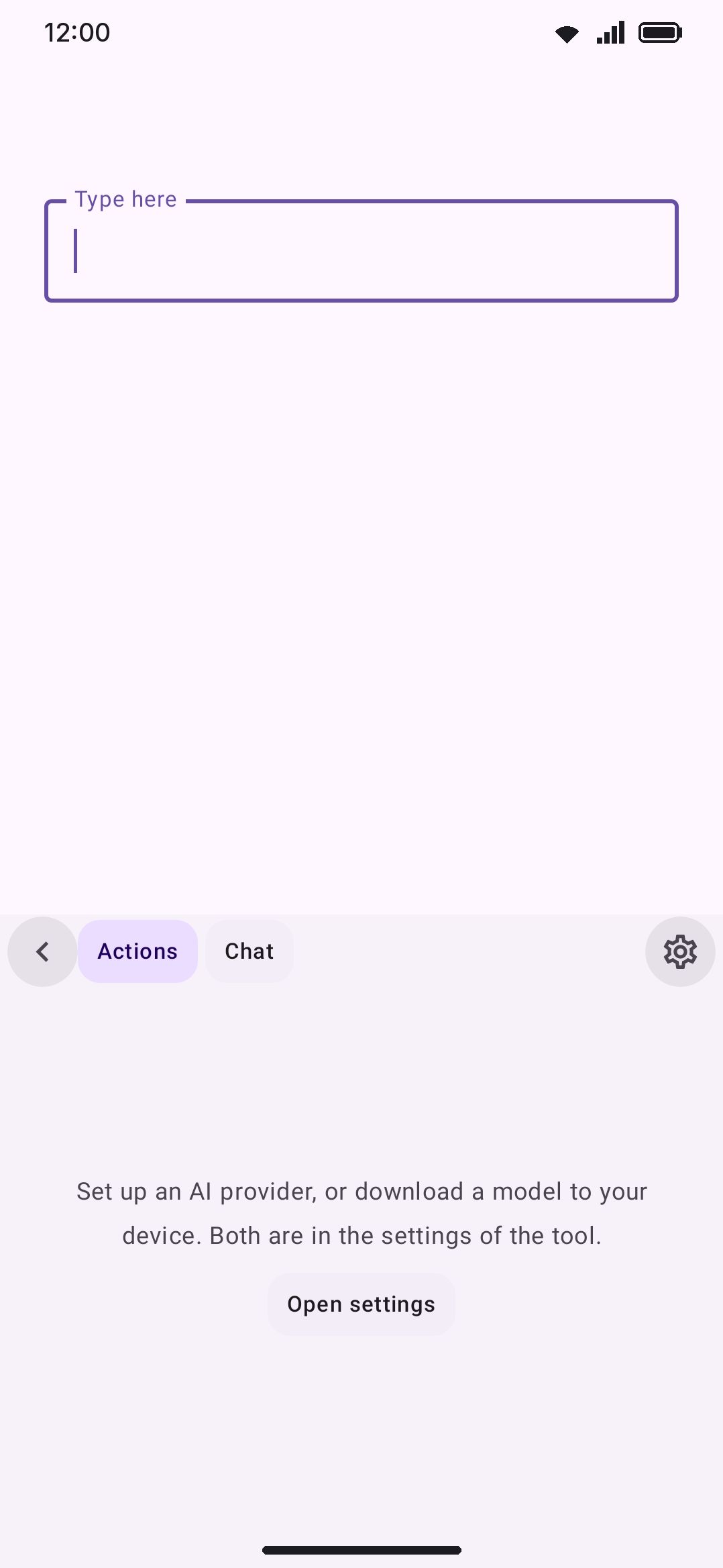
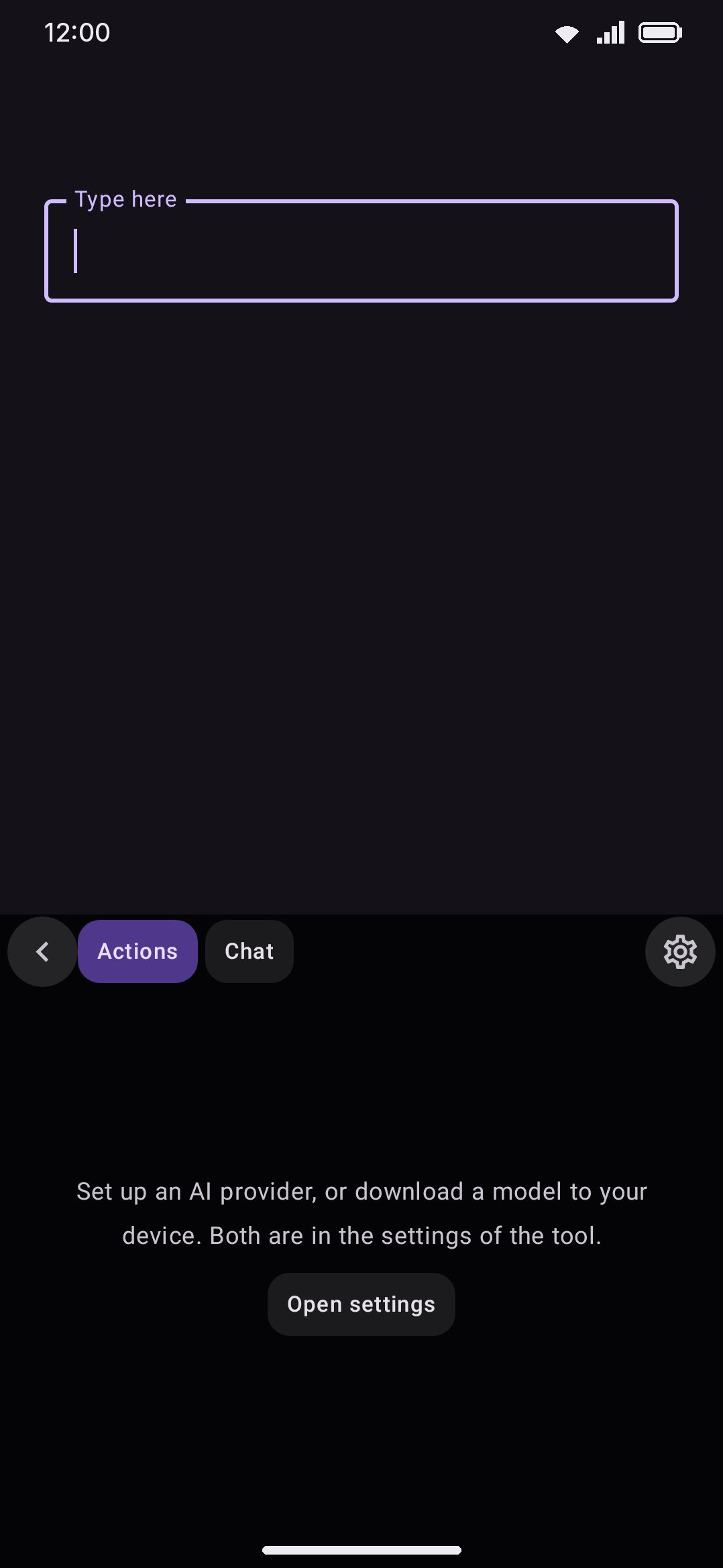
If nothing is configured yet, the panel shows a short explanation in place of the chip row. You get an Open settings shortcut when no provider is set up, which is where a fresh install starts, or a Download a model shortcut when On-device is selected and nothing has come down yet. A model that’s downloading right now takes over that empty state with its progress. Once you’re past the empty state, a one-line progress strip sits above the chips, so a download you started in Settings stays visible while you carry on typing.
What gets sent: selected text wins if you’ve selected any, and otherwise the whole field goes. Continue is the exception. It always reads back from the cursor, since continuing needs to know what came before rather than what comes after, and How much the AI reads back sets how far: 500 to 32,000 characters, default 4,000. That limit only applies with nothing selected. A selection is always sent as it is. Tap a chip on a truly empty field with no selection and you get “There is nothing to work on. Type some text first.” instead of a request.
While a request runs, the panel names the step it’s on instead of showing a bare spinner: Preparing, Connecting, Waiting for the model, and Reasoning for a model that thinks before it answers. A request can spend most of its time waiting on a slow connection or a long field, so the step is worth seeing. Waiting for the model is the one you’ll meet most. It starts the moment your text is on its way and lasts until the first words come back, which for a cloud provider is nearly the whole run.
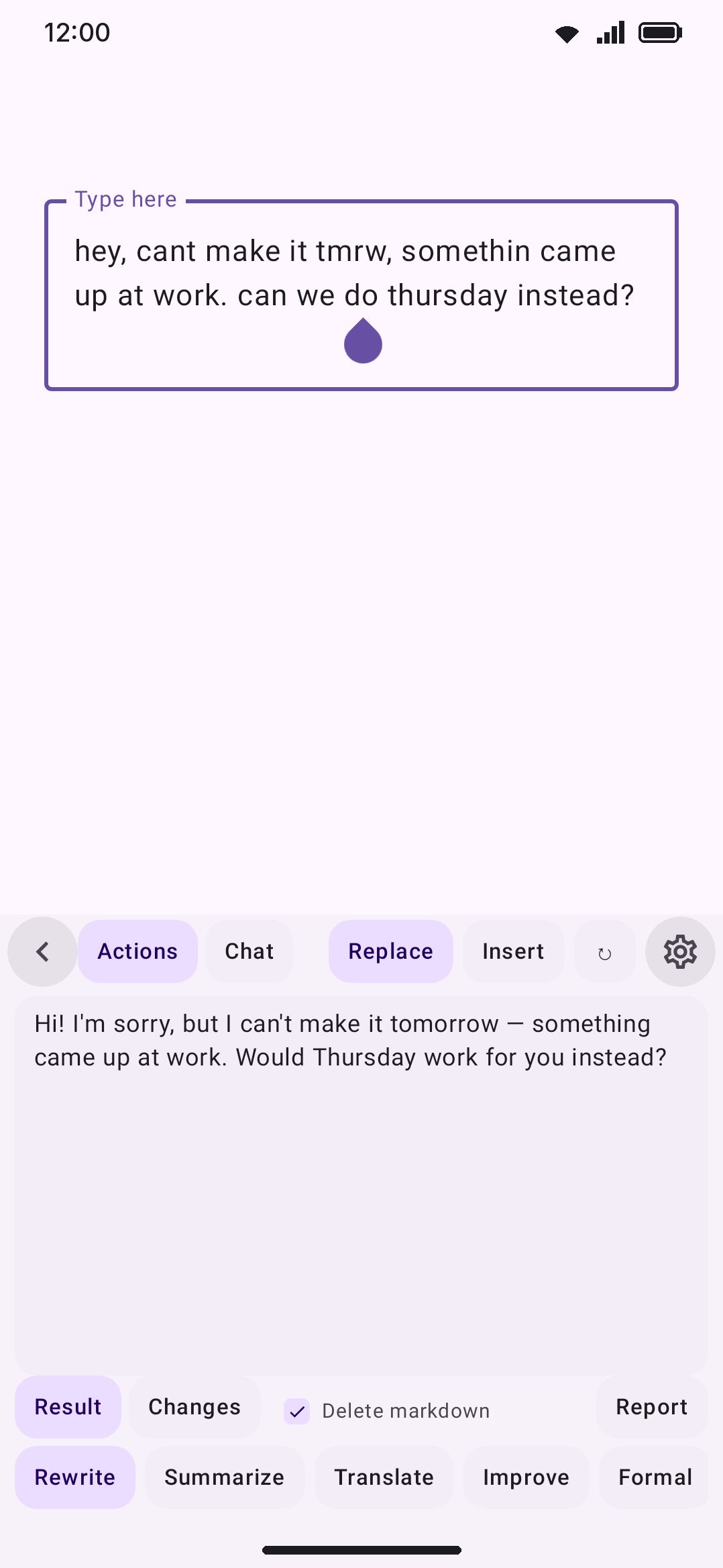
Once a result streams in, two buttons commit it. Replace swaps the field’s text for the result. Insert drops it in at the cursor instead. Continue is the one exception to Replace: deleting the text you just asked it to continue would defeat the point, so Replace appends there. A Delete markdown checkbox, shown only when the result contains any and checked to start with, removes headings, bullets, quotes, code fences, inline code, links, and bold/italic syntax from what gets committed. Uncheck it to keep the raw markdown. Reasoning output between <think> tags is filtered out of both Replace and Insert either way, so only the answer itself lands in your field.
If a model stops mid-answer because it hit the length ceiling, the panel says so and points at the setting to raise. That’s worth knowing about: a truncated answer otherwise looks exactly like a finished one, and you’d only find out by reading your own half-rewritten text.
Seeing what changed
Section titled “Seeing what changed”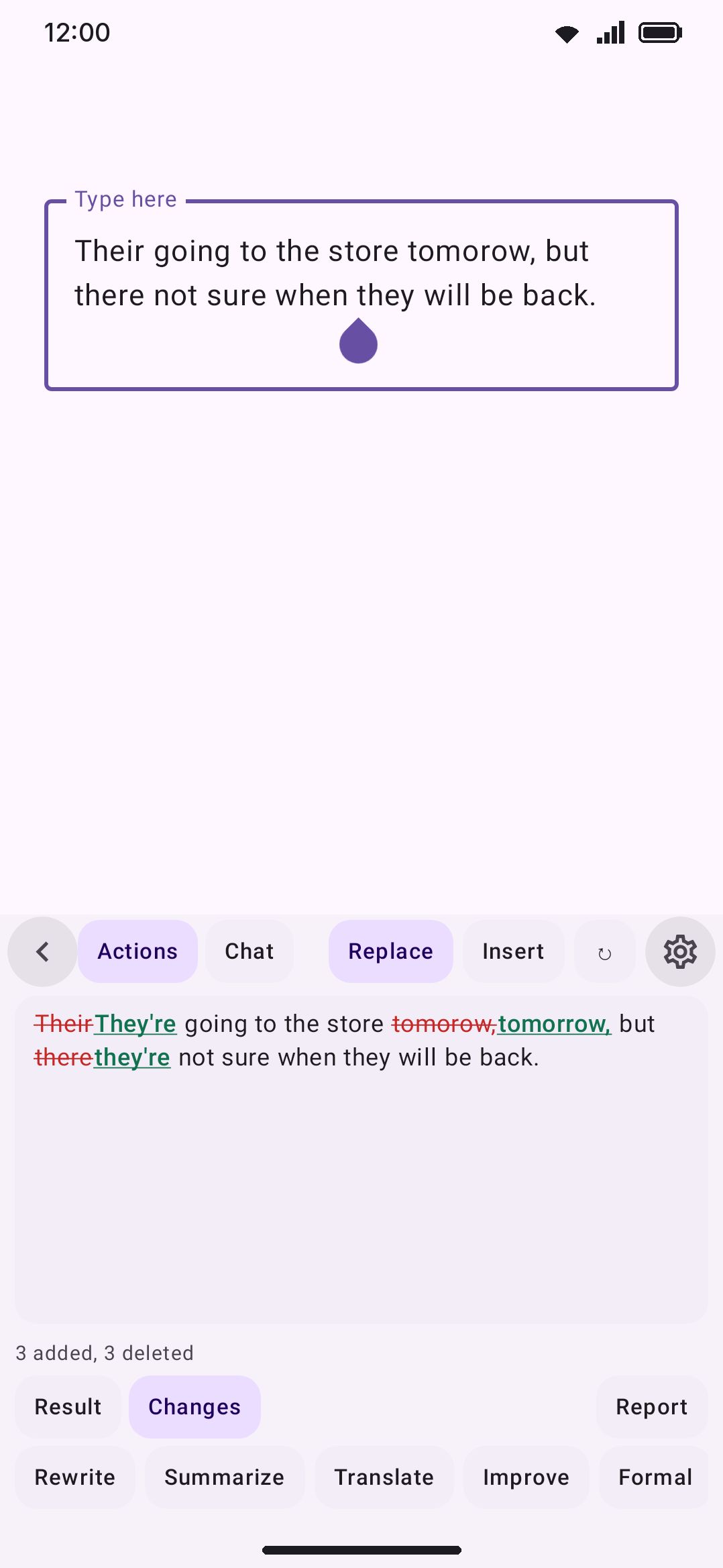
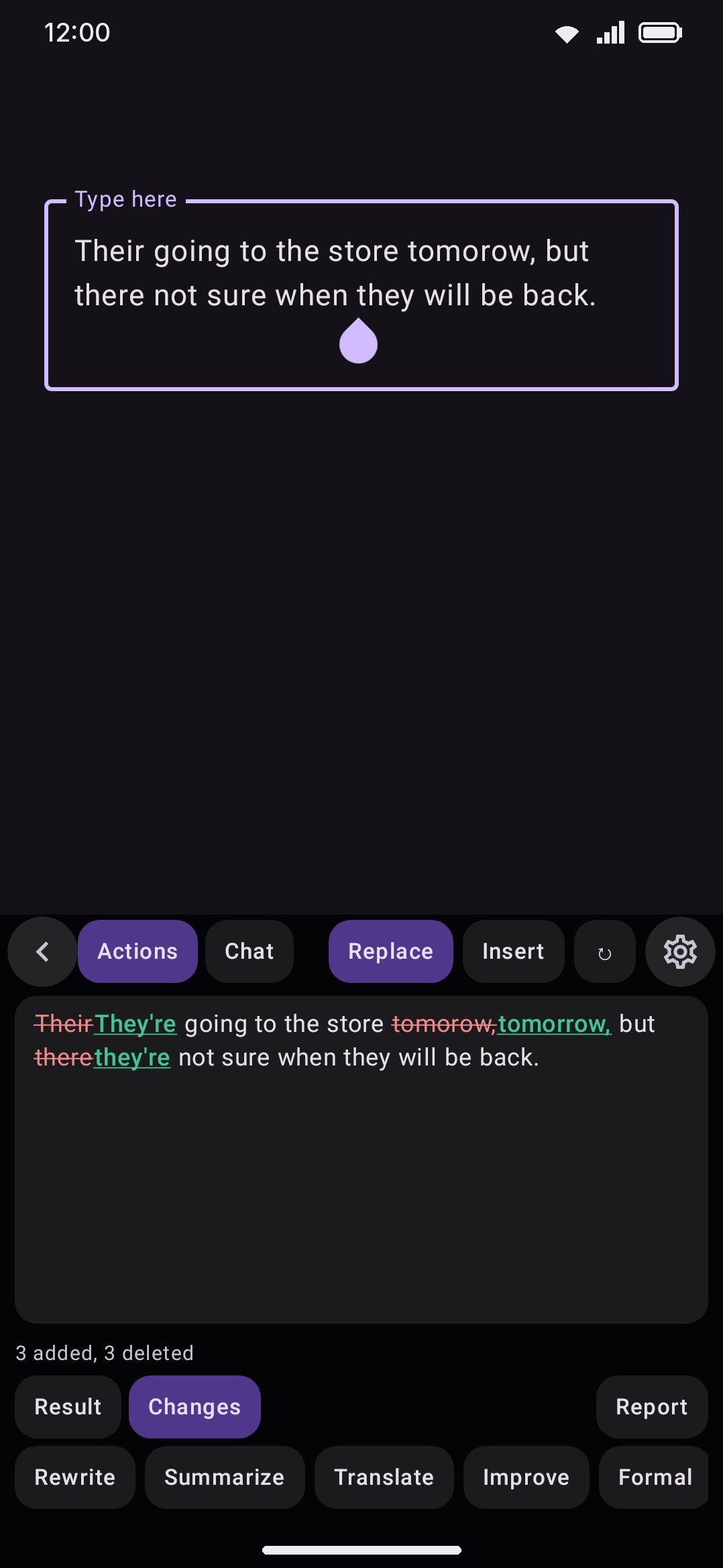
A finished result gets a Result / Changes pair of chips. Changes compares the answer against the text the action ran on and marks what the model added and what it took out, the way git diff does. It’s the one thing the plain result can’t show you: after a Fix grammar run, the spelling it corrected is gone from the screen.
Deleted text is struck through, added text is underlined and slightly bolder. Shape rather than colour alone is deliberate, so the view stays readable on a photo-background theme, in a high-contrast theme, and if you’re colour-blind. A changed space or paragraph break is drawn with a visible mark, since an empty highlight tells you nothing. Under the text sits a count of how many parts changed. “Parts” because they’re words in prose and single characters in a language that doesn’t put spaces between words.
Two cases can’t be compared, so they don’t offer the chips: Continue, which only ever read the text before your cursor, and any run that wrote from an empty field, where there’s no original to compare against. Very long pairs of texts aren’t compared either. The panel shows the plain result and says why. The comparison also waits until the answer has finished streaming, since half an answer reads as “everything after this was deleted”.
The chips are on by default. Open a result on the changes (off by default) makes the panel start there instead.
Reporting a result
Section titled “Reporting a result”Every finished result also carries a Report button, at the bottom right of the panel next to the Delete markdown checkbox. Tap it if a model produced something offensive, dangerous, or plainly wrong, and it opens a pre-filled email to the developer with a blank line at the top for what went wrong.
Nothing is uploaded when you tap it. The report is a draft in your own mail app, and you can read every line, edit it, or throw it away before sending. What it fills in for you:
- Your complaint, once you type it in the space at the top.
- Which action ran, which provider and model answered, and (for Custom) the instruction you gave.
- The app version, Android version, and device model.
- The text that went in and the text that came out, each trimmed to the first 4,000 characters.
That last one is worth a second look before you hit send, since it quotes whatever was in the field. The button only appears once a result has finished streaming. Half an answer isn’t the thing you’d be reporting anyway.
For bugs in the keyboard itself rather than something a model wrote, use the Feedback rows in About instead.
Choosing where it runs
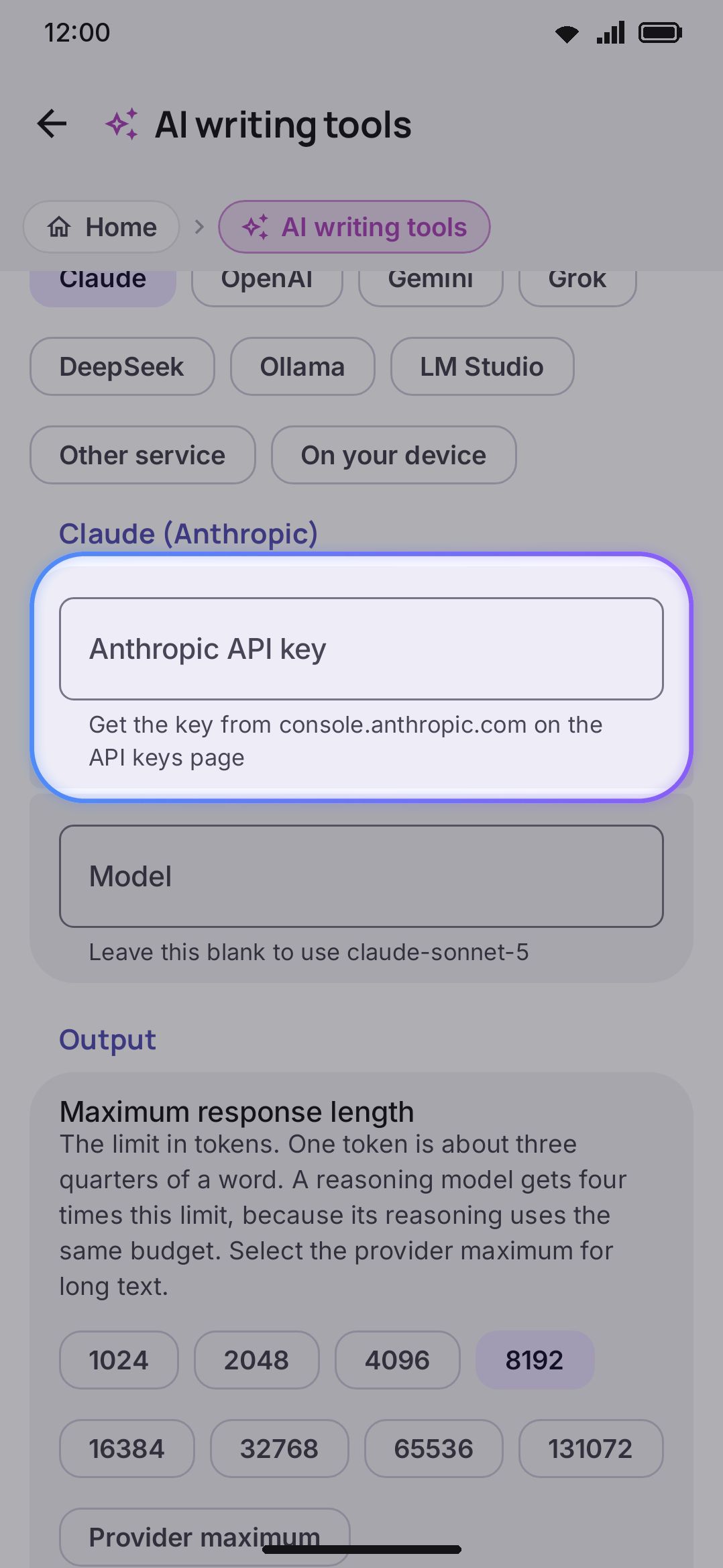
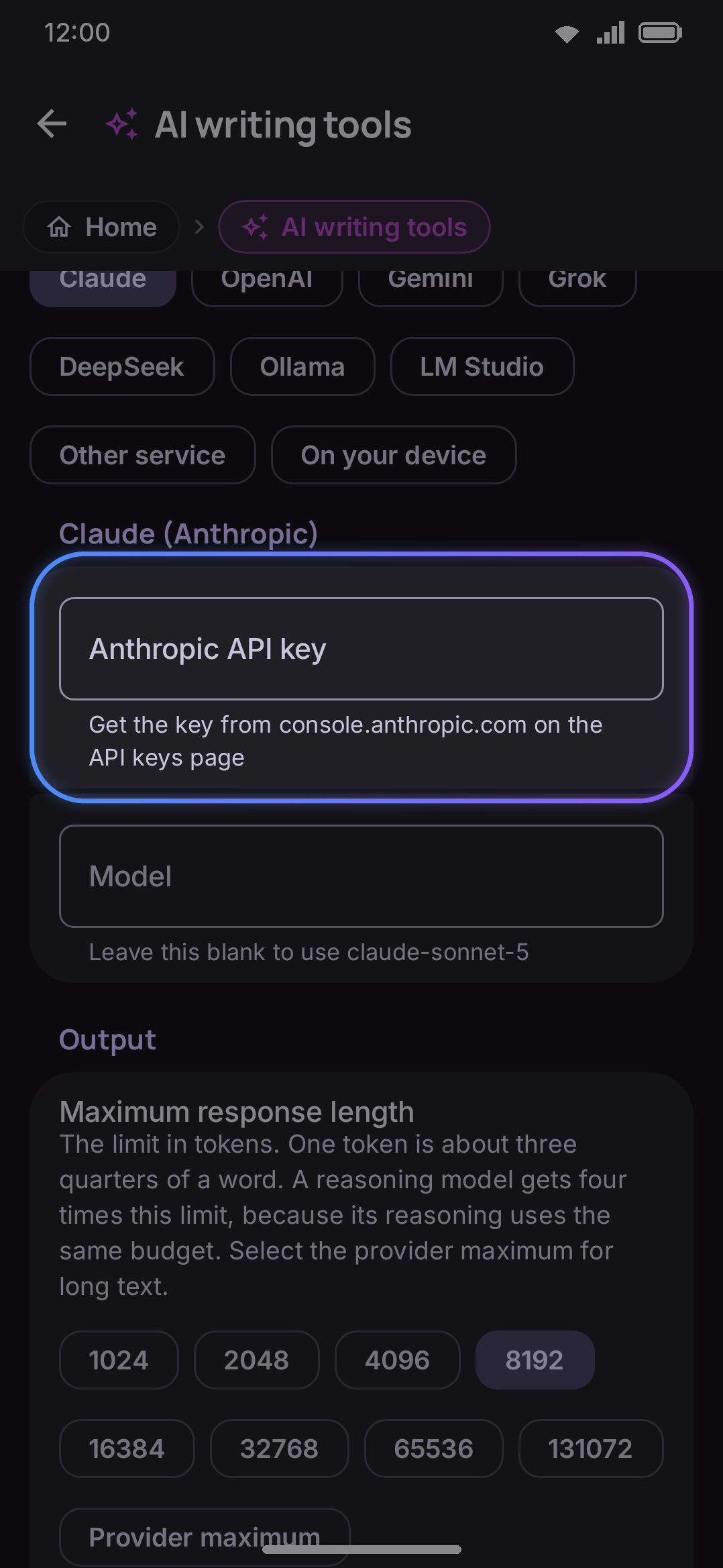
Section titled “Choosing where it runs”A row of provider chips sits at the top of the tool’s settings: Claude, OpenAI, Gemini, Grok, DeepSeek, Brave, Ollama, LM Studio, Other service, and On-device. The pick isn’t for life. Switching providers is another tap.
Cloud providers
Section titled “Cloud providers”Claude (Anthropic), OpenAI, Gemini, Grok, and DeepSeek are bring-your-own-key only. Unlike some of the other network tools, WM Keyboard ships no built-in or proxied key for any of them. Paste your own key into the provider’s field:
- Claude: from
console.anthropic.com→ API keys - OpenAI: from
platform.openai.com→ API keys - Gemini: has a free tier at
aistudio.google.com - Grok: from
console.x.ai→ API keys - DeepSeek: from
platform.deepseek.com→ API keys
Each provider also has a Model field. Leave it blank and the app falls back to a built-in default, shown right in the field’s hint: claude-sonnet-5 for Claude, gpt-5.6-luna for OpenAI, gemini-3.5-flash for Gemini, grok-4.5 for Grok, deepseek-v4-flash for DeepSeek. Type a model name here to use something else.
DeepSeek’s reasoning models stream their thinking on a separate field. The app folds that into the same <think> handling everything else uses, so Show model reasoning and the reasoning progress readout behave there exactly as they do elsewhere.
Brave uses Brave’s Answers API, which runs a web search before it writes each answer. That makes it the provider to pick for questions about facts, prices or recent events, and a poor fit for pure writing jobs like Proofread, where the search adds cost and nothing else.
- API key: from
api-dashboard.search.brave.com. The key needs Brave’s Answers plan. A key that only has the Search plan is refused, and the panel shows Brave’s own reason. - Leave the key blank to reuse the web search key. If you already gave the web search tool your own Brave key, the AI tool uses that one. The key built into some builds is never used for answers, only for searches. A reused key puts Brave in the panel’s model picker and the chat’s model list only while Brave is the selected provider; paste the key into the Brave field to keep it there.
- No Model field. Brave has one model, so there’s nothing to pick.
- One message per request. Brave doesn’t accept a system prompt or earlier turns, so the app sends the action’s instructions, and in a chat the earlier messages as a transcript, together with your text as one message.
- Brave bills each answer for the search it ran plus the tokens in and out. The usage and citation markers it writes into the stream are removed before you see the answer.
Any other OpenAI-compatible service
Section titled “Any other OpenAI-compatible service”Other service is the escape hatch, and it reaches far more than the named chips do. Anything that speaks OpenAI’s chat-completions shape works: OpenRouter, Groq, Together, Mistral, Cerebras, self-hosted vLLM. Three fields:
- Service address: the address up to and including the version segment, for example
https://openrouter.ai/api/v1. The app adds/chat/completionsitself. That split exists because services disagree about the prefix (/v1,/openai/v1,/api/v1), so guessing it would break half of them. - Model: required here, unlike the named providers. There’s no sensible default to guess for a service the app knows nothing about.
- API key: optional. A gateway on your own network often wants none.
Extra headers
Section titled “Extra headers”Some services want more in a request than a key. OpenCode Go, for one, reads a session header and a User-Agent of its own, and a gateway in front of a provider may want its own token. Every provider except On-device has an Extra headers group under its fields for this. Tap Add header, then fill in a name and a value. Each edit saves as you make it, and the value stays hidden until you tap the eye.
- Yours are sent last. A header here replaces the app’s own of the same name, whatever its capitals, so a
User-AgentorAuthorizationyou add is the one the service sees. {session}stands in for a session id. Type it anywhere in a value, for example the namex-opencode-sessionwith the value{session}. One panel action, its lookups included, sends one id, and a chat sends the same id for every message in that conversation.- Each provider has its own list. Switching providers shows that provider’s headers, not the last one’s.
- A name with a space or other character a header can’t hold, or a value with a line break, is left out of the request rather than failing it.
- A backup without secrets leaves the headers out, the same as API keys.
Self-hosted servers
Section titled “Self-hosted servers”Ollama and LM Studio point at a server on your own network instead of a cloud API. No key is needed, only an address like http://192.168.0.10:11434 (Ollama) or http://192.168.0.10:1234 (LM Studio). Set OLLAMA_HOST=0.0.0.0 so Ollama listens beyond localhost. Turn on LM Studio’s local-server option. Both address fields are blank by default. Ollama defaults its model field to qwen3 when you leave it blank. LM Studio has no default model to fall back to, so it uses whatever the server currently has loaded.
Local models
Section titled “Local models”The On-device provider runs a model entirely on the phone, no network involved. It’s the only provider option that needs a download first, and it’s the one provider chip that doesn’t appear at all in a Lite build.
The catalog is eight models, ordered best-first rather than smallest-first:
| Model | Params | Size | Tier | Gated |
|---|---|---|---|---|
| Gemma 4 E2B | 2B | 2.59 GB | Recommended | |
| Gemma 4 E4B | 4B | 3.66 GB | Recommended | |
| Gemma 3 1B | 1B | 584 MB | Untested | Yes |
| Qwen 2.5 1.5B | 1.5B | 1.6 GB | Standard | |
| Qwen 3 0.6B | 0.6B | 347 MB | Experimental | |
| Qwen 2.5 0.5B | 0.5B | 546 MB | Experimental | |
| Gemma 3 270M | 270M | 304 MB | Untested | Yes |
| SmolLM2 135M | 135M | 143 MB | Experimental |
Each row names the licence its weights are published under, and Licence and model page under an undownloaded row opens the repository where the text is. Gemma 3 comes under Google’s Gemma Terms of Use; Gemma 4, Qwen and SmolLM2 are Apache-2.0. About, Licences lists the same under downloadable data packs.
Two of the eight are gated and need a Hugging Face account. Paste a token into the Access token field under Hugging Face account, above the catalog. Then accept the model’s license on its Hugging Face page, once per model.
Every model carries an advisory minimum-RAM figure behind the scenes. When your phone’s total RAM falls under it, the app appends “May be too large for this device” to that model’s subtitle. It never blocks the download and never shows you the raw number. That warning is the only per-device signal the catalog gives you up front. There’s no published speed benchmark, because how fast a model answers depends on the phone as much as on the model. What you get instead is a progress readout with elapsed seconds, once a request is actually running.
Tapping Download starts a resumable download. Cancel it, lose signal, or background the app, and the next attempt picks the transfer up where it left off rather than restarting. Only one download runs at a time. On a metered connection, a model of 500 MB or more asks for confirmation first.
Don’t need the catalog? Import your own takes any .litertlm or .task file, the two container formats the on-device engine loads. That covers one you converted yourself or downloaded elsewhere in a browser. There’s no GGUF support. A file with any other extension is rejected on import.
A Compute row picks CPU or GPU for inference, and CPU is the default. GPU is best-effort. If it fails to initialize, or crashes partway through an answer, the engine falls back to CPU on its own and remembers not to retry GPU for that model file again this session.
A Context size row sets how much text the model is loaded with, prompt and answer together, in tokens. It defaults to the model’s own value. This is the only length lever on-device. Unlike a cloud API there’s no per-response ceiling to set, so the window is what bounds an answer. A larger window costs memory, and changing it reloads the model.
Your own actions
Section titled “Your own actions”The eleven chips on the panel are a list you own. The screen lists them in panel order, with a checkbox to turn one off, an edit button, and a New action row at the bottom. Drag the handles in Order of the actions to rearrange them. The panel follows that order exactly.
Any of these can also be a button on the selection actions bar: pick them under Advanced, Selection actions, AI buttons, and one tap runs the action on whatever is selected, with the result landing here ready to apply. Formal, Shorter and Friendly were added with that in mind.
An action that ships with the keyboard is never deleted, only changed. Editing one saves your version under the same identity, so Reset in its editor drops your version and the original comes straight back. Turning one off leaves it on this screen, greyed on the panel and one checkbox away from returning. Only actions you wrote yourself get a Delete.
The editor holds a name, the prompt, and a handful of behaviour switches:
- Type the prompt at every run: the keyboard asks you for the prompt instead of using a saved one. This is what makes Custom work the way it does.
- Start from the saved prompt: only shown under the switch above, and it brings the prompt field back. The instruction box then opens with that text already in it, so you adjust a template rather than retype it. Useful for something you run often with a small variation each time: “reply to this politely, and mention that…”. The saved text wins every time the box opens, not only the first, since a template you see once isn’t a template. Leave it off and the box reopens on whatever you typed last.
- Works with an empty field: with nothing in the field, the action writes new text instead of changing text.
- Read the text before the cursor: the action reads only what’s in front of the cursor rather than the whole field. A selection always wins over this.
- Add the result to the end: Replace appends rather than overwriting. Pair it with the switch above and you have Continue. Keeping them separate is what makes “append but read the whole field” something you can build.
- Answer with the text only: on for everything except Explain, whose answer is prose about your text rather than a replacement for it. Hidden once Write the whole prompt is on, since a raw prompt has nothing left for the switch to act on.
About the prompt field
Section titled “About the prompt field”You write the task, not the whole prompt. The app wraps what you write in a fixed frame. That frame says who the model is, and it says your field’s text is material to work on and never instructions to obey. Unless you turn it off, it also says to answer with the result and nothing else.
That’s on purpose. The middle part is what stops a model from treating text in your field as commands aimed at it, and that text is often an email you’re replying to or a message someone sent you. A text box shouldn’t be able to delete that rule by accident. The prompt that the app sends below the editor shows you the assembled result, so it’s visible without being editable.
Write {target} anywhere in a prompt and it becomes the translate target language, which is how the shipped Translate action works. Because the token is stored rather than the language, changing the target language updates every prompt that mentions it.
Write the whole prompt is the deliberate way out for anyone who wants to write the safety wording themselves. The app then sends your text exactly as you typed it.
Letting the model look things up
Section titled “Letting the model look things up”A model answers from what it was trained on, which is a fixed moment in the past. Turn one of these on and it can stop guessing: before it answers, it asks the keyboard to go and find out.
- Let the model search the web: on by default, but the row only appears once you’ve set up a search service. The model writes its own search (usually a better one than the question you asked), reads the results, and answers from them. Searches go through whatever backend the search tool already uses (your SearXNG instance, your Tavily key, or Brave) and count against that service’s quota like any other search.
- Let the model read a web page: off by default. The model gives one address and gets the text of that page back. It needs no search service, so it works on its own: paste a link, ask “what does this say?”, and the model fetches it.
- Lookups per answer: 1 to 5, default 3. How many times the model may go and look something up before it has to answer with what it has. Each round is another request carrying everything found so far, so this is the setting that decides what a curious model costs you.
Both tools work in the panel’s actions and in AI chat. While one runs, the progress readout says what it’s doing and on what: Searching the web for ”…” with the model’s own query, or Reading example.com… with the site it opened.
Why page reading is the one that’s off
Section titled “Why page reading is the one that’s off”Let the model search the web sends a query the model wrote. Let the model read a web page opens an address, and that address can have come from the text you were typing: a link in a document someone sent you, say. That makes it the one tool here that something in your own field could point somewhere, so it waits until you ask for it.
When it does run, the page is fetched as plain text and cut short at about 6,000 characters. No scripts run, nothing is sent to the page, and only http:// and https:// addresses are opened at all. A model that invents a file:// or content:// address gets a refusal, not your storage.
What your provider needs to support
Section titled “What your provider needs to support”Most providers do tool calling properly, as part of their API: Claude, OpenAI, Gemini, Grok, DeepSeek, Ollama, LM Studio and any other OpenAI-compatible service. Two can’t:
- Brave takes a single message with no system prompt and has no tool field at all.
- On-device models have no tool API in the local runtime.
For those two the keyboard falls back to explaining the tools to the model in words and watching its answer for a reply in the agreed format. The reader is deliberately forgiving about that format, because local models mangle it: tool_call is a special token in several chat templates, so the template rewrites the very thing the keyboard asked for, and a marker can come back with its brackets moved, doubled, or missing altogether. All of those are read, and anything that looks like one is hidden from the answer whether or not it turns out to be a call, because machinery the model wrote for the keyboard is never yours to read.
It works, and a capable local model will use it, but a small one still ignores the format sometimes, or asks you to narrow a request it could have searched as written. The settings group says so when you’re on one of those providers. If lookups matter to you, a provider with real tool support is far more reliable.
Seeing what it looked up
Section titled “Seeing what it looked up”An answer that used a tool says so. A line sits over the result, in the panel and in every chat answer: Searched the web for ”…” or Read example.com for a single lookup, or Used tools 3 times when there were several. No line means the model answered from what it already knew.
Tap the line to unfold it. Each lookup is listed with what came back:
- A search shows the query and every result the model was handed, by title and site. No results if the search came back empty.
- A page read shows the page’s title and its full address, so you can check it’s the page you think it is.
- A lookup that failed is marked as failed, with the reason: Web search is not set up, a network error, the model asking for something that isn’t a web address, and so on. The model is told too, and usually says it couldn’t check.
Tap a result to open it in your browser, or press and hold to copy its address. Only http:// and https:// addresses ever open. Anything else the model wrote can be copied but not opened. The lines aren’t part of what Replace or Insert puts in your field.
In AI chat the record is saved with the answer, so reopening a conversation later still shows what each answer was built on. The panel’s actions keep it only while the result is on screen.
Every search and every page fetch is also a row in the network activity log, filed under AI tool use rather than Web search: you didn’t run that search, the model did, and the log should say which.
The keyboard’s own tools
Section titled “The keyboard’s own tools”Besides searching and reading pages, the model can use the keyboard’s own tools, the same ones on your toolbar, through the same services and with the same settings. Ask “what’s 18% of 2,450 in euros?” and it works the sum out on the calculator and converts it at a live rate instead of guessing either.
Each tool has its own Run, Ask or Off, the same three choices an MCP server’s tools have:
- Run: the model uses it whenever it needs to.
- Ask: the model’s request stops and waits for you, with what it is about to do and the values it will send. See Allowing a call.
- Off: the model isn’t told the tool exists.
| Tool | What it does | Starts on |
|---|---|---|
| Image search | Finds pictures through the search tool’s service. Only listed once one is set up. | Run |
| Weather | Today’s and tomorrow’s weather for any place, or the place saved in the weather tool when the model names none. | Run |
| Wikipedia | Reads the summary of the best-matching article, in the Wikipedia language the encyclopedia tool uses. | Run |
| Dictionary | Looks a word up in the dictionary tool’s sources, in your order. | Run |
| Translate | Translates with the translate tool’s engine: on your device, online, or on your device first, as set there. | Run |
| Currency converter | Converts money at live rates from the currency tool’s sources, coins included. | Run |
| Unit converter | Converts lengths, weights, temperatures and other measurements. | Run |
| Calculator | Works an expression out exactly, on your phone, with the calculator’s degree and precision settings. | Run |
| Read your calendar | Lists your events for the days the model asks about, up to a month at a time. Needs the calendar tool’s access. | Ask |
| Read your notes | Searches your notes and reads up to five that match. A locked note’s text stays hidden. | Ask |
| Your location | Reads where your phone is, rounded to the precision the location tool shares at, with the address if you have that on. | Ask |
| Add to your calendar | Adds an event, see Adding calendar events. | Ask |
| Save a note | Adds a new note. | Ask |
| Set an alarm | Sets an alarm in the clock, once or on repeat days. | Ask |
| Start a timer | Starts a countdown in the clock. | Ask |
| Open an app | Opens an installed app by its name, from the app launcher’s list. | Ask |
| Control media | Plays, pauses or skips what is playing, or says what it is. Needs the media tool’s notification access. | Ask |
| Send to your computer | Sends text or a link to a computer paired through KDE Connect. Only listed while KDE Connect is on. | Ask |
| Read text in a picture | For a model that can’t see pictures: reads the text in one you sent in the chat, with ML Kit on your device Full edition only, or the scan text tool’s online engine if you picked that. | Run |
| Search by picture | Uploads a picture you sent to the camera tool’s search site (Google Lens unless you changed it) and gives you the link to the results. The model can’t read that page itself. | Off |
The tools that read what’s on your phone, and the ones that change something, start on Ask. A web page the model reads could carry instructions of its own, and Ask means nothing it says reaches your calendar or your notes without you seeing the request first. None of the tools can delete or edit anything: they only read, add or start. Always allow on the request card switches that tool to Run.
The calendar tools, and the alarm, are told today’s date and your time zone, so “tomorrow at five” lands on the right day.
Every tool that is on is described to the model in every request, whether it gets used or not. That costs a little each time, and a small model on your device copes best with a short list, so turn off what you don’t want it reaching for.
While one runs, the line over the answer says what it is doing: Checking the weather in Dhaka…, Converting 12 USD → EUR…. Unfolded, a Wikipedia lookup lists the article it read, and an image search the pages its pictures came from.
Adding calendar events
Section titled “Adding calendar events”Add to your calendar works one of two ways:
- Open the app, the default: your calendar app opens with the event filled in, and nothing is saved until you press its own Save. It needs no permission. The model is told the event isn’t saved yet, so it says so.
- Add directly: the keyboard writes the event into your calendar itself. Picking it asks for permission to add calendar events, with the usual explanation first, then lets you choose which calendar they go in. The first writable one, primary first, is used until you pick.
MCP servers
Section titled “MCP servers”MCP (the Model Context Protocol) is a standard way for a server to offer tools to a model. Add a server here and the model can use its tools in the panel’s actions and in AI chat, the same way it uses the two lookups above: to read your notes, search a wiki, add a calendar event, or whatever the server does. The tools run on that server, not on your phone.
Adding a server
Section titled “Adding a server”Press the + button. The editor asks for:
- Name: what the list calls it. Leave it blank and the host name is used.
- Address: the server’s
https://orhttp://address, for examplehttps://example.com/mcp. - Type: Auto, Streamable HTTP or SSE. Auto works for almost every server. It tries Streamable HTTP, the current transport, and falls back to the older SSE one when the server answers like an old server. Pick SSE for an old server that Auto can’t reach. Its address often ends in
/sse. - Headers: sent with every request to this server. This is where a token goes. A typical one is the name
Authorizationwith the valueBearerfollowed by a space and your token. Values are hidden until you tap the eye.
Save stores the server. Connect saves it too, then asks the server for its tools and reports back: “Connected to server name: 12 tools”, or the reason it couldn’t. A server you just added says Not connected in the list until a Connect has worked, and the model is offered nothing from it until then.
Change the address later and the tool list no longer describes the server, so the editor asks you to connect again.
Pasting a JSON config
Section titled “Pasting a JSON config”Most desktop apps that use MCP keep their servers in a JSON file. Copy that file’s text, then press Paste a JSON config on the server list. The keyboard reads the formats in common use: Claude Desktop and Cursor’s mcpServers, VS Code’s servers, the inner map on its own, or a single server. It shows what it found before anything is saved, then Add 2 servers adds them and connects each one.
{ "mcpServers": { "notes": { "url": "https://notes.example.com/mcp", "headers": { "Authorization": "Bearer your-token" } }, "files": { "command": "npx", "args": ["-y", "some-file-server"] } }}Here notes is added. files is listed as skipped: it starts a program on a computer (the command line), and a phone has nothing to start it with. A server with no address, or one that isn’t http or https, is skipped too, with the reason beside it.
Run, Ask or Off
Section titled “Run, Ask or Off”Once a server is connected, its editor lists every tool, with the server’s own description and badges for what the server says about it: Read only, or Can change or delete data. Each tool has three choices:
- Run: the tool runs when the model calls it, without asking you.
- Ask: the answer stops and waits for you to allow the call.
- Off: the model isn’t told the tool exists.
A new tool starts on Run if the server marks it read only, and on Ask otherwise. That default matters because a tool can send mail or delete a file, and text in the field you’re editing could try to talk a model into calling one. Your own choice always wins over the server’s marks.
The list row for each server sums it up (“12 tools: 3 run, 7 ask, 2 off”) with a switch that turns the whole server off without deleting it.
Allowing a call
Section titled “Allowing a call”When the model calls a tool set to Ask, an approval card appears in the panel or in the chat. It names the tool and the server and shows exactly what the model wrote as the tool’s input. Three buttons:
- Deny: the call doesn’t happen. The model is told you said no and answers without it.
- Allow once: this call goes ahead.
- Always allow: this call goes ahead, and the tool is set to Run from now on.
What is sent, and where
Section titled “What is sent, and where”Nothing goes to a server until the model calls one of its tools, or you press Connect. A call sends the tool’s name and the values the model wrote for it straight to your server, with your headers. It doesn’t go through any WM Keyboard service. Whatever the server sends back is handed to the model. Every request shows in the network activity log under MCP servers.
Limits
Section titled “Limits”- No sign-in yet. A server that wants you to log in through OAuth can’t be used. If it gives out tokens or API keys, add one as a header instead.
- Only
httpandhttpsservers. Local servers that start as a program (command,npx,uvx) need a computer to run on. - Every tool costs prompt space. The name, description and input format of each tool that isn’t Off go with every request, so 30 tools can cost more than the text you asked about. The server list warns you past 20. Turn off the tools you don’t need.
- Text only. Images, audio and links a tool sends back aren’t shown to the model. It is told that something was there.
Chatting instead of transforming
Section titled “Chatting instead of transforming”The panel’s actions all do the same shape of thing: take the text in a field, hand it back changed. When you want an actual conversation instead, tap Chat on the panel’s header. The panel swaps its actions for a conversation with any model you’ve already set up here: ask something, then Insert the answer into what you’re writing. Actions on the same header swaps back, and the panel reopens on whichever you used last.
The same chats open full-screen in the settings app, at the path above or from a launcher shortcut of their own. Both places share one list of saved conversations. See AI chat.
Two more ways in work from any app. The floating AI button opens a chat as a sheet over the screen you’re on, with that screen’s text attached when screen reading is on. Ask AI in the text selection menu opens the same sheet with the selected text.
History
Section titled “History”Off by default. Turn it on and the keyboard keeps a record of each run: what you sent, what came back, which action and model, how long it took, how much of that was reasoning, and whether you used the answer. The screen searches across the input, the answer and the model name. It filters by action, and expands a row so you can copy either side or delete it.
Failed runs are recorded too, with the error the panel showed, since “it keeps failing” is the most likely reason to open the screen at all.
Four things have to be true before anything is written down, and any one of them being false is the end of it:
- You turned the history on.
- The device has been unlocked at least once since it restarted.
- The field isn’t a password box.
- Incognito isn’t in force, from either the setting or a field that asked for it, like a private browser tab.
API keys are never part of a record. It carries the model’s name and nothing about the connection.
Number of records to keep defaults to 100 and tops out at 500. The oldest falls off once it’s full, and each side of a record is capped at 4,000 characters. Delete all history clears the lot, and so does turning the setting off. An off switch that quietly leaves the log on disk isn’t an off switch.
Options
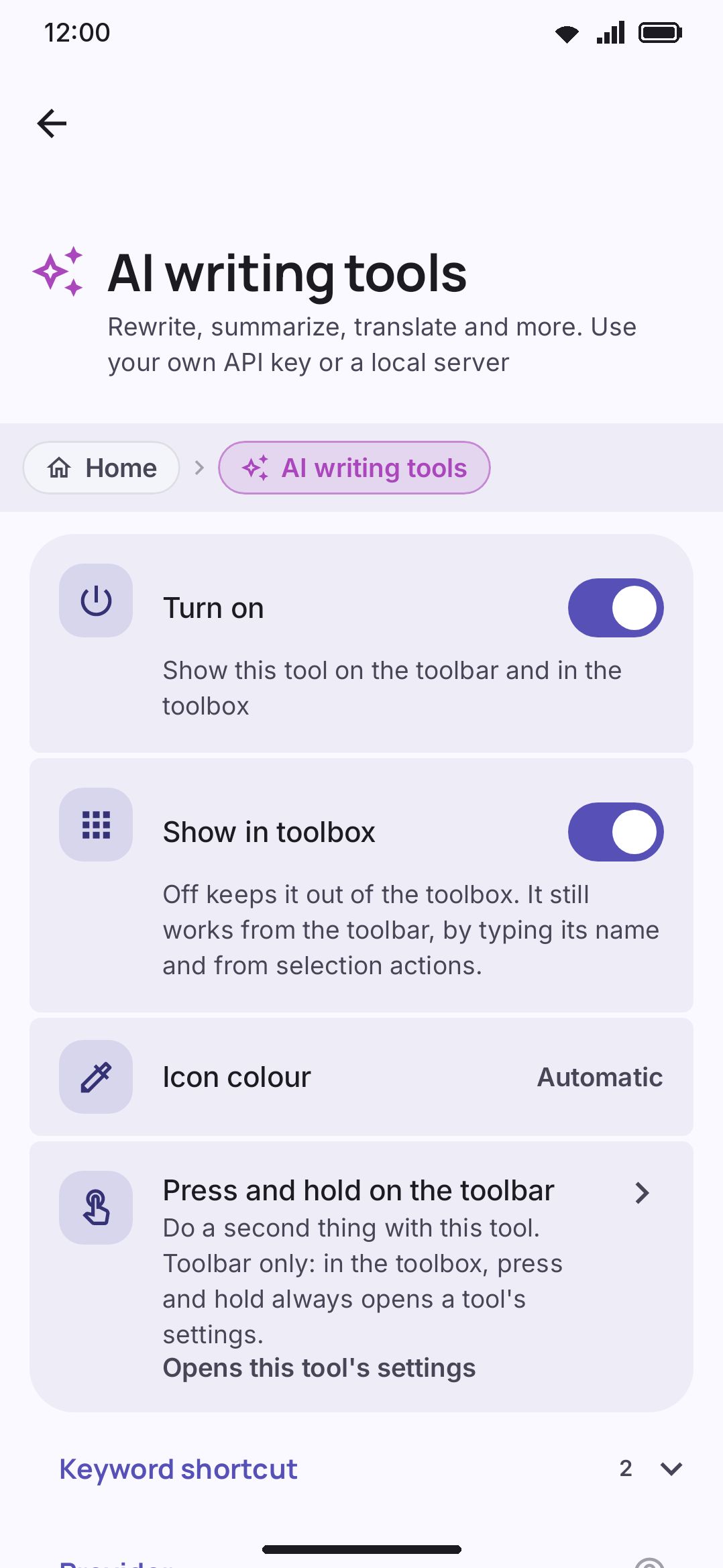
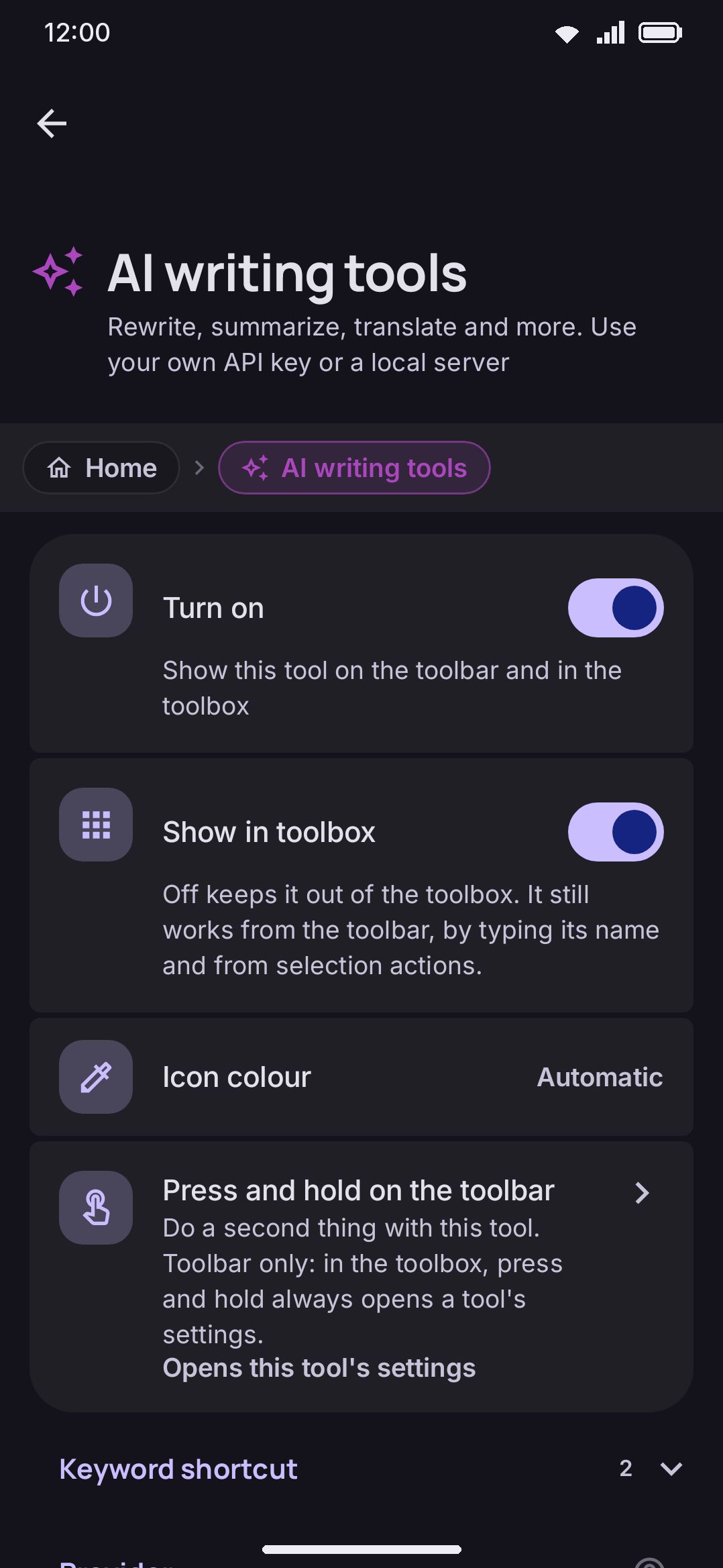
Section titled “Options”Like every tool, AI has an Enabled toggle (on by default) and, if colorful tool icons are on, a per-tool icon color override. Below that:
- Keyword: the word that offers this tool on the suggestion strip when you type it alone. Defaults to
ai. - Extra headers: none to start with, see Extra headers.
- Provider: which of the nine providers above is active. Defaults to Claude, though with no key entered yet a fresh install lands on the empty-state screen until you add one.
- Max response length: a token ceiling, roughly ¾ of a word each, picked from steps rather than a slider: 1k through 128k, plus Provider maximum. Default 8,192. A model the app takes for a reasoning model gets 4× this ceiling on its own, capped at 131,072, because reasoning tokens come out of the same budget before the answer starts. That guess is a substring match on the model ID, for strings like “thinking”, “qwen3”, “grok-4” or “deepseek-v4”. The On-device provider swaps this row for Context size.
- Translate action’s target language: free text, defaults to English.
- Show model reasoning: off by default. Turning it on streams a reasoning model’s raw
<think>passages instead of the step-by-step progress readout. - Model picker on the panel: on by default. Adds a horizontally-scrolling row to the panel itself for switching between every configured provider and downloaded local model in one tap. It’s hidden automatically whenever there are fewer than two to choose from.
- Show a changes view: on by default, see Seeing what changed. Open a result on the changes below it is off.
- Let the model search the web: on by default, and only shown once a search service is set up. Let the model read a web page below it is off, and Lookups per answer defaults to 3. See Letting the model look things up.
- Keyboard tools: Run, Ask or Off for each of the keyboard’s own tools the model can use, see The keyboard’s own tools. The information tools start on Run.
- MCP servers: the servers whose tools the model can use, see MCP servers. None are set up to start with.
- Chat with the model: opens the conversation screen, see AI chat.
- Enter sends the message: off by default. In the chat on the keyboard, Enter starts a new line and the send button sends. Turn this on to send with Enter instead.
- Actions on the panel: the whole action list, see Your own actions.
- History: off by default, see History.
On the History screen
Section titled “On the History screen”One more row lives on the History screen, under a Downloading models heading. Model downloads on a metered connection are set in Data saver now, on the Downloads row, which starts at Ask each time: the size-keyed prompt (500 MB for a language model, 150 MB for a Whisper one) still fires on top, so a smaller model asks too rather than coming down without a word. Set the row to Turn off and no model downloads on mobile data at all.
- How much the AI reads back: 4,000 characters by default, anywhere from 500 to 32,000. This is how far back from the cursor a carry-on action such as Continue reads. More characters give the model more of your writing to follow, and cost more tokens and more time on every run. It has no effect when you’ve selected something, because a selection is always sent as it is.
What the On-device provider adds
Section titled “What the On-device provider adds”Picking On-device draws the whole model manager onto the same screen, under the provider row. Local models covers the catalog, Compute and Context size. Three more things sit on that screen and nowhere else:
- Hugging Face account, holding an Access token field. Blank by default, stored the same way an API key is, and only the gated models need it. Under the field, Get a token opens
huggingface.co/settings/tokensin your browser. - Import your own, an Import model file button that opens the system file picker. It takes
.litertlmand.taskfiles only, and anything else is rejected with a message under the button. - Free up, labelled with a size (like “Free up 584 MB”). It only appears when there are orphaned files, meaning model directories left behind by an app update that dropped a model from the catalog. No row can reach those files any more, so the button is the only way to delete them. They’re reported rather than deleted for you, on the grounds that it’s a multi-gigabyte download you already paid for.
Above that sits a line reporting how much storage your models take in total, partial downloads included. That figure is usually bigger than the one beside Your models, which only sums the finished ones you can see.
About “Provider maximum”
Section titled “About “Provider maximum””This one is worth understanding, because the old default was the reason a long Improve used to come back with only the first part rewritten. Provider maximum leaves the ceiling out of the request entirely and lets the service apply its own, which for a modern model is far more than any number you’d pick by hand. It’s the right choice for long text.
Anthropic is the one exception: its API requires the field, so the app asks for a large number there instead. If the model you picked allows less, Anthropic rejects the request and names its real limit in the error. The app retries once at that number. Nothing has streamed at that point, so all you see is the answer.
Ollama had never been sent a limit at all before this. It gets one now, and Provider maximum there means what it always did.
What leaves your phone
Section titled “What leaves your phone”The panel itself sends nothing until you actually tap an action chip: opening the tool, or typing in the field behind it, sends nothing anywhere on its own.
- On-device: the text you run an action on never leaves the phone. Response length is bounded by the local model’s own context window instead of a server-side limit.
- Any other provider (cloud or self-hosted): the text you run an action on is sent to that provider, only at the moment you tap the action. API keys and server addresses are stored on the device, not in any WM Keyboard service. See Privacy at a glance for how this fits the keyboard’s broader per-tool approach to anything that leaves the device.
- Dictation, when Tidy dictation with AI is on: each phrase you dictate goes to the same provider as soon as it lands, with no tap, to have its filler words taken out. Its text only, never the audio. Off by default, and an on-device model keeps it on the phone like any other action.
- Report: builds a draft in your mail app and hands it over. The app has no reporting server and sends nothing itself, so a report only exists if you send the mail. API keys are never part of it.
- History: goes nowhere. It’s a file in the app’s private storage, off unless you turn it on, never written from a password field or in incognito, and deleted when you turn it off. It’s deliberately left out of the backup file too, so it can’t ride along in something you export and mail to yourself. There’s no section for it to travel in, unlike the learned dictionary, which is a section of its own that you tick or leave alone. See Your data.
- A lookup the model asked for: goes to the service that answers it, and only when the model actually asks. A search carries the query the model wrote, not your field text, to whichever search backend you set up. A page fetch carries nothing but the request for that page. Both show in the network activity log under AI tool use, and both are off entirely while Data saver is holding web search back.
- Search by picture: uploads the picture to the search site picked in the camera tool, and only when the model calls it, which it can’t until you turn the tool on.
- One of the keyboard’s own tools: goes where that tool always sends it, and only when the model calls it. The weather goes to Open-Meteo, a translation to the translate tool’s service (or nowhere, on your device), a rate lookup to the currency tool’s sources, and so on. The calculator and the unit converter send nothing. Each request shows in the network activity log under the tool it belongs to. What the tool hands back goes to your AI provider with the rest of the conversation: your events, a note, your location. That is why the tools that read your things start on Ask.
- A tool on an MCP server: goes to the server you added, and only when the model calls that tool or you press Connect. A call carries the tool’s name and the values the model wrote for it, with your headers. See MCP servers.
- The changes view: is computed on your phone. Comparing two pieces of text is arithmetic, not a request, so nothing is sent to build it.
Details & edge cases
Section titled “Details & edge cases”- Not every row here can be reset. The Enabled switch and four of the AI switches (Show model reasoning, Model picker on the panel, Show a changes view, Open a result on the changes) grow a restore button once you move them off the default listed above, and so does the Translate target-language field. See Putting one setting back. Keyword does it differently: change the word and a Reset to defaults row appears under the field, naming the word it would put back. The provider row, Max response length and Context size are drawn as chip rows rather than settings rows, so none of them has a button. The shipped value of an API key or address field is an empty box, which you clear yourself.
- Offline, an on-device model can stand in. With Use on-device models offline on and a local model downloaded, an AI action set to a cloud provider or a server runs on the phone when there is no connection, or when the server does not answer. A short message says so the first time. AI chat always uses the provider you picked.
- AI isn’t pinned to the toolbar or the onboarding wizard’s starter set by default. You add it yourself from the toolbox once you want it, the same as most non-essential tools.
- Not available on the lock screen. AI needs credentials the direct-boot-safe mirror of your data deliberately doesn’t carry, so it’s one of the tools that only works after you’ve unlocked the device once since restart.
- The Writing keyboard mode pins AI first on its toolbar for apps it recognizes as writing-heavy (see Keyboard modes). The pin shows in both editions, same as the tool itself. Only the On-device provider is Full-only.
- A reasoning model’s guess is a substring match against the model ID, on strings like “thinking”, “-r1”, “qwen3”, “gpt-5”, “grok-4”, “deepseek-v4”. It can be wrong in either direction. A false positive only costs a larger token ceiling. A false negative risks a response cut off mid-thought.
- Custom has no stored default prompt. Every other action’s prompt can be edited and still has a built-in fallback. Custom’s instruction only ever exists for the run you type it for.
- On-device answers never claim to have been cut off. The local engine reports no stop reason, so there’s nothing to read, and the app says nothing rather than guessing. Every other provider does report it.
- The changes view can’t spot moved text. A paragraph the model relocated reads as a deletion where it was and an insertion where it went. Detecting moves properly needs a second pass that git only does on request. The actions that move text, Summarize and Rewrite, reword it at the same time, so that pass would fire rarely and mislead when it did.
- Comparisons drop to whole characters for scripts without spaces (Chinese, Japanese, Thai, and others). Word-sized pieces would make an entire sentence a single highlight there. Mixed text uses characters throughout, which is noisier but never wrong.
- Local models are advisory about RAM, never a hard gate. A phone under a model’s stated minimum can still download and run it. You get a warning in the catalog first.
- A model that will not stop looking things up still answers. When it has used up its Lookups per answer, the last request is sent with no tools offered at all, so the model has to write something with what it found. It isn’t shown an error.
- The round limit is a ceiling, not a target. Most answers use none. A model only calls a tool when it decides it needs to, and nothing is sent anywhere on a run where it doesn’t.
- A failed lookup is handed to the model, not to you. A search with no backend, a page that 404s, an address that isn’t one: the model is told in a sentence and carries on, usually by saying it couldn’t check. A broken page doesn’t fail the whole answer.
- What a lookup found isn’t kept in a chat’s transcript. Only the model’s answer is saved. Ask a follow-up and the model has its own earlier reply to go on, not the search results behind it, so it may look again, which is usually what you’d want anyway.
- Tools are off on a local model mid-conversation until the chat restarts. A local chat session carries its instructions from the moment it opened, so turning a tool on part-way through takes effect on the next conversation rather than the next message.
- No shared or built-in key for any cloud provider. Claude, OpenAI, Gemini, Grok, DeepSeek and Brave each need your own API key. There’s no free built-in quota here, the way some of the other network tools offer one.
- A model download dies with the app’s process. It resumes rather than restarting, but it isn’t a foreground service, so backgrounding the app for long enough can stop it. That hasn’t changed. The panel just shows you it’s happening now.