
Chinese, Japanese & Korean
Composer-based CJK input with a candidate bar and on-device learning.
Chinese and Japanese aren’t typed directly: you type a reading (pinyin, bopomofo, a radical code, romaji) and pick the character it means from a candidate bar. Korean is different: Hangul jamo assemble into syllable blocks on their own, so it types and suggests like any other language. This page covers both.
Two different input flows
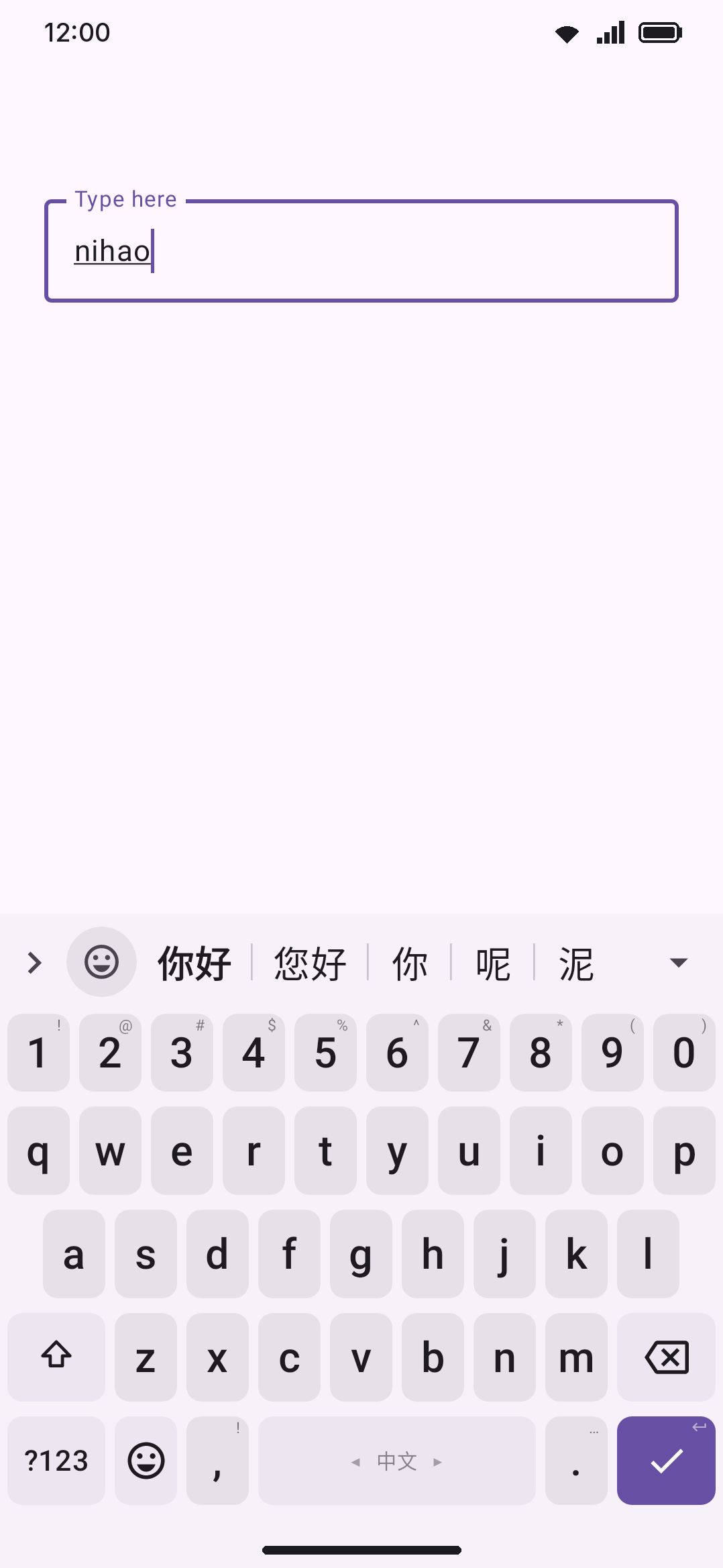
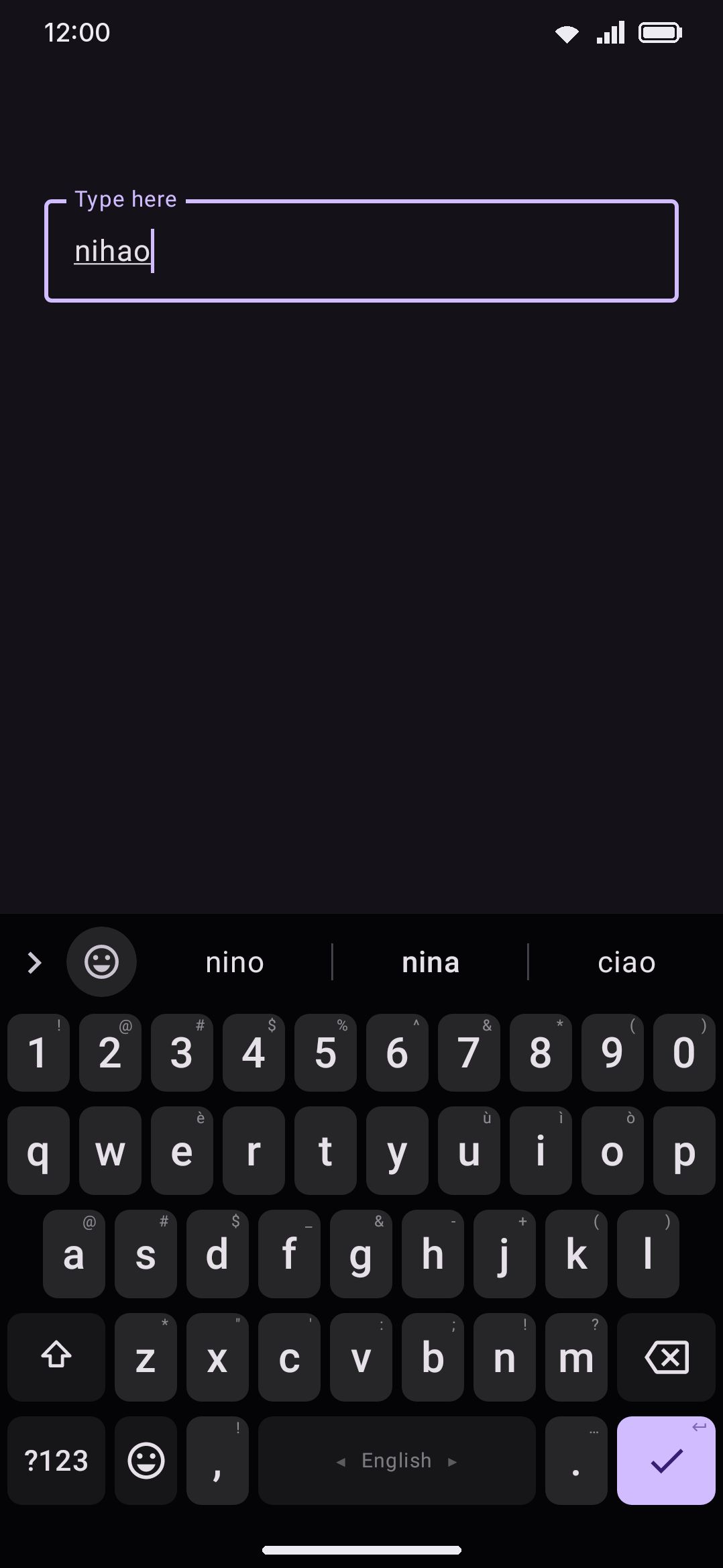
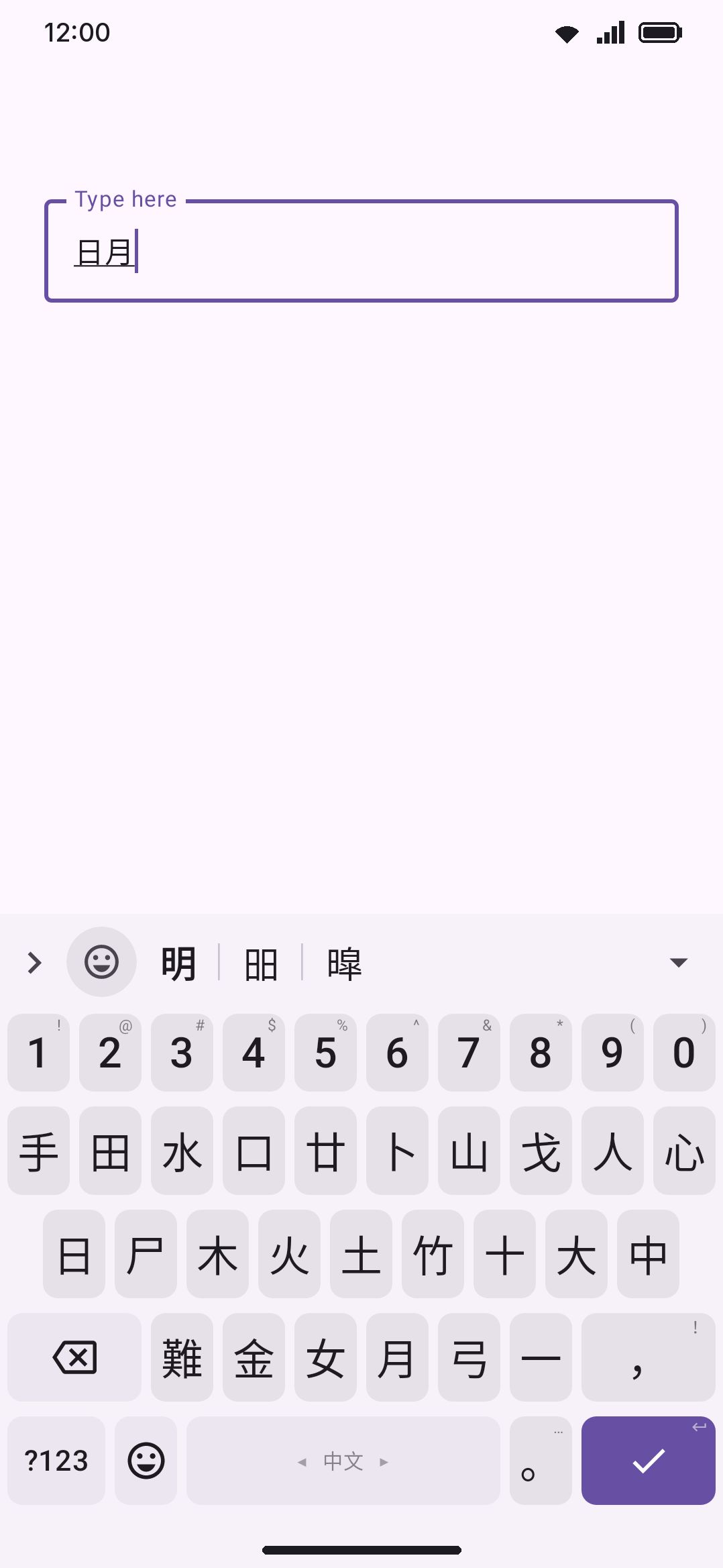
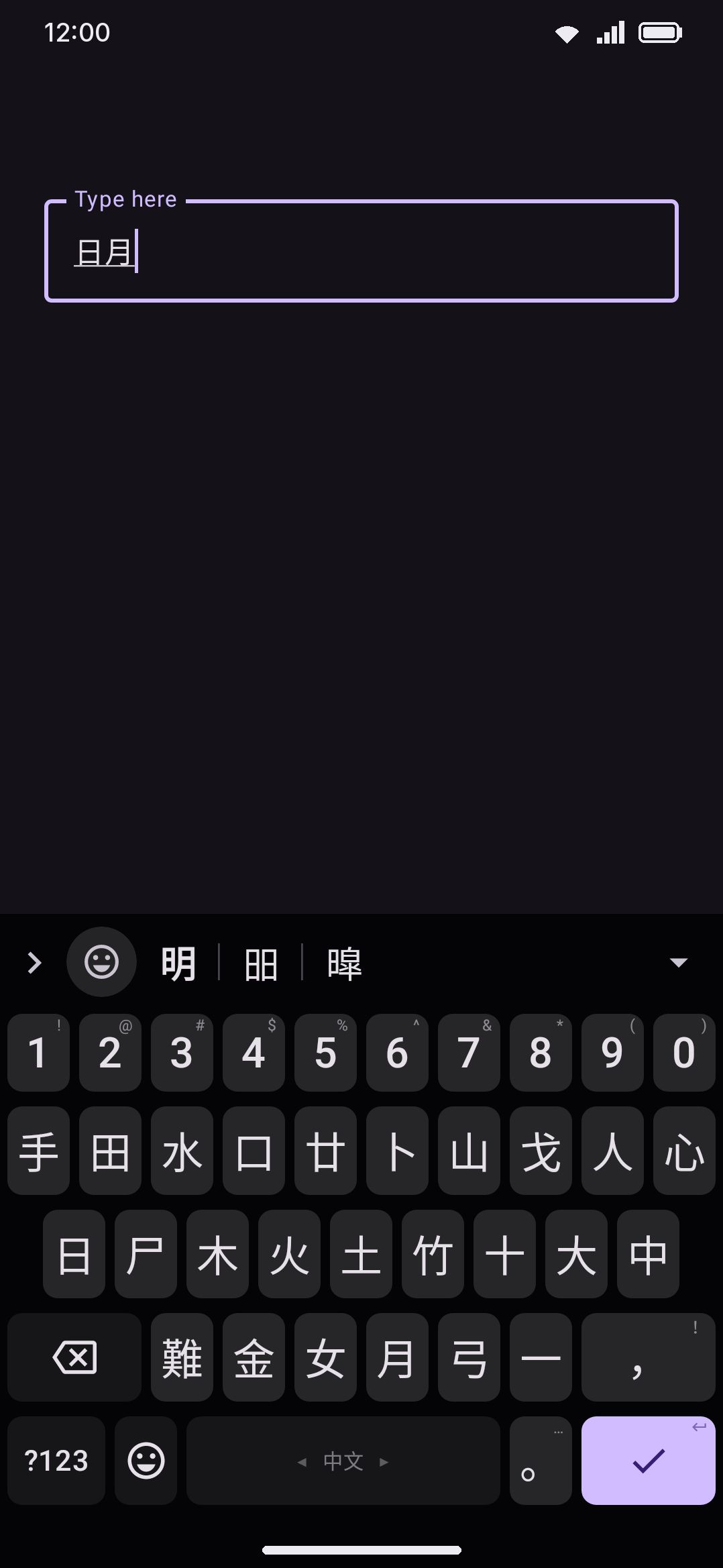
Section titled “Two different input flows”Conversion input methods (Pinyin, T9 Pinyin, Zhuyin, Cangjie, Cangjie Quick, Stroke for Chinese; Jyutping for Cantonese; Romaji, Flick, and Kana JIS for Japanese) hold what you type in a composing buffer and replace the entire suggestion strip with ranked character/word candidates. Nothing commits until you pick a candidate, press space, or otherwise flush the buffer.
Korean types the other way. HangulComposer composes jamo directly into syllable blocks (ㄱ + ㅏ + ㄴ → 간) with no reading step and no candidate list. There’s nothing to convert. Five keymaps ship: the standard two-set (두벌식) grid, where one key is ㄱ whether it starts or ends a syllable and the composer decides by position, the two three-set (세벌식) grids, 390 and Final, whose keys say for themselves whether they are an initial or a final, and the two 12-key pads, 천지인 (Cheonjiin) and 나랏글 (Naratgeul). On a three-set grid a tense initial is typed by pressing the plain one twice (ᄀ ᄀ → ㄲ), and a vowel after a final never pulls that final into the next syllable. Syllables build the same way in the keyboard’s own text boxes, such as the emoji, GIF and clipboard searches, Find and replace, and the AI prompt: backspace there takes back the last jamo rather than the whole block. The same goes for the other keyboards that build letters from keys, Vietnamese Telex and VNI and Khipro. Korean typing gets the ordinary word-suggestion and autocorrect strip instead, backed by a real downloadable dictionary (see Downloadable dictionaries). If you’ve used a Chinese or Japanese IME before, don’t expect Korean to work the same way. It’s a direct phonetic keyboard.
천지인 (Cheonjiin) is the phone keypad, laid out the way Samsung’s is. Vowels are drawn from three strokes, ㅣ, ㆍ and ㅡ, in the order you would write them: ㅣ ㆍ is ㅏ, ㆍ ㅣ is ㅓ, ㆍ ㅡ is ㅗ, ㅡ ㆍ is ㅜ, a second dot gives the y-vowel (ㅣ ㆍ ㆍ is ㅑ), and a ㅣ after a vowel gives ㅐ, ㅔ, ㅚ, ㅟ and the rest. A dot that isn’t part of a vowel yet waits on screen as ㆍ or ‥, and a third dot goes back to one. Each consonant key holds two or three letters, picked by tapping it again: ㄱㅋ once is ㄱ, twice ㅋ, three times ㄲ. To type the same consonant twice in a row (the ㄱ ㄱ in 먹고), either pause for a second before the second tap or press Space between them. A space straight after a consonant tap only ends that letter and types nothing; press it again for a real space. The .,?! key cycles through its four marks the same way. Delete takes back one tap: a whole consonant, or one stroke of a vowel (ㅏ back to ㅣ).
나랏글 (Naratgeul) is the other phone keypad, laid out the way Samsung’s is. It has keys for six consonants, ㄱ ㄴ ㄹ ㅁ ㅅ ㅇ, and for the vowels ㅏㅓ, ㅗㅜ, ㅣ and ㅡ. Tap ㅏㅓ once for ㅏ and again for ㅓ, and ㅗㅜ the same way. Every other letter is built from these with two keys that change the last letter you typed. 획추가 adds a stroke and goes round: ㄱ ㅋ, ㄴ ㄷ ㅌ, ㅁ ㅂ ㅍ, ㅅ ㅈ ㅊ, ㅇ ㅎ, and ㅏ ㅑ, ㅓ ㅕ, ㅗ ㅛ, ㅜ ㅠ. 쌍자음 doubles a consonant and undoubles it: ㄱ ㄲ, ㄷ ㄸ, ㅂ ㅃ, ㅅ ㅆ, ㅈ ㅉ. On a vowel it gives the y-form, the same as 획추가: ㅏ ㅑ, ㅓ ㅕ, ㅗ ㅛ, ㅜ ㅠ, and ㅐ ㅒ, ㅔ ㅖ. Both work on a syllable you are still building, so 가 becomes 갸, 롬 becomes 롭 and then 롶, and 각 becomes 갂. A letter that can’t stay in the syllable moves out of it: 밥 doubled is 바ㅃ, and 낛 with a stroke is 낙ㅈ. ㅐ, ㅒ, ㅔ and ㅖ have no key: type the vowel and then ㅣ (ㅏ ㅣ is ㅐ), and 획추가 or 쌍자음 on ㅐ gives ㅒ. Once a word is finished with Space or a mark, the two keys do nothing to it. Both keys are also in the layout editor’s action picker, for a pad of your own.
Chinese input schemes
Section titled “Chinese input schemes”Chinese carries six layouts. Adding it from the language catalogue turns on Pinyin alone, and the other five are a tap away on Chinese’s own screen:
| Layout | Reading unit | Buffer commits |
|---|---|---|
| Pinyin | Romanized syllables (ni, hao) | Prefix: a multi-syllable buffer offers the whole phrase plus its leading syllables |
| T9 Pinyin | Same syllables on a 9-key/T9 grid (ABC/DEF/GHI…) | Prefix |
| Zhuyin (Bopomofo) | ㄅㄆㄇㄈ… symbols, with four dedicated tone-mark keys (ˇˋˊ˙) | Prefix |
| Cangjie (倉頡) | Up to five radical keys, a–y, each printed as its radical glyph | Whole buffer: one code run is one character |
| Cangjie Quick (速成) | Just the first and last radical of a character | Whole buffer |
| Stroke (笔画) | Five stroke-class keys (一丨丿丶乙) plus a * wildcard for an uncertain stroke | Whole buffer |
Pinyin, T9 Pinyin, and Zhuyin are all prefix-commit: type nihao and the strip offers 你好 first, then leading-syllable candidates like 你 alone. Tapping one consumes only the part of the buffer it covers and re-converts the rest, so you don’t have to clear the buffer between characters. Cangjie, Cangjie Quick, and Stroke are the opposite: shape and stroke codes map to exactly one character each, so a commit always consumes everything you’ve typed.
Zhuyin and T9 Pinyin don’t need their own dictionary. They reuse the Pinyin pack and translate each segmented syllable to its pinyin spelling. Cangjie and Cangjie Quick share one radical-code table. Stroke and Jyutping (below) each have their own pack.
Picking syllables on T9 Pinyin. Each key on the T9 pad stands for three or four letters, so the keys you press could spell several syllables, and the keyboard guesses which. The column down the left of the pad shows what the next syllable could be while you type. WXYZ GHI ABC MNO lists xiao, xian, zhao and zhan, then xia and zha, then xi, yi and zi: longest first, with the keyboard’s own guess at the top. Tap one and that syllable is settled. The strip then offers only characters read that way, and the column moves on to the next syllable, so a phrase the strip keeps getting wrong (优点真遗恨 for 有点小遗憾) can be pinned down one syllable at a time. The text you are typing shows a ' between syllables, so you can see how your keys were split. Delete takes back the last key you pressed, and once only settled syllables are left it unsettles the last one, back to its keys. While you aren’t typing a reading, the column lists punctuation (,。?!、:; and more) to tap instead. The column is in the layout editor’s action picker too, as “Pinyin syllable list”, for a pad of your own.
Cantonese: Jyutping
Section titled “Cantonese: Jyutping”Cantonese is a separate language entry (not a Chinese sub-option) with one layout: standard QWERTY plus a permanent digit row, so the tone numbers 1 to 6 are one tap away. It’s a prefix-commit conversion scheme like Pinyin, with its own 163k-entry Jyutping→Hanzi dictionary.
Double Pinyin
Section titled “Double Pinyin”For Pinyin typists who want fewer keystrokes, Double Pinyin encodes every syllable as exactly two keys (one for the initial, one for the final), which the composer expands to full Pinyin before segmenting as usual. Five real schemes are available: Microsoft, Sogou (identical key table to Microsoft), Xiaohe (小鹤), Ziranma, and Pinyin++. Turning one on replaces the syllable-typing rules on the same Pinyin layout. It isn’t a separate keyboard.
Your own scheme
Section titled “Your own scheme”Pick Custom in the scheme list, or open Custom Double Pinyin scheme below it, to set every key yourself:
WM Keyboard Languages & layouts Chinese Custom Double Pinyin schemeThe first time you pick Custom, the editor opens on a copy of the scheme you were typing with (Xiaohe if you were on full Pinyin), so you change a working table rather than start from nothing. Start from a scheme in the menu swaps in another built-in table the same way. Nothing changes on the keyboard until you press Save, and saving also switches you to Custom. The editor always opens with three # comment lines that explain the format, and a scheme you paste or import without them gets them added on top. While the custom scheme has nothing but comments you type full Pinyin.
The scheme is plain text in the same format as fcitx’s sp.dat, so a scheme file written for fcitx works here unchanged, and one you export works in fcitx. The menu has Copy and Paste for sharing it as text, and Import and Export for files. One line per key:
方案名称=My scheme[声母]zh=vch=ish=u[韵母]iu=qing=kuai=k[零声母]=aeoang=ahpinyin=Kputs an initial or a final on key K. Several finals can share a key, and the one that makes a real syllable wins. The one-letter initials (b, p, m and so on) stay on their own keys unless a line moves them, so you only have to say where zh, ch and sh go.=keyslists the keys that start a syllable with no initial, followed by the final’s key, soojis an whenois listed. A*among them is fcitx’s rule for schemes without such a key: a one-letter final is typed twice (aa), a two-letter one as itself (ai), and a longer one as its first letter and its own key (ah). With no=line, a, e and o are the lead keys, as in the built-in schemes.pinyin=KK, with two keys, spells one whole syllable and wins over everything else.#starts a comment, lines in square brackets are only headings, case doesn’t matter, andücan be writtenv.
Under the text, a status line names the first line the scheme skips and why (tap it to select that line), or else every initial and final that no key types yet. Only the first scheme in a file is read: fcitx’s own sp.dat holds several in a row, each opened by its 方案名称= line, so delete the ones you don’t want or let the first one stand.
Jianpin (简拼): initials are enough
Section titled “Jianpin (简拼): initials are enough”Nobody types 中国人民 as zhongguorenmin. Jianpin lets a syllable be its first letter alone, so zgrm reaches the same word, wm finds 我们 and bj finds 北京. It’s on by default, the way every desktop and phone Pinyin IME has it, and it’s a switch on the Chinese screen if you’d rather not.
The rule is one letter, one syllable, boundaries included: hd means h… plus d…, never “any reading with an h and a d in it”. That’s what makes mixed input work too. Spell out as many syllables as you like and abbreviate the rest: haod finds 好的, zguo finds 中国, beij finds 北京. A syllable you type in full is matched exactly and never widened, so hao still means 好 and nothing beginning with hao.
Three conventions borrowed from Sogou and Google Pinyin:
z,candscover the retroflex initials too.zgfinds 中国 (zhōng guó) as well as 祖国 (zǔ guó). A typedzh,chorshreads both ways:shis s + h (上海, 生活) and also the initial sh… on its own (是, 说), andzhgstill reaches 中国. Both are on the strip and rank by likelihood. An apostrophe is your own boundary:s'his s + h only.- The vowels
a,eandoare both a syllable and an abbreviation.aqfinds 安全. Typed on their own, the exact reading leads:aoffers 啊 before 爱 and 安. - A phrase beats a stitch. Where the dictionary has the word (我们, 中国), it comes first; single characters strung together to cover the same letters rank below it. So the strip leads with what the abbreviation was for, and the ranking the issue asks for falls out of that: an exact reading first, then a partly spelled one, then pure initials.
Everyday pairings
Section titled “Everyday pairings”A lot of Chinese isn’t dictionary words. 我的 and 我不 are two single characters that turn up together constantly, and no dictionary lists either as an entry. Ranked one word at a time, wbxh came out as 亡八喜欢: two real words beat four, whatever the words are.
The Chinese word pairs pack fixes that. It counts which words follow which in a large body of everyday Chinese (film and TV subtitles, plus web and news text), so the keyboard can tell that 不 after 我 and 喜欢 after 不 are what people write. With it, wbxh leads with 我不喜欢, wbxz with 我不想再, wdmm with 我的妈妈, nine with 你呢 and hd with 好的. It comes with the Pinyin dictionary when you download that, and if you already had the dictionary, a chip on the strip offers it once: “Download Chinese word pairs for better candidates”. It’s about 11 MB. T9 Pinyin and Zhuyin use it too.
Without the pairs, from three abbreviated letters up and only where no single entry covers everything you typed, the strip carries a few stitched readings right after its first answer: whole-buffer ways of reading the letters as separate words, so 我的妈妈 for wdmm is still a tap away.
Learning steers the search as well as the finished list. The characters you keep choosing for a reading are the ones paths get built out of, so the longer you type, the more the readings come out in your own words.
Two things follow from abbreviations being real units:
- Candidates appear from the first key.
nalone offers 你, 那, 能 and so on, andnihalready leads with 你好, so a whole word is often on the strip before its second syllable is finished. - A half-typed trailing syllable is guessed, not ignored. With
nihaozon the strip, the top candidate covers all six letters (你好在, say), where before it would have covered 你好 and left thez. Keep typing and the guess resolves; tap 你好 and only those five letters commit, thezstays.
Two readings of the same letters
Section titled “Two readings of the same letters”Some letters split into syllables more than one way. xian is one syllable (先, 现) and also two (西安, Xi’an); nine is nin + e and also ni + ne (你呢); fangan is 方案. Pinyin marks the second kind with an apostrophe, which almost nobody types on a phone, so the keyboard reads both and the more likely reading wins: xian offers 先 and 现 first and 西安 a few places on, and nine leads with 你呢. Type the apostrophe and it’s settled: xi'an is two syllables only, so 先 is no longer offered.
Splits that need more abbreviations, or more syllables, than the letters require are left out. xian never reads as xia + n (下年), and nihao never as ni + ha + o.
A missed key
Section titled “A missed key”Where the letters you typed only make sense as a run of initials, the keyboard also tries the slips a finger makes: each letter as the key next to it, two letters the wrong way round, one letter too many and one too few. xiqn reads as xian (the a beside the q missed), qign as qing, zhng as zhong and zhonng as zhong, and the repair is offered alongside whatever the initials spell. It only looks where the letters need two or more bare initials to read at all, so ordinary pinyin and deliberate initials (wbxh) are never second-guessed. A repair is only offered while it reads nearly as well as the letters as typed, at least a tenth as likely, so a slip never pushes a real reading of your letters off the strip.
Other spellings
Section titled “Other spellings”Some syllables have more than one spelling in use, and a few slips are so common that every Pinyin keyboard takes them. They all read as the syllable they stand for, with nothing to switch on:
- ü as
uorv:lueandnuefor lüe and nüe,jv,qv,xvandyvfor ju, qu, xu and yu. - The long forms that pinyin shortens:
lioufor liu,gueifor gui,duenfor dun. gnforng(bagnis bang) andonforong(zhonis zhong).
A spelling that is a syllable in its own right keeps its own meaning: lu is always lu.
Before you finish the syllable
Section titled “Before you finish the syllable”The last syllable can be unfinished. zho at the end of what you typed also reads as zhong and zhou, nia as nian, niang and niao, so 中 and 年 are on the strip before you type the rest. This only applies to the last few letters, and only where they aren’t a syllable already.
Rare characters
Section titled “Rare characters”Every character has a place in the ranking from how often it shows up in a large body of text, and for rare characters that count is unreliable: one odd file is enough to put a character nobody writes at the top of its reading. The keyboard also knows which characters China’s standard list of common characters (通用规范汉字表) includes and at which of its three levels. A character outside the list, or in its rarer levels, sinks below the everyday ones that share its reading. This list is part of the app, not a download.
Dates and numbers
Section titled “Dates and numbers”Some letters type things that aren’t in any dictionary:
rq(日期) offers today’s date: 2026年10月13日, 二〇二六年十月十三日, 2026-10-13 and 10月13日.sj(时间) offers the time: 14:05, 14点5分 and 下午2点5分.xq(星期) offers the weekday: 星期二, 周二 and 礼拜二.
These come right after the best candidate for the same letters, so sj still leads with 时间. Picking one teaches the keyboard nothing.
Type v and then a number, with a decimal point if you like, for the number in Chinese numerals: v1234.5 offers 一千二百三十四点五, the financial 壹仟贰佰叁拾肆点伍, 一二三四点五 digit by digit, and for whole numbers the amount 壹仟贰佰叁拾肆元整. No pinyin syllable starts with v, so this never changes what pinyin reads. All of this is on by default and one switch turns it off.
Narrowing the list by strokes
Section titled “Narrowing the list by strokes”When the character you want is far down a long list, narrow it by how the character is written. Hold ‘词 for a backtick, then type the first strokes with the letters fcitx and Sogou use: h for 横 (一), s for 竖 (丨), p for 撇 (丿), d or n for 点 (丶) and z for 折 (乙). yi then `z leaves 乙 and the other characters that start with 折; the composing text shows the strokes as you type them. Picking a candidate ends the filter, and only the letters that candidate covers are used up. It needs the Stroke dictionary download, which is where the stroke order comes from. Without it the filter narrows nothing.
The word separator key
Section titled “The word separator key”On the Pinyin layout the key left of z is ‘词 (‘詞 with Traditional characters on), not Shift. It types the apostrophe that marks a syllable boundary, so xi'an and s'h take one tap each, the way Gboard’s Pinyin keyboard has it.
Swiping
Section titled “Swiping”You can swipe on the Pinyin layout, with gesture typing on. A swipe spells a reading, either the full pinyin (nihao) or the initials of a word (wm for 我们), and the reading goes into the text you’re composing as if you’d typed it, so the strip converts it the usual way and a second swipe carries the same sentence on. Nothing commits and no space follows. It needs the Pinyin dictionary, since that is where the readings come from, and it’s off under a Double Pinyin scheme.
The rest of it
Section titled “The rest of it”Jianpin is a matching rule, not a second dictionary. Its index is the ~410-syllable inventory grouped by first letter, so a run of initials costs a handful of binary searches per syllable rather than a scan. It has no effect under a Double Pinyin scheme, where a syllable is always exactly two keys, and it’s independent of Fuzzy Pinyin: a syllable typed in full can still be matched fuzzily, an abbreviated one is expanded, and the two combine. Picks are learned under the reading the abbreviation resolved to, so choosing 我们 for wm also promotes it for women.
Fuzzy Pinyin and lazy Jyutping
Section titled “Fuzzy Pinyin and lazy Jyutping”Two independent toggles relax reading matching for imprecise typing:
- Fuzzy Pinyin treats commonly-confused sounds as equivalent, so a syllable typed loosely still finds its characters. It’s eleven switches rather than one: six initial groups (zh↔z, ch↔c, sh↔s, n↔l, r↔l, f↔h) and five nasal-ending groups (an↔ang, en↔eng, in↔ing, ian↔iang, uan↔uang), each with a row of its own and all on once the master switch is on. That way you can take the regional nasal endings without paying for n↔l on every syllable that starts with either. Switch one off and a Match every pair again row appears to put them all back.
- Lazy pronunciation (懶音), Cantonese-only, matches the sound mergers common in Hong Kong speech: n↔l, an initial ng- that can drop entirely (我 ngo5 → o5), gw→g and kw→k before a rounded final only (國 gwok3 → gok3, but never 誇 kwaa1 → kaa1), and the coda mergers toward the alveolar place (-ng/-n, -m/-n, -k/-t and -p/-t). It also takes z↔j and c↔ch, which aren’t 懶音 at all but Yale-era romanization habit. Every merger works in both directions, because hypercorrection is as common as the merger itself.
Fuzzy Pinyin is off by default and lazy pronunciation is on, and they change ranking rather than what you can type. A precisely-typed reading still works exactly as before. Japanese has a matching of its own for the flick pad, covered under Kana without marks.
Traditional characters and regional wording
Section titled “Traditional characters and regional wording”A single toggle switches candidate output from Simplified to Traditional Han, applied as each composer builds its candidate list (not as a find-and-replace afterward, which would break prefix-commit matching). Many Simplified characters have more than one Traditional form, and only the word tells which: 发 is 發 in 發展 but 髮 in 頭髮, 后 is 後 in 後來 but stays 后 in 皇后, 干 is 幹 in 幹部 but 乾 in 乾淨. The keyboard converts word by word with the OpenCC phrase and character tables (release 1.4.2), using OpenCC’s own matching: the candidate is split into the longest phrases it contains, each phrase converts as a unit, and only a character that is in no phrase falls back to its most common form. A candidate the keyboard stitched from several words is split the same way, so 头发干净 comes out as 頭髮乾淨. A character typed on its own has no word to decide it, so Pinyin, T9 Pinyin, Zhuyin and Jyutping list each of its Traditional forms, the most common first: fa offers 發 and then 髮, gan offers 幹, 乾 and 干, hou offers 後 and 后. Cangjie and Stroke do not, because their codes describe the shape of one character.
The character tables ship with the app. The phrase table is the Traditional characters phrase table pack, about 1 MB, which you download from the Chinese or Cantonese options page like the other tables below. It is one download: the row on either page is the same file. Without it, Traditional output still works, but one character at a time: each character takes its most common form, so 头发 comes out as 頭發. Conversion itself never goes online. The tables load the first time you turn the toggle on, so for a moment after that the candidates can still show in Simplified.
With Traditional on, a second control appears: a region picker (Standard / Taiwan / Taiwan wording / Hong Kong). Taiwan follows OpenCC’s s2tw: Taiwan’s character preferences (為, 裡, 著), and the word stays the one you typed, so chuzuche gives 出租車 and jichengche gives 計程車. Taiwan wording follows OpenCC’s s2twp, which also swaps regional vocabulary: Taiwan’s 計程車 instead of the mainland’s 出租車 for “taxi,” for instance, even though you typed the reading of 出租車. Vocabulary is matched inside a candidate too, so 出租车光盘 becomes 計程車光碟. It is a separate choice because a swap can also change the meaning: 支持 becomes 支援 and 文件 becomes 檔案 in every sense of the word. Hong Kong follows OpenCC’s s2hk: the standard wording with Hong Kong’s character preferences (説, 衞, 温). The Hong Kong choices come straight from OpenCC’s tables and have not been reviewed by a Hong Kong writer yet; a wrong one is worth reporting.
Both controls are on the Chinese and Cantonese options pages only, and they are one setting shared by the two languages. Japanese candidates never pass through this conversion, so the Japanese page does not show them.
Handwriting layouts
Section titled “Handwriting layouts”Chinese, Japanese and Korean each also ship a Handwriting layout, for the character you can’t spell: a kanji whose reading you don’t know, a name, a hanzi you only recognise by shape. Enable it like any other layout of the language, and the keys above the bottom row become a writing area. Write one or several characters, pause, and the best reading goes into your text while the others wait in the suggestion strip for a tap to swap them in. The bottom row keeps ?123, the globe, 、 and 。 (Chinese: ,), space, delete and enter, so you can switch back to your typing layout with one tap. Characters written one after another are never separated by a space. It is the same on-device recognition as the Handwriting tool, so the language needs its model downloaded once; the writing area offers the download itself. Full edition only.
Japanese input
Section titled “Japanese input”Japanese ships three typing layouts, all feeding the same composer, plus the handwriting one above:
- Romaji: type romanized Japanese on a standard QWERTY layout. Keystrokes transduce to hiragana as you type, handling doubled consonants as っ, disambiguating ん, and recognizing yōon combinations like きゃ. The long-vowel mark ー has its own key at the end of the middle row, as on other Japanese keyboards, and a hyphen typed inside a word reads as ー too, so
ka-doconverts to カード. Between words a hyphen stays a hyphen. - Flick: a 12-key pad with kana glyphs directly on the keys. Flick a key in a direction to reach its row-mates (あ flicks left/up/right/down to い/う/え/お).
- Kana JIS: each key emits a kana glyph directly, matching the physical JIS Japanese keyboard layout.
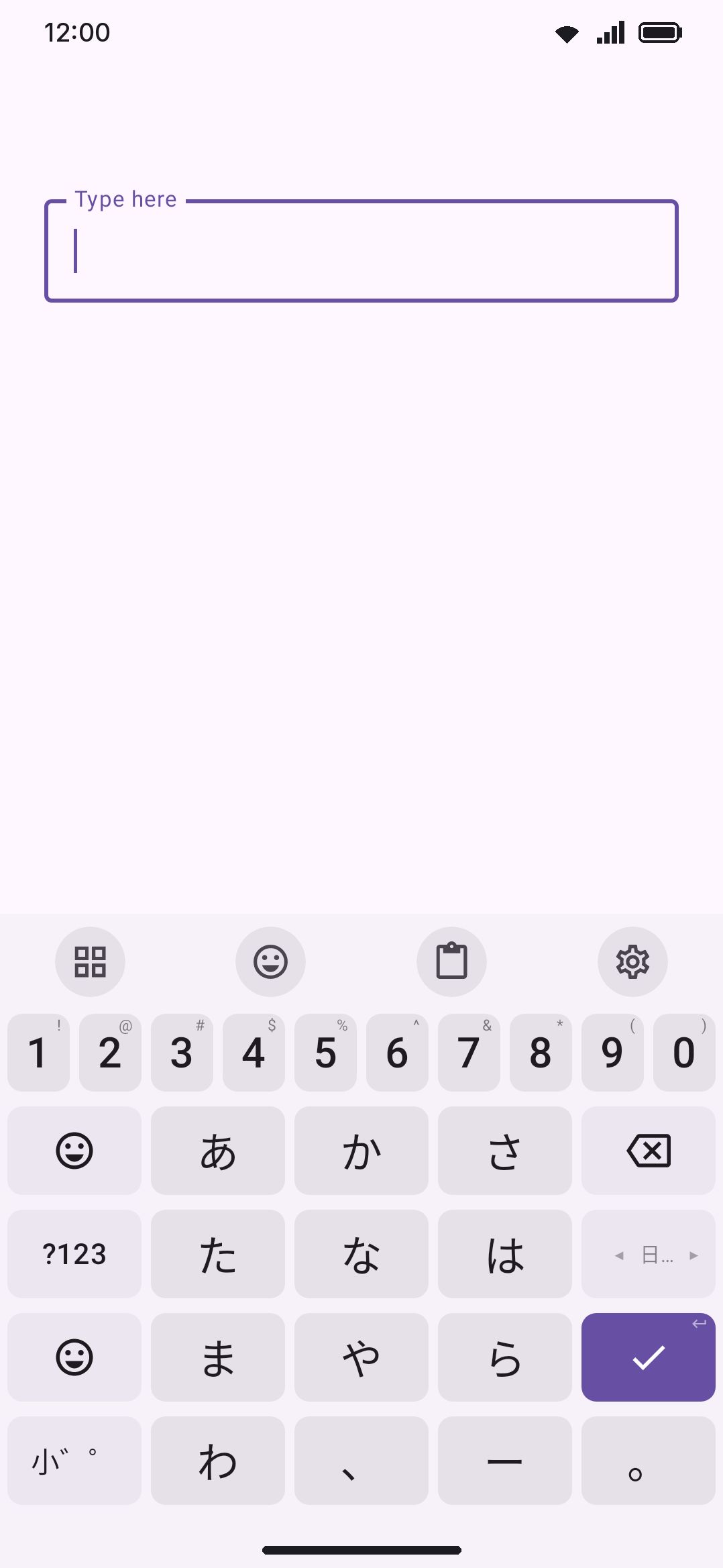
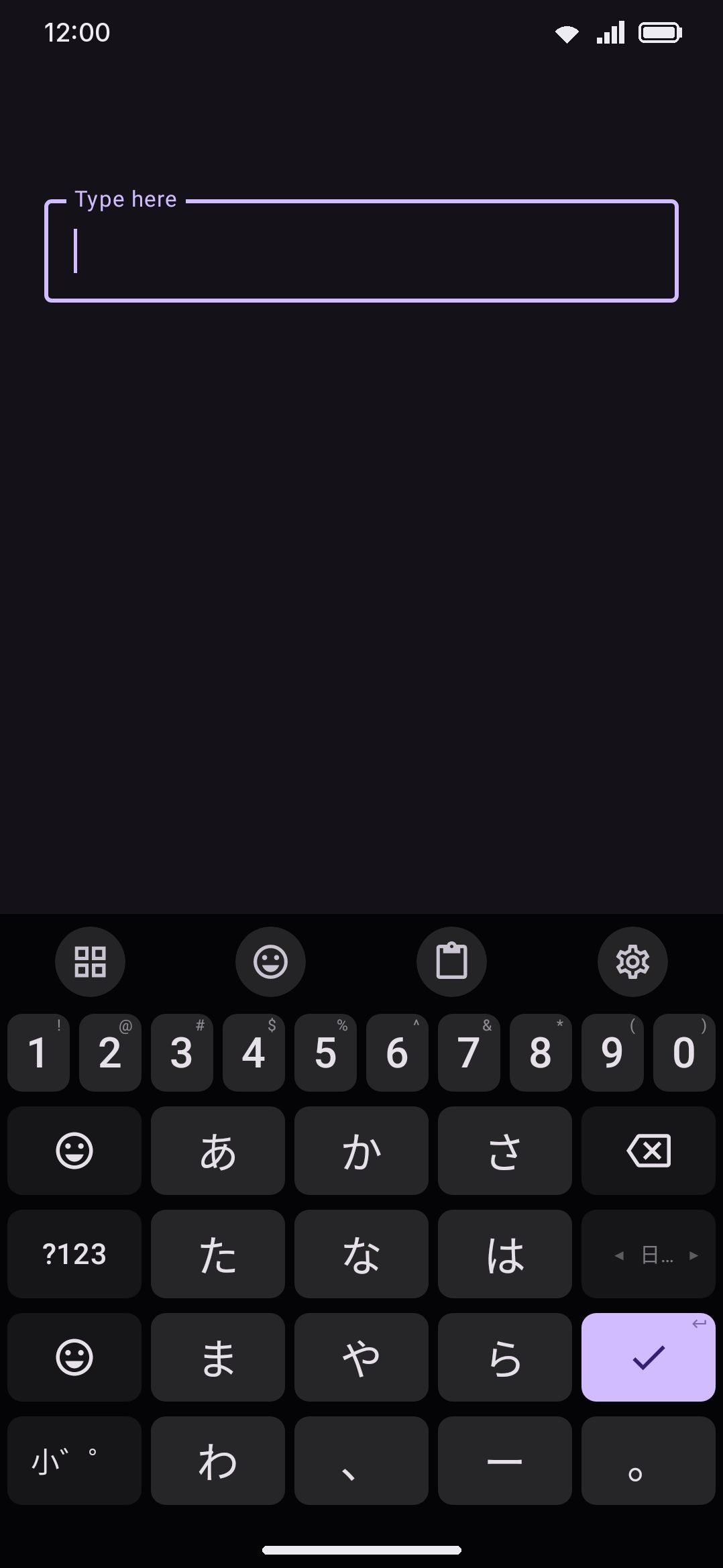
The Flick pad is an ordinary layout, so you can change it in the layout editor. Each key’s sheet has a 3×3 pad with a cell for every flick direction, the four corners included, and a Shift field for each so the same pad can type katakana while Shift is on. The editor’s preview draws a key’s flicks around its edges, so you can see and move every kana on the pad, and the keyboard draws them on the keys the same way unless Show flick arms on keys is off. Any key of a Japanese layout can also be told to become 小゛゜ after a kana: while the last kana you typed has a small, ゛ or ゜ form, that key shows 小゛゜ and changes it, and once the word is done it goes back to its own job. Give that job to the globe or emoji key and the separate 小゛゜ key can go, which is how phone kana pads save the space. Either key cycles katakana as readily as hiragana, so a pad built on アイウエオ keys reaches ェ from エ and バ or パ from ハ.
All three read the same kana or romaji into JapaneseComposer, which converts kana readings to kanji/word candidates using a Mozc-derived dictionary. If nothing in the dictionary matches (or before you’ve downloaded the pack at all), the reading still commits as plain hiragana, katakana, or half-width katakana, so every Japanese layout works as a bare kana keyboard with zero setup.
Kana without marks
Section titled “Kana without marks”On Flick and Kana JIS, every small kana, ゛ and ゜ is an extra key. Match kana without marks lets you leave them off: type かつこう and the candidates still offer 学校, which the dictionary files under がっこう. Each plain kana is also read as the forms the 小゛゜ key would cycle it through (か as が, は as ば or ぱ, つ as っ or づ, や as ゃ, a vowel as its small form), anywhere in the word and as many times as the word needs, so しゆきよう reaches 授業.
It only ever adds marks. A が or a っ you typed was asked for by name and is never read back as か or つ. Each guessed mark costs the candidate a little, so between two words of about the same frequency the one spelled exactly as you typed it comes first, while a clearly more common marked word leads: かつこう opens with 学校 ahead of the given name 葛洪, and かき still opens with 書き, 描き and 下記 before 鍵 arrives. Nothing the exact spelling offered is removed, so expect a longer list rather than a different one. What’s left in the field while you compose is the kana you typed; the marks arrive with the candidate you pick. Picks are learned against the dictionary’s reading, so 学校 moves up whether you next type it with its marks or without.
Romaji is never widened. ga costs exactly what ka does on a QWERTY layout, so kaki means かき and nothing else, which keeps the strip as tight as it was.
Punctuation
Section titled “Punctuation”Every Japanese and Chinese layout carries its language’s punctuation, whichever input method you type with.
- Beside the space bar. The comma key types 、 in Japanese and , in Chinese, and the full stop types 。. Hold the comma for the quotes: 「 」 『 』 in Japanese; “ ” 「 」 《 》 in Chinese, alongside 、 ! ?.
- Flick. Flick や left for 「 and right for 」. Hold 、 for 『』, (), ・ and 〜.
- ?123. The first symbols page swaps the ASCII quotes and the Spanish ¿ ¡ for the language’s own marks. Japanese gets ・ 「 」 、 : ! ?, Chinese gets 、 “ ” : ; ! ?, and the brackets become ( ). Hold a quote for the nested pair (『』, ‘’) or the other convention.
- =\<. The second page has the rest of the bracket family as keys of their own. Japanese: 『』【】, holding 〈〉《》 and 〔〕. Chinese: the title marks 《》 (hold for 〈〉) and the corner brackets 「」 (hold for 『』 and 【】), so Mainland and Taiwan or Hong Kong quoting are both a tap away. It also has 〜 and … (Japanese) or —— and …… (Chinese). © ® ™ moved onto ¶‘s hold.
- Dashes. Hold - on the first symbols page for ー, 〜 and ―― (Japanese) or —— and …… (Chinese) as well as the usual dashes.
The , and . on the symbols page itself stay ASCII, because that is where numbers like 1,000.5 get typed. Their holds lead with the wide forms. A layout that writes its own symbols page keeps it exactly as written.
Full-width space
Section titled “Full-width space”Japanese and Chinese text is spaced with the ideographic space (U+3000, 「 」), which is as wide as a character, rather than the narrow space between words in other languages. Turn on Full-width space in the language’s options and the space bar types it. It is set per language, off by default, so you can have it for Japanese and not for Chinese. A space pressed while a reading is still waiting to convert picks a candidate as it always has; only a press with nothing composing types a space.
The candidate bar
Section titled “The candidate bar”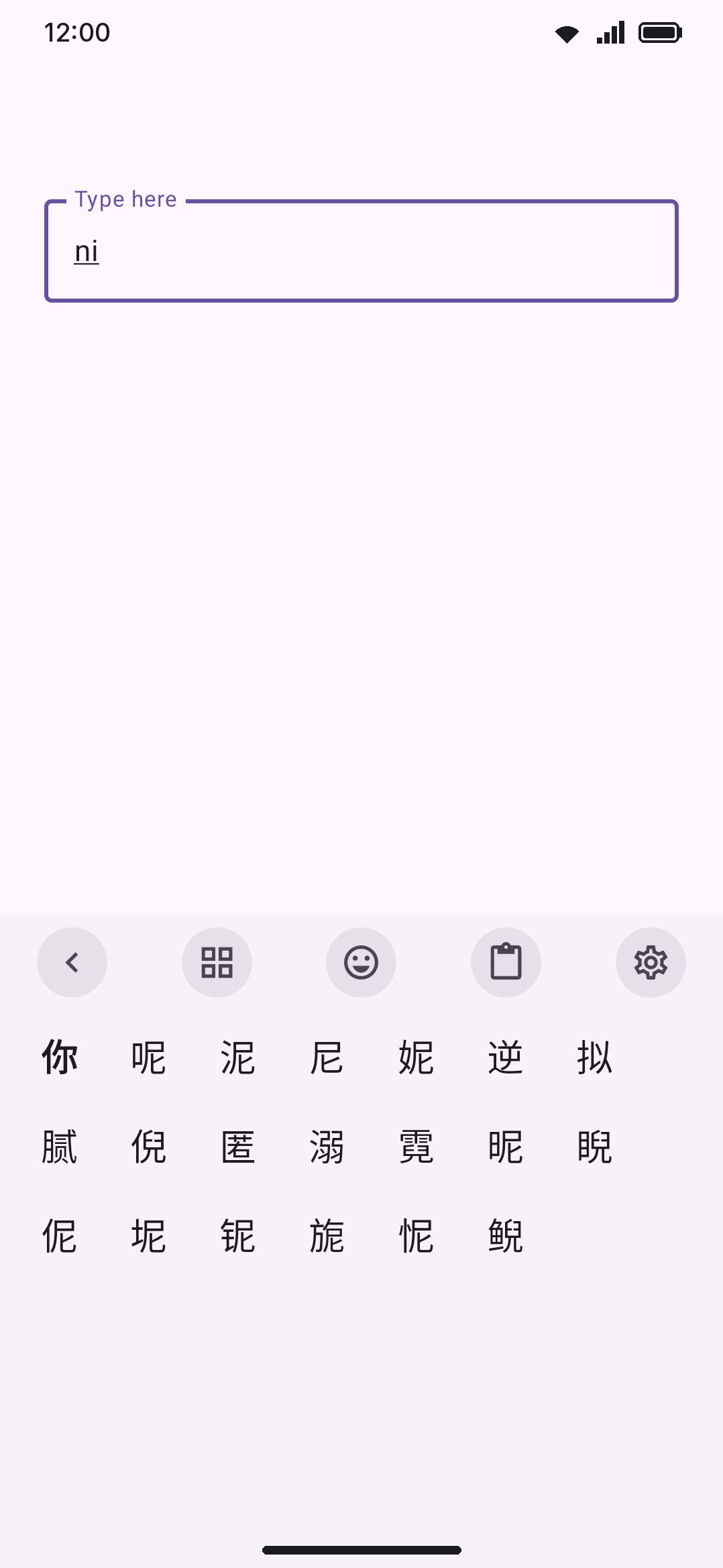
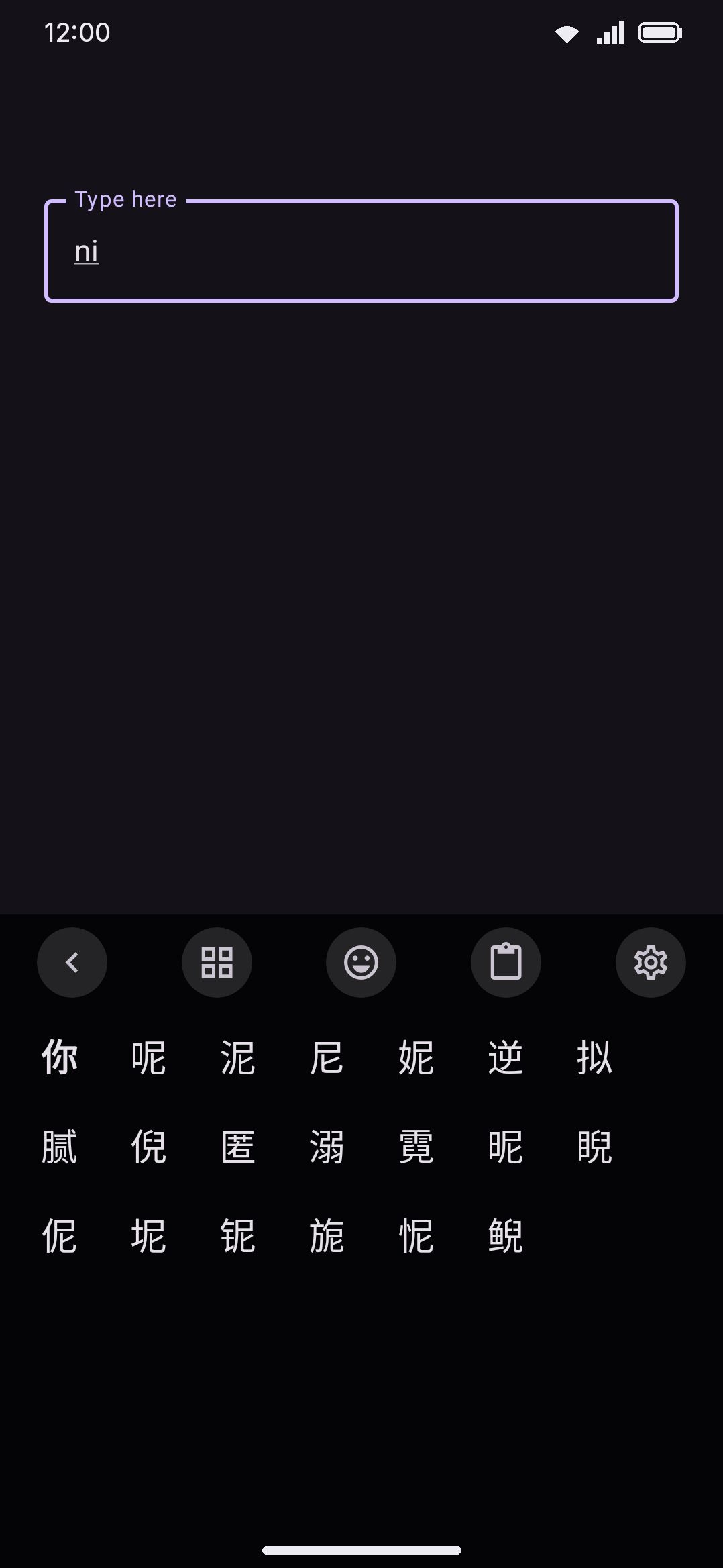
Whenever a conversion composer has a non-empty buffer, the usual word-suggestion strip is replaced by a horizontally-scrolling row of ranked candidates. They’re sized to their text and packed from the left rather than spaced evenly, so the best candidate stays in a consistent spot instead of jumping around as the list changes length. Each new reading opens the row back at its left edge, however far the last one was scrolled. A chevron at the end opens an expanded view, and it sits outside the scrolling area so it never scrolls off. That expanded view is a wrapping grid, and it covers the key rows while it’s open, the same way Sogou, Baidu, and QQ handle it. By then you’re choosing a character rather than typing one. Neither view pages. Both scroll.
Tapping a candidate (in the strip or the grid) resolves by its position in the ranked list, not by its text, because the same word can legitimately appear twice at different reading lengths (a Japanese reading might list 行 for both い and いき). Only the part of your typed buffer that the candidate covers gets deleted. The rest re-converts. Space is the fast path: it commits the top-ranked candidate for the leading syllables and moves on, so repeated space presses walk a whole sentence through without ever opening the strip. No path here adds a trailing space, since Chinese and Japanese don’t put spaces between words. Enter converts nothing: it confirms the reading exactly as typed and does nothing else, so no line break and no send. In Japanese that is the hiragana you see, which is how you keep a word in kana; in Chinese it is the letters you pressed, so with Double Pinyin on, nihc goes in as nihc and not as the nihao the composing line spells out. That makes Enter the quick way to drop a Latin word into a sentence without switching keyboards. Any other commit (punctuation, moving the cursor, switching layout, or leaving the field) ends the reading too. In Japanese it keeps the kana as typed, the way Enter does, so なるといいです! stays in hiragana and only space or a candidate you pick converts. A candidate you highlighted with the arrow keys or a stepping space bar still goes in. In Chinese it flushes the whole buffer by repeatedly taking the top candidate until nothing’s left, so you’re never left with pinyin letters in the text.
In Pinyin the list runs from the whole buffer down to its first letter. Every reading of everything you typed comes first, then the best readings of shorter stretches from the start, longest first, then the single characters for the first syllable. wbxh offers 我不喜欢 and 我不想和, then 我不想 and 我必须, then 我不, then 我. Each one commits the letters it covers and leaves the rest to convert.
If a reading has no dictionary match at all, it always falls back to committing what you typed as-is (raw pinyin letters, kana, or a stroke code) rather than trapping you in an empty buffer.
Earlier, later, never
Section titled “Earlier, later, never”Hold a candidate in the strip or the grid and the strip turns into its menu: Earlier, Later and Never show, with ✕ to close it. Earlier counts it as picked, which puts it first for that reading. Later moves it one step down, behind the candidates it was level with, and also makes every sentence built with it a little less likely. Never show takes it off the list for good, along with every reading built through it, so blocking 亡八 also removes 亡八喜欢. The strip updates at once. It works on every conversion layout (Pinyin, T9 Pinyin, Zhuyin, Jyutping, Japanese and imported input methods), each in its own learning history. On an English word in the strip, Never show adds it to the suggestion blacklist instead. To undo the lot, clear the learned words below.
One character of a word
Section titled “One character of a word”The hold menu on a candidate of two or more characters also shows its first and its last character. Tap one to type only that character, for the whole reading the word covered: hold 选择 and tap 选. This is the quick way to a character that is hard to find under its own reading (以词定字, fcitx’s [ and ]). Nothing is learned from it.
What comes next (联想)
Section titled “What comes next (联想)”Once a Chinese conversion is complete and nothing is composing, the strip offers the words that usually come next: after 我 it might offer 们, 的 and 是; after 喜欢, 你 and 吃. Tap one and it goes in as it is, with no space, and the strip offers what follows that. The words you have written after the same text before come first, then the common pairs from the word pairs pack, then the rest of a longer word the last character starts (无 offers 聊, from 无聊). It needs the word pairs pack, follows the strip’s own switches like any other suggestion, and is on by default. Start typing pinyin and the strip goes back to converting.
The suggestions come from the text in front of the caret, not only from your last tap. Move the caret into the middle of something you wrote, or backspace a character away, and the strip offers what usually follows the Chinese now behind the caret.
Backspace a word you just converted all the way out and the strip shows the other conversions of the reading that spelled it. Delete 他 and it offers 他, 她 and 它; tap the one you meant and it goes back in where the old one was, and the keyboard learns the pick the same way as one made while composing. This works for the conversions typed into the current field, and a word only half deleted gets the ordinary next-word suggestions instead, since part of it is still in the text.
English words and emoji
Section titled “English words and emoji”Pinyin, romaji and Jyutping are typed on the same letters as English, so with English turned on under the language’s Also suggest from, the strip offers English words for those letters too. Type hello and hello sits right behind 和. When the top candidate already covers everything you typed, as 很 does for hen, the English waits behind the first three candidates instead. Space still commits the top candidate, never the English. Tapping an English word puts it in exactly as shown, in place of the whole reading, with no space after it. Only words that start with what you typed are offered, never corrections, since the letters are a reading first. T9, Zhuyin, Cangjie and Stroke layouts don’t offer English, because their keys aren’t the alphabet.
Emoji come up the way they do on any other layout: the top candidate is looked up in the language’s emoji keywords, so xiao showing 笑 brings 😄 alongside, and an English word brings its own. They need the language’s emoji keyword pack, and they follow Emoji suggestions and the strip’s own switches, since these are suggestions rather than the input method. Tapping one with Keep word as the insert mode commits the candidates first and the emoji right after (笑😄); Replace word puts the emoji in place of the reading. A long press does the other one, as it does everywhere.
Picking with space, the arrows and Enter
Section titled “Picking with space, the arrows and Enter”Out of the box the space bar types the first candidate straight away. Turn on Space steps through candidates and it works the way Japanese input methods do instead: the first press highlights the first candidate, each press after it moves the highlight one along (wrapping back to the start at the end), and Enter types the highlighted one. Keep typing and the highlighted candidate goes in before the next reading starts; ⌫ drops the highlight and leaves you editing the reading again. The strip scrolls to keep the highlight in view, and it draws the same outline the keyboard uses for anything picked with the keys. The setting is per language, and off by default, so you can have it for Japanese and keep the quick space for Chinese.
On a physical keyboard the candidates come up even though the on-screen keys stay hidden: just the strip appears while a reading is waiting to convert, and goes again once it’s done. The arrow keys move the highlight whether or not the setting is on (→ or ↓ for the next candidate, ← or ↑ for the one before), and Space or Enter types it. Once a candidate is highlighted, 1 to 9 pick one by its place on the strip and Esc goes back to the reading. Before that the number keys are left alone, because Jyutping’s tones and the T9 pad type digits into the reading. Enter only stops confirming the reading as typed once you’ve moved the highlight, so it still works for dropping in a word as you typed it.
The keyboard’s own boxes
Section titled “The keyboard’s own boxes”The same thing happens in the keyboard’s own text fields: the dictionary tool’s search, the clipboard and emoji filters, the AI prompt, Find and replace, a plugin’s box. They compose and convert exactly as the app’s field does: romaji turns into kana as you type it, the 小゛゜ key cycles the last kana, the candidates appear in the strip above the keys, and a tap commits the part of the reading it covers and leaves the rest composing. Nothing reaches the app behind the panel, and a pick there is learned the same way a pick anywhere else is.
These boxes used to take the keys straight: ka stayed ka, there was no way to add a dakuten, and no kanji was ever offered, so a Japanese user could not search the dictionary tool for anything.
The candidate bar is not the ordinary suggestion strip wearing a different coat, and it isn’t switched off by the things that switch that strip off. Turning Suggestions off, or typing into a field that asks for a silent strip (search and filter boxes, address bars, email fields, password boxes), leaves the candidates exactly where they are. For a conversion method the candidate list is the input method, so hiding it wouldn’t quiet a guess, it would stop you typing the language at all. Password boxes convert too, and what they don’t do is remember the pick afterwards, which is the same rule the rest of the keyboard’s learning follows.
Learning from your picks
Section titled “Learning from your picks”Every candidate you pick from the strip or the grid is remembered against the reading you typed, and so is the one a space press commits. Three paths teach nothing: Enter’s confirm-as-typed, whatever goes in when you leave the buffer some other way (punctuation, moving the cursor), and a reading the dictionary couldn’t convert at all, since the raw-reading fallback is in no ranked list. The next time the same reading comes up, your previously-chosen candidates move to the front (most-picked first) while everything else keeps the order the dictionary gave it. In Pinyin they move to the front of their own group: a 我 you picked for wo comes first among the single characters for wbxh, never ahead of 我不喜欢. It’s a reordering of your own history, not a blended relevance score, so a candidate you’ve never picked never gets promoted just because it’s common in general.
In Pinyin it learns three more things:
- Phrases you build. When you commit one buffer in two or more picks, say 我的 and then 妈妈 for
wodemama, the whole thing is learned as one phrase, so next time it’s offered whole, andwdmmfinds it too. Only short ones are kept, up to four syllables (or six single characters), and none where the word pairs already join every piece to the next. - What you write after what. Each pick is remembered as following the word before it, whether that was the pick before or the Chinese text in front of the cursor. Those pairs help decide between readings (
taafter 她说 leans to 她) and come first in what comes next. - The text before the cursor. The first word of a new reading is ranked as following whatever Chinese is already written before it, using the word pairs pack and your own pairs. After a space, a punctuation mark or Latin text, the reading starts a new sentence.
Nothing you taught it stays forever if you stop using it. After every 3,000 picks or so, each count that hasn’t been used in that time is halved, and a count of one goes. A word you pick every day never fades, and one you picked a few times last year stops outranking it.
Learning is scoped separately per reading system (pinyin, T9 Pinyin, zhuyin, jyutping, and Japanese kana readings each keep their own history), because the same word can be spelled several different ways depending on which Chinese scheme you’re using. Cangjie, Cangjie Quick, and Stroke don’t participate in learning at all: their radical and stroke codes map deterministically to one character, so there’s no ambiguity to learn from.
This history is governed by the same setting as ordinary word learning:
WM Keyboard Privacy Learning on this device Learn from typingTurning it off, using incognito mode, or typing into a field that opts out of learning all stop new picks from being recorded, exactly as they do for the regular word suggestion history.
Options
Section titled “Options”Opening a Chinese, Cantonese, or Japanese entry from the Languages screen shows a dedicated options group (this group doesn’t appear for Korean, since there’s no conversion dictionary to configure):
| Setting | Default | Applies to |
|---|---|---|
| Conversion dictionary download | Not downloaded | Chinese, Cantonese, Japanese (see below) |
| Traditional characters | Off | Chinese and Cantonese, shared between them |
| Regional wording (Standard / Taiwan / Taiwan wording / Hong Kong) | Standard | Same, only shown once Traditional is on |
| Lazy pronunciation (懶音) | On | Cantonese only |
| Match kana without marks | On | Japanese only, and only kana typed on Flick or Kana JIS |
| Full-width space | Off | Chinese, Cantonese, and Japanese, each on its own |
| Space steps through candidates | Off | Chinese, Cantonese, and Japanese, each on its own |
| Jianpin (简拼) | On | Chinese only; ignored under a Double Pinyin scheme |
| Next-word suggestions (联想) | On | Chinese only |
| Date, time and numbers | On | Chinese only |
| Fuzzy Pinyin | Off | Chinese only |
| The eleven fuzzy pairs, one row each | All on | Chinese only, shown while Fuzzy Pinyin is on |
| Double Pinyin scheme | Off (full Pinyin) | Chinese only |
| Custom Double Pinyin scheme | Empty | Chinese only, used when the scheme above is Custom |
To clear everything the keyboard has learned from your CJK picks:
WM Keyboard Privacy Your data Learned wordsCJK picks live in a file of their own, but the Delete the learned words button clears the lot in one action: your typed-word history, emoji usage, autocorrect statistics, the CJK pick history (with what you told the candidate menu) and the per-app language-mix record. There’s no way to clear the CJK half on its own.
Conversion dictionaries are downloads, not bundled data
Section titled “Conversion dictionaries are downloads, not bundled data”None of the conversion dictionaries ship in the app. Until you download the matching pack, or import a list of your own, a Chinese or Cantonese layout still composes and shows the buffer, but the candidate list stays empty. Japanese is the exception: its plain hiragana, katakana and half-width katakana forms are appended to every ranking, so they’re on offer with no pack at all.
You don’t have to know that in advance. Adding Chinese, Cantonese or Japanese puts the packs its layouts need into the Download language data? prompt, sized with the rest (the setup wizard fetches them along with the word list). Switching on one of their layouts later, on the language’s page or under More layouts, asks Download the Chinese Pinyin dictionary? when that layout’s pack isn’t on the device yet. And if a layout whose pack is missing comes up on the keyboard anyway, a chip appears on the strip straight away, before you’ve typed anything, naming the pack you need: “Download the Chinese Pinyin dictionary to type characters”. Tapping it opens that language’s page, where the pack’s row is. The chip asks once per pack, and the ✕ dismisses it. It never appears in a password field.
| Language | Pack | Approx. size | Coverage |
|---|---|---|---|
| Chinese | Pinyin (also covers Zhuyin & T9 Pinyin) | ~2.6 MB | ~121k entries, CC-CEDICT-derived |
| Chinese | Chinese word pairs (comes with Pinyin, for ranking whole readings) | ~11 MB | ~85k words, 700k pairs |
| Chinese | Stroke | ~450 KB | Stroke-order table |
| Chinese | Cangjie (also covers Cangjie Quick) | ~350 KB | ~29k characters |
| Chinese, Cantonese | Traditional characters phrase table (optional, for Traditional output) | ~1 MB | ~50k phrases, OpenCC |
| Cantonese | Jyutping | ~3.4 MB | ~163k entries |
| Japanese | Kana → kanji | ~42 MB | ~1.08M entries, Mozc-derived |
When a new version of a pack comes out, its row offers the download again. Until you take it, the copy you already have keeps converting, so an app update never leaves you unable to type. The Pinyin pack got one with the October 2026 rescore, which ranks common characters like 齐 and 议 near the front of their reading instead of behind rare ones. Downloading it replaces the old copy rather than keeping both.
The two shape-based tables have a second source. Import from FlorisBoard, in the same group, reads a FlorisBoard language pack (.flex) and fills the Cangjie or Stroke pack from the SQLite table inside it, with no download at all. Only those two land, since Wubi, Zhengma and the rest have no composer here; the app names whatever else it found back to you. See Importing other keyboards.
Each download is checksum-verified before it’s used and, once on disk, needs no further network access. See Network policy for what the keyboard contacts and when, and Downloadable dictionaries for how the separate word-list system (which does have entries for plain Japanese and Korean word suggestions, just not for the conversion dictionaries here) works.
Your own word lists
Section titled “Your own word lists”A list you import for Chinese, Cantonese or Japanese goes into the candidates, next to the pack. It only needs a reading on each line, and the formats people already have all carry one:
- CC-CEDICT and CC-Canto (
關係 关系 [guan1 xi4] /relation/). Chinese takes the Simplified form, the one the Pinyin pack lists, and Traditional characters turns it into the other; Cantonese takes the Traditional form and the Jyutping in braces. - Rime dictionaries (
.dict.yaml), such as Luna Pinyin:word, the spaced reading, then a count or a percentage. The YAML header is skipped. - Mozc and Google Japanese Input user dictionaries:
reading,word, part of speech. A katakana reading is read as hiragana. - The packs’ own format,
reading,word,frequency, one tab between each.
Tone numbers and tone marks are dropped and ü is spelt v, the same as in the packs. A line with no reading, such as a plain column of characters, is skipped, and the count on the Custom dictionaries screen is the number of lines that do have one.
A word your list adds appears under its reading. A word the pack already has keeps its place in the pack’s ranking, unless your list gives counts of its own (Rime’s do), in which case it can move up but never down. Your picks reorder both the same way. A list works on its own too: with no pack downloaded, the candidates come from your lists, and the missing-pack chip stops asking. Use only my word lists leaves the pack out once you have imported a list with something in it; with nothing imported it has no effect here, so it can’t leave the language unable to type a character.
A list goes live the next time you open a text field, and only the table for its own language is reloaded.
Details & edge cases
Section titled “Details & edge cases”- A Japanese word-list download exists but does nothing for typing. Japanese has its own entry in the ordinary downloadable-dictionary catalog (see Downloadable dictionaries), but because Japanese is a conversion input method, the regular suggestion engine never runs for it. That download currently has no effect on any of the three Japanese layouts. Korean’s word list, by contrast, is fully active, since Korean isn’t a conversion method.
- The Traditional/region toggles show on the Japanese screen but are inert there.
JapaneseComposernever applies the Han-variant conversion, so leave those settings alone if you’re a Japanese-only typist. They were placed above the Chinese-specific options rather than gated per-language, but they have nothing to act on for Japanese. - Cangjie Quick needs the same dictionary as full Cangjie. With only one key typed, Quick behaves like an ordinary prefix search, since the “last” radical isn’t known yet. The second key turns it into a first-and-last shape match, which usually narrows to a handful of candidates.
- The candidate depth differs by scheme. Pinyin, Zhuyin, T9 Pinyin, Jyutping, and Japanese all rank up to 100 deep in the expanded grid. Cangjie and Stroke cap at 24, because they look candidates up from a fixed code table rather than a ranked lattice.
- There’s no “lock” or “pin” on a candidate. Once you commit one, it only affects future ranking through the learning history above. There’s no separate pinning feature to hold a candidate in place.