
Languages
Every group and row on the Languages screen: enabled languages, Add language, and each language's own screen.
The Languages screen is where you enable languages and layouts, reorder the switch ring, and open each language’s own screen for its numeral system, secondary suggestions, dictionary, and (for a few) CJK options. This page walks every group and row on it in order. For how switching and adding feel to use, see Languages overview and Switching languages; this page cross-links to both throughout instead of repeating them.
Your languages and adding one
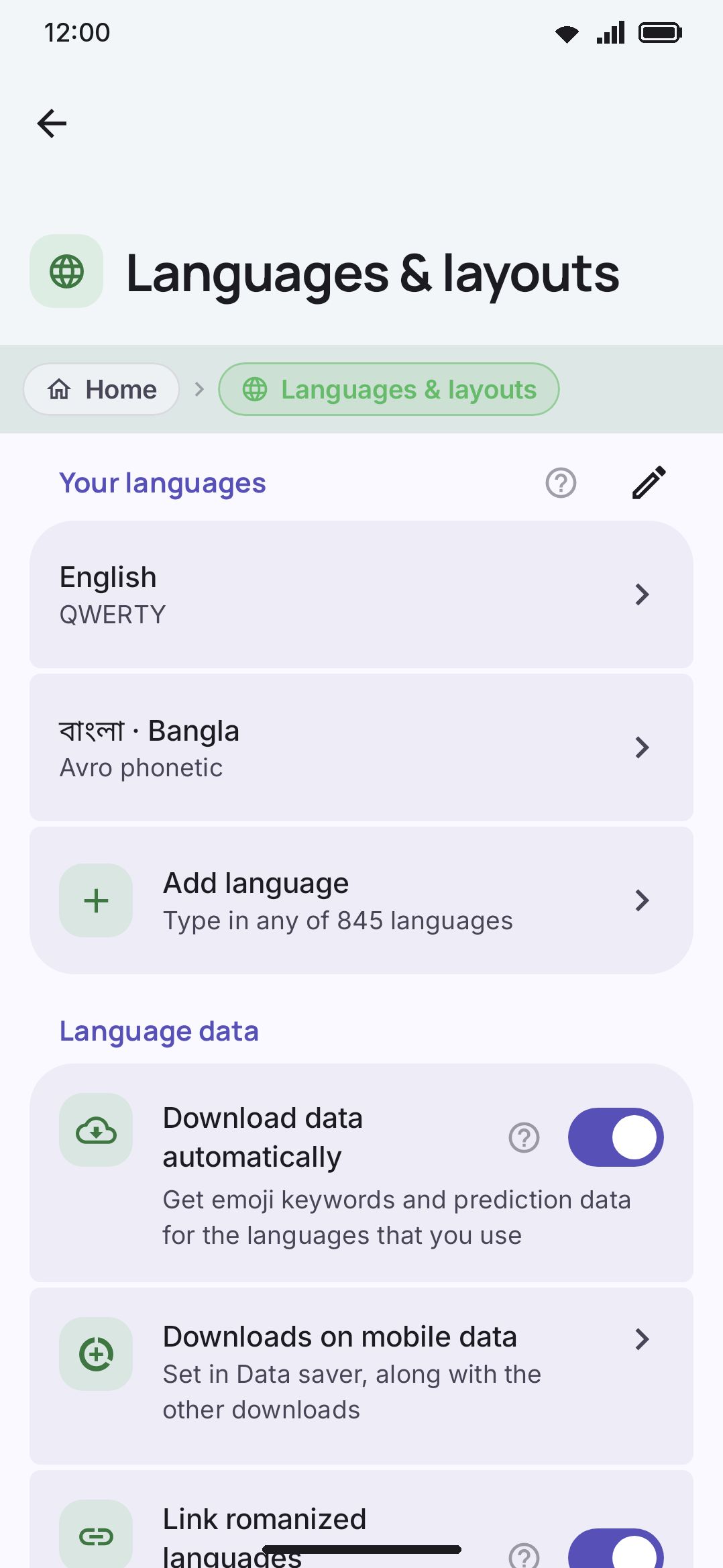
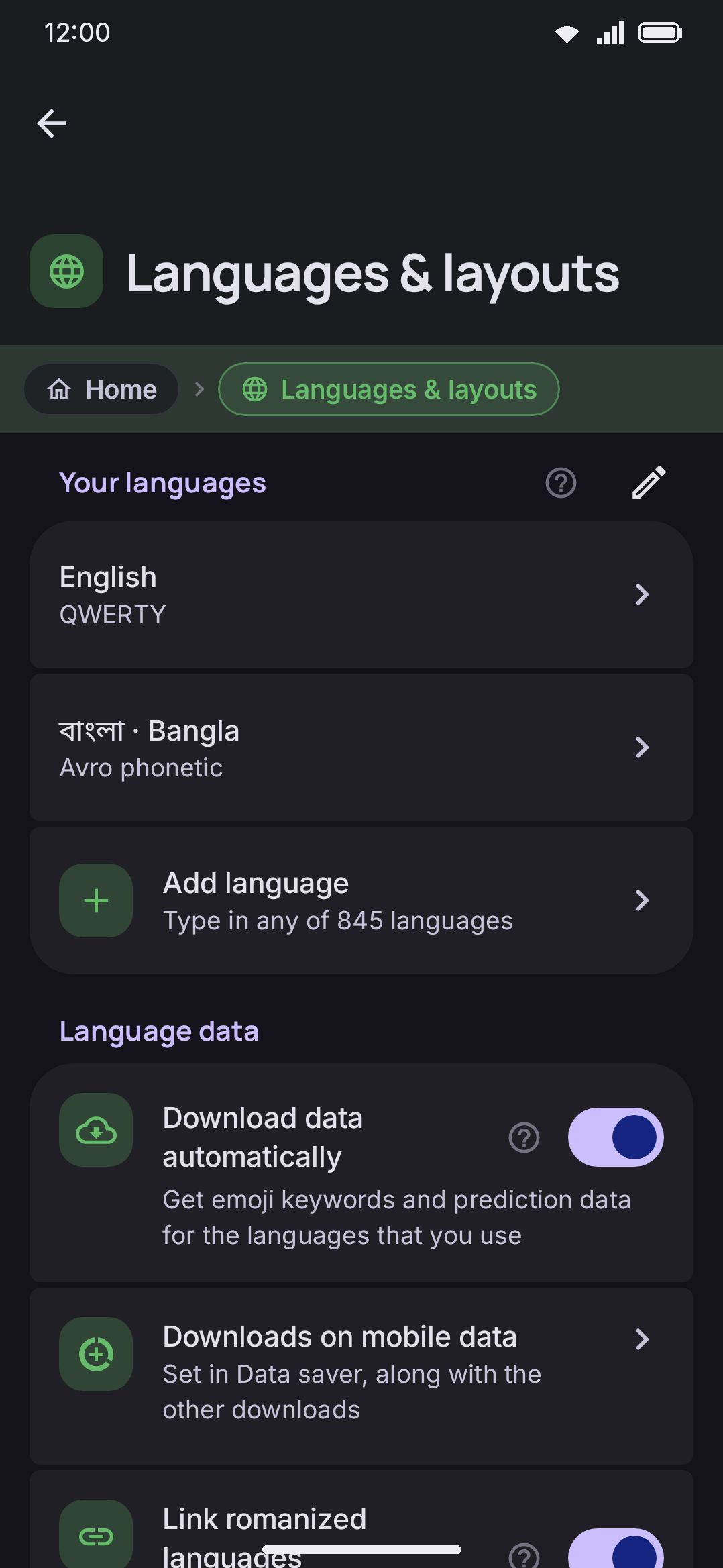
Section titled “Your languages and adding one”The Your languages group lists each enabled language once, in switch order, one row per entry in enabledLanguages. A row’s subtitle is a comma-joined list of that language’s currently-enabled layout names. Bangla, for example, reads “Avro phonetic, প্রভাত (Probhat), জাতীয় (National)” once all three are on. With one layout enabled the subtitle is that layout’s name alone. Tap any row to open that language’s own screen (below).
A trailing Add language row always closes the group, subtitled “Type in any of 826 languages” (that’s the size of the whole catalogue, not just what’s installed).
Below that sits a Language data group with three toggles, on by default except Download data automatically, which starts off on F-Droid builds, plus a Forget remembered apps row that only turns up once at least one app has a language pinned to it (see Per-app language below).
Download data automatically (WM Keyboard Languages & layouts Language data Download data automatically) is the master switch over every download the keyboard would otherwise start by itself: emoji keyword packs, so emoji search answers in your own language, and word-pair data, which sharpens predictions. Both are small, in the hundreds of kilobytes to about a megabyte. Word lists are never in that set, whichever way the toggle is set, because those run to megabytes and stay a deliberate tap. Turn it off and nothing at all is fetched until you ask for it, either on the prompt below or from a language’s own screen. It’s on by default everywhere except the F-Droid build, where it starts off, so that edition makes no connection nobody asked for.
Downloads on mobile data (WM Keyboard Languages & layouts Language data Downloads on mobile data) is a signpost to the Downloads row on the Data saver screen, where the confirmation used to live as a switch of its own. At Ask each time, the default, a language download confirms first while data saver is on, and the dialog names the size. Allow starts it on whatever connection is up; Turn off refuses it while data saver is on. Data saver itself stays off unless you turn it on or pick a trigger.
Link romanized languages automatically (WM Keyboard Languages & layouts Language data Link romanized languages automatically) links the language you just added with the romanized languages of its own script, as described under Also suggest from below. Only the added language’s own links are made, so a link you removed by hand between two languages already on your list stays removed. Turn it off and adding a language links nothing.
Adding a language, from anywhere (the search list, Suggested for you, or the setup wizard), first asks Download language data?, naming the language and roughly what the download costs. Three answers: Download fetches its word list, emoji keywords and word-pair data and adds the language; Not now adds the language and downloads nothing; Cancel backs out of the whole thing, so a mis-tap on a long list costs nothing. A language with nothing to download skips the question entirely.
Tapping Add language opens a full-screen search:
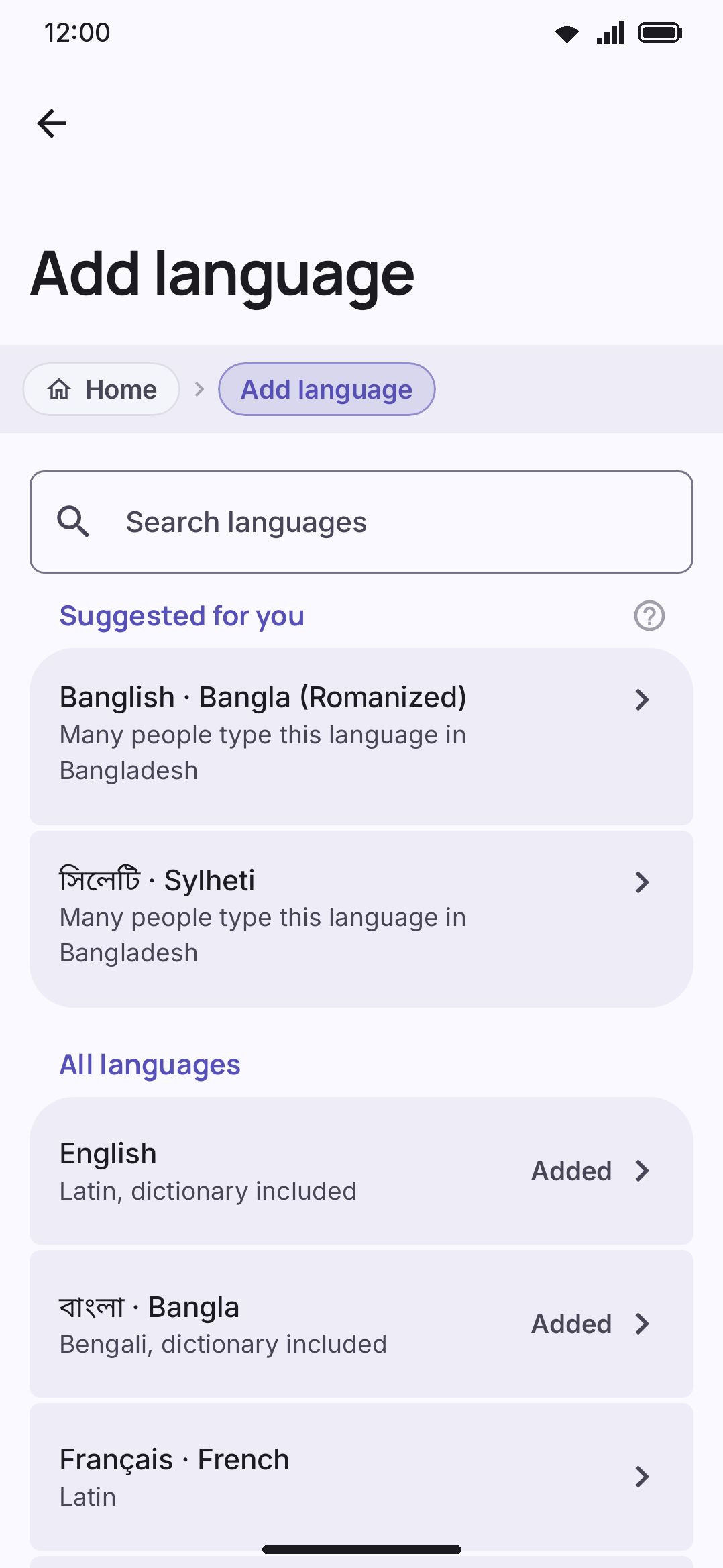
- The search box matches (case-insensitively, as a substring) against a language’s endonym, English name, id, and locale tag, so “german”, “deutsch”, “de”, and “de-DE” all find German. It also matches the names and ids of the layouts that language ships, so “avro” finds Bangla and “bepo” finds French even if you don’t know which language the app files them under.
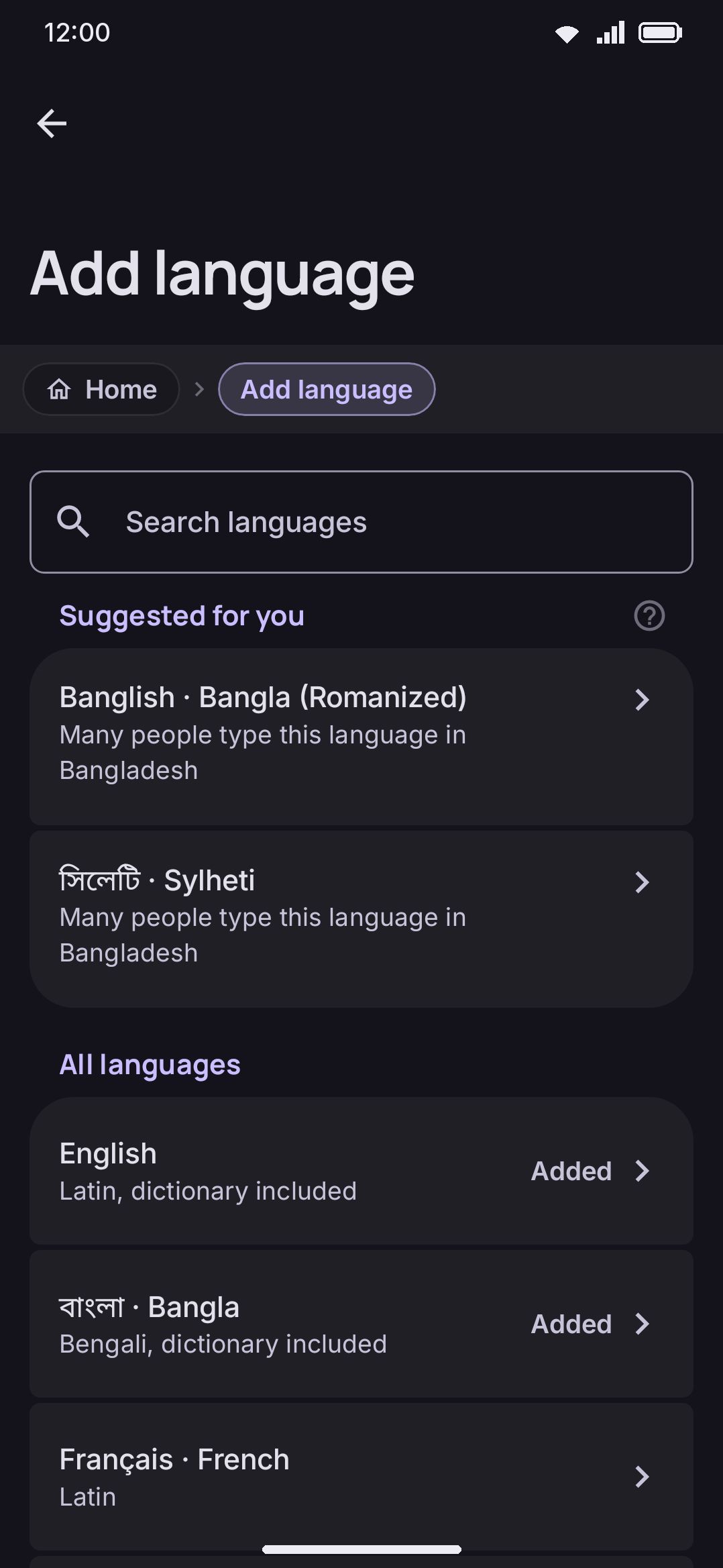
- Above the catalogue, and only while the query is empty, a Suggested for you group offers up to six languages worked out from the device: every language in your phone’s own language list first, then languages widely typed in your region. Four things can say what your region is, and only the first of them with anything to offer is read: the SIM’s country, the network’s country, your phone’s time zone, and last the region attached to your locale. Each row’s subtitle is the reason (“One of the languages on your device”, or “Many people type this language in (country)”), and tapping one asks about its data (below), then enables its first layout and opens its detail screen, exactly as the search results do. Languages already enabled never appear. The narrative version, including what is deliberately not read, is on Languages overview.
- An empty query lists the catalogue in registry order, not alphabetically: English first, then Bangla, then French, and so on. Don’t assume the unfiltered list is A-to-Z. Search to jump to a specific language instead of scrolling. Once Suggested for you is showing, the catalogue below it gets an All languages heading of its own. Either way the list itself stops at 80 rows, added languages first and then registry order, with a caption naming how many more exist (“N more languages. Search to find one.”) whenever there are more, including on an empty query, since the registry runs to 826.
- Each row’s subtitle is the language’s script name (for example “Latin” or “Bengali”) plus ”, dictionary included” for the two languages that bundle one. English and Bangla are the only two. A row already added shows “Added” next to its chevron, which stays put either way.
- Tapping an unadded language asks the Download language data? question first, then (on Download or Not now) enables its first layout and opens that language’s detail screen. Tapping an already-added one opens its detail screen; it doesn’t re-enable anything.
Reordering, per-app memory, and the system switcher
Section titled “Reordering, per-app memory, and the system switcher”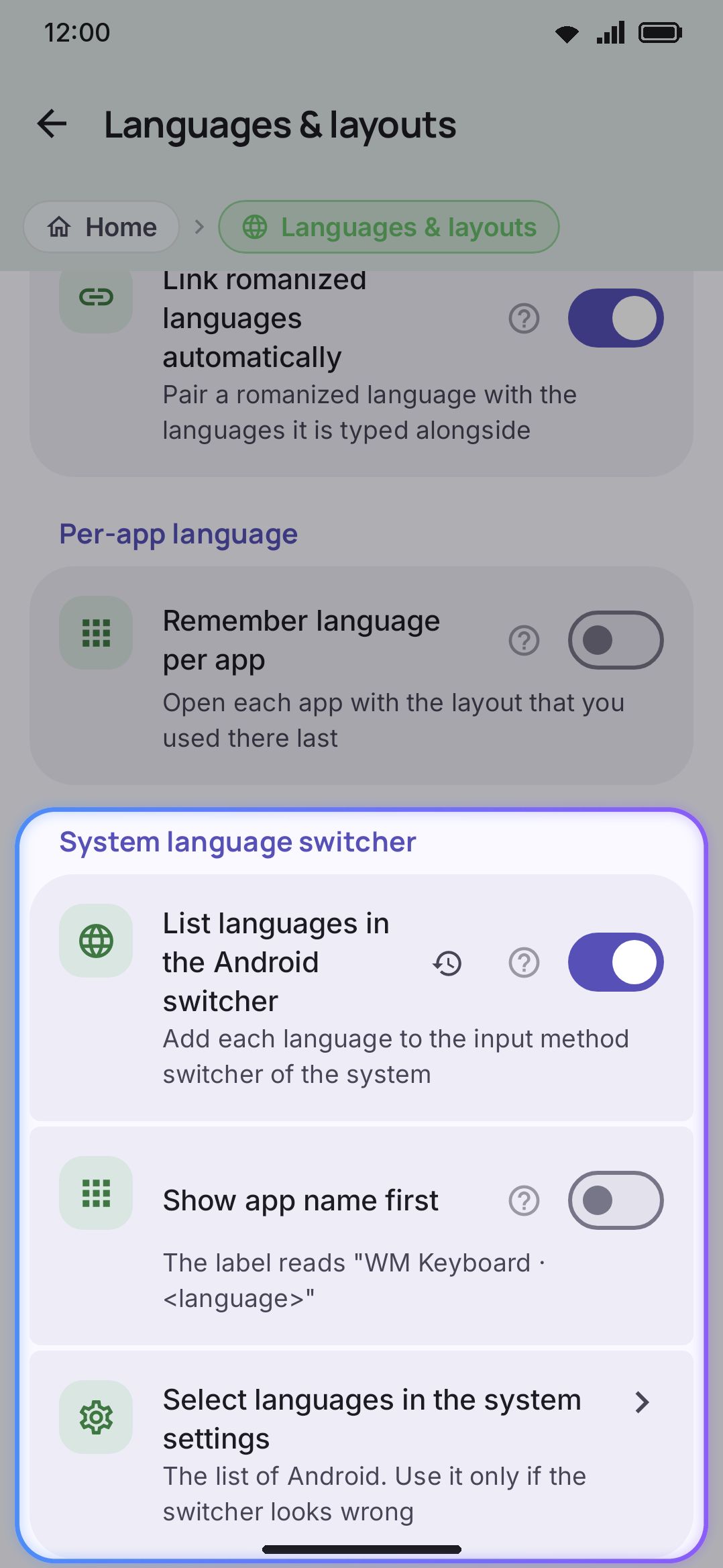
A pencil icon on the Your languages card appears only once more than one layout is enabled, which is true on most fresh installs, since the starting set is seeded from your phone’s language list plus English, but not on a phone set to English only, which starts with QWERTY alone and no Switch order row at all. Tapping it turns the list into one you drag by the handles; it reorders every enabled layout, not language, so two English layouts keep independent slots in the ring even though they’re both “English.” A dialog row reads “language (layout)”, or just the language where the layout is named after it, because a layout name alone can’t tell two languages on one grid apart. Each row also carries a bin, which takes the layout it sits on: a language with two layouts loses one and stays enabled, and losing its last one removes the language, though the list itself always keeps at least one row. This is the same list the 🌐 key and spacebar swipe cycle through; full behavior is on Switching languages.
The toggles for your own custom key layouts, and the Key layouts and Download more rows that used to sit here, now live at the top of WM Keyboard Layout & size. See Layout & size for that group in full.
Two more groups sit below Language data:
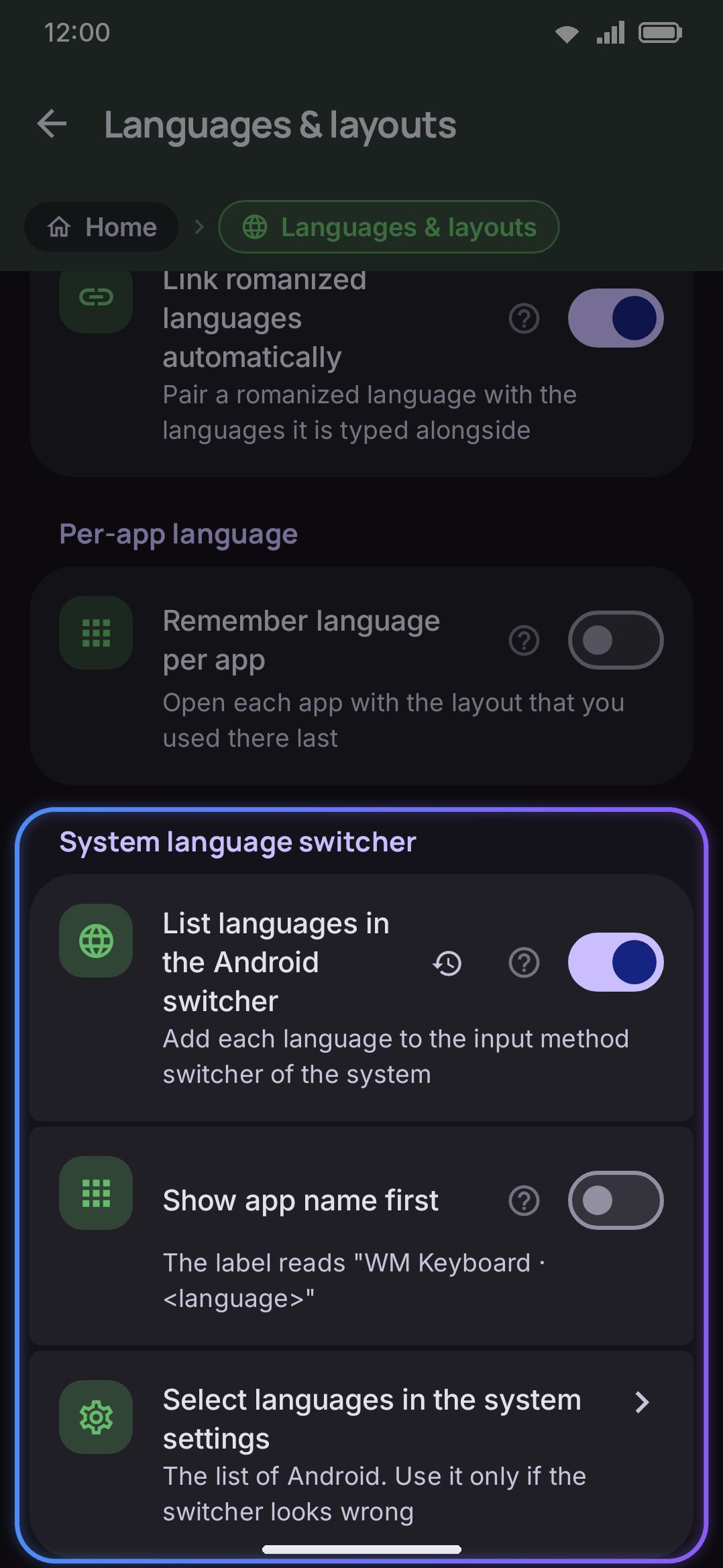
- Per-app language, one toggle: Remember language per app (WM Keyboard Languages & layouts Per-app language Remember language per app, default off). Reopening a text field in an app you’ve explicitly switched languages in restores that layout; apps you haven’t switched in follow your last-used one globally. A field that forces Latin input (a password box) or advertises its own language still overrides this.
- System language switcher, whose first toggle is List languages in the Android switcher (WM Keyboard Languages & layouts System language switcher List languages in the Android switcher, default off). On, it registers every enabled layout as an Android input-method subtype, so the system’s “Choose input method” sheet lists and can switch each one. It ships off because that sheet draws a subtype’s label exactly where it draws the name of a keyboard with no subtypes, so one language name in that row just reads as the keyboard’s name. A romanized language is listed under the app’s own name for it, “Hinglish · Hindi (Romanized)” rather than Android’s “Hindi (Latin)”, so the sheet tells it apart from plain Hindi; other languages keep Android’s translated name. Turn it on and two more rows appear: Show app name first (default off), which puts “WM Keyboard” ahead of the language in the switcher’s label instead of after it, and Select languages in the system settings, which opens Android’s own tick-list of this keyboard’s languages. On Android 14 and newer the keyboard enables every registered subtype itself and that row is only a way to check Android’s view of things; on Android 13 and older there is no API for it, so ticking them there by hand is the only way the switcher lists more than one.
Conjunct-aware backspace used to sit here too, as a single Complex scripts switch across every cluster-forming script at once. It is per language now, on each language’s own screen (below). An install that had the old switch on keeps cluster deletion in whichever cluster-forming languages it had enabled at the time.
Each language’s own screen
Section titled “Each language’s own screen”Tapping a language (from Your languages or straight after adding one) opens a screen titled with that language’s own name, built from up to thirteen sections depending on what it supports (twelve named groups plus the Remove button at the foot). They’re listed below in the order the screen draws them.
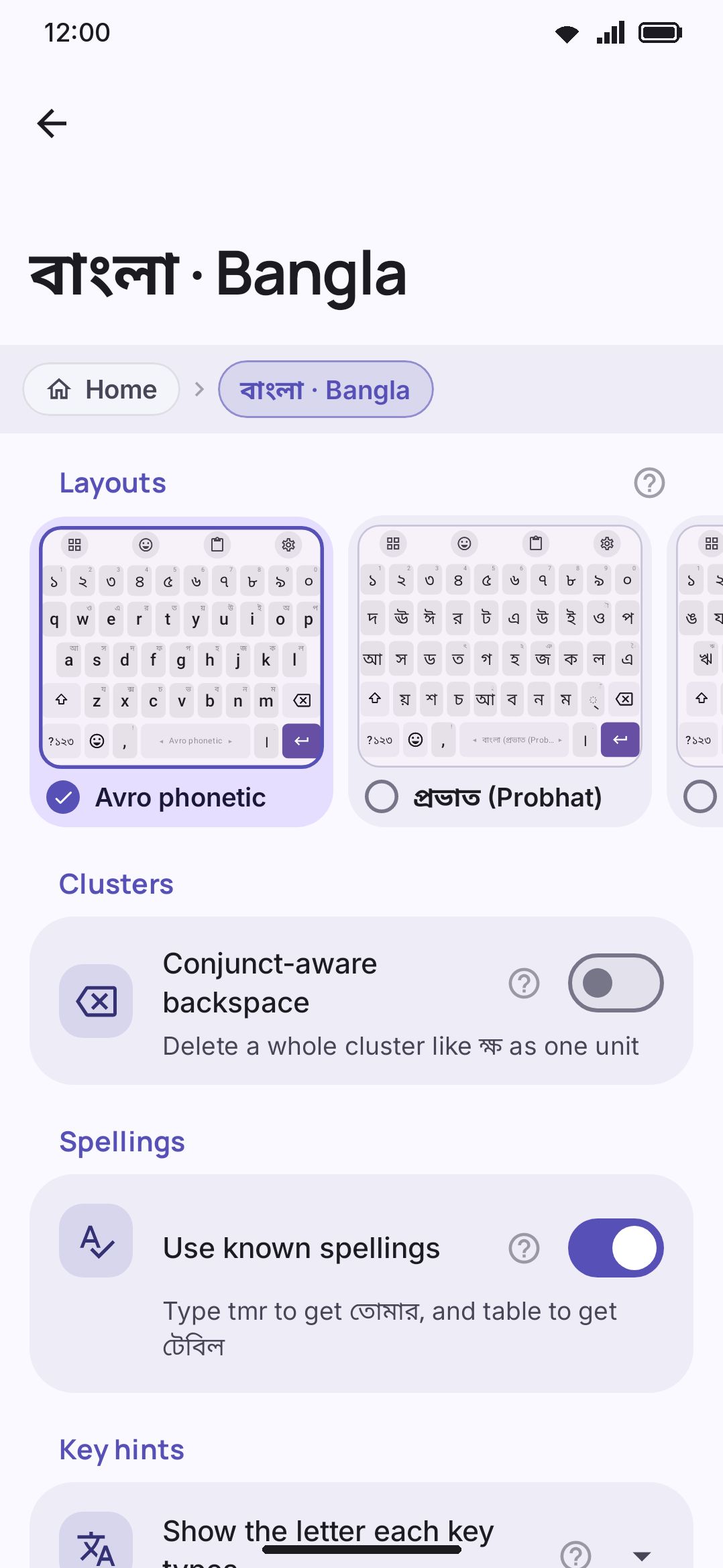
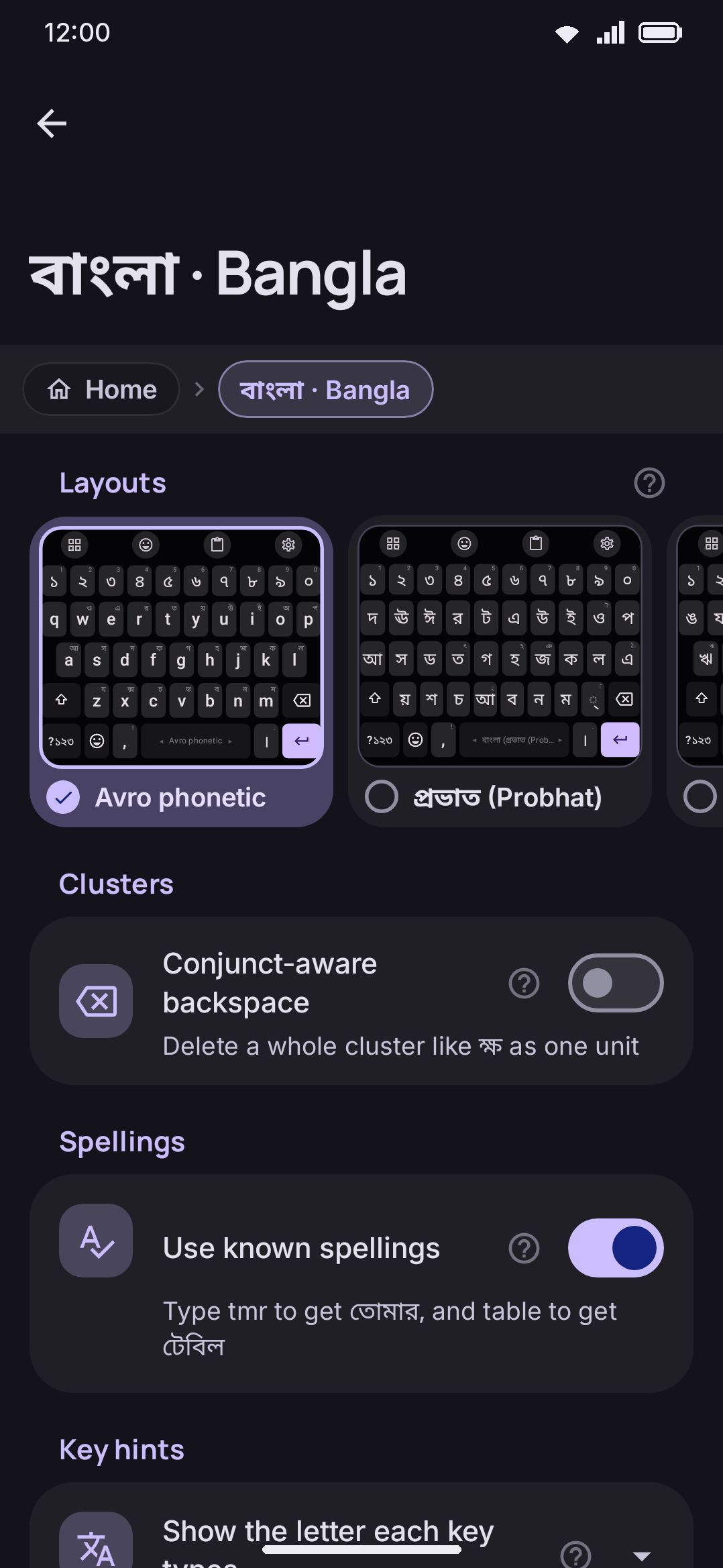
Layouts: a sideways-scrolling row of cards, one per layout the language ships, each a small live preview of the keyboard in your current theme and settings with the layout’s name and a tick under it. Tap a card to turn its layout on or off. The row opens on the first layout that is on. Tapping the last enabled layout anywhere leaves it on and shows “At least one layout must stay on.”, so you can never empty the switch ring from here. The ? on the heading explains the cards. Where the language also has Keyman layouts that aren’t on, the row ends on a More layouts card showing how many; it opens a grid of the same cards with a search box (past six layouts), All / On filters, and each layout’s typing-rules button. A switched-on Keyman layout also gets a Typing rules for (layout name) row under the cards. Use a layout from another language sits under them too: a searchable list of the layouts of the other languages that share this one’s script (Keyman and phonetic layouts excluded). Picking one copies it as a layout of your own in this language, named “(layout) ((language))” unless the name already says, and turns it on; picking it again turns the earlier copy on.
Style: Fancy Text only, and no other language gets it. One choice, Fancy style (WM Keyboard Languages & layouts Fancy Text Style Fancy style), subtitled “The lettering the fancy keyboard types. Also switchable from the strip over the keys.” Each option draws itself in its own lettering, so you pick 𝔉𝔯𝔞𝔨𝔱𝔲𝔯 by reading it rather than by name. The strip over the keys writes the same value; this row exists so it’s findable from Settings and readable as a plain list. Full detail on Fancy text.
Tone marks: Vietnamese only, two toggles that Telex and VNI share. Only tone real syllables (WM Keyboard Languages & layouts Tiếng Việt · Vietnamese Tone marks Only tone real syllables, default off), subtitled “A tone key is a letter unless the word is one the language spells”. On, a Telex or VNI tone key only marks a word Vietnamese could spell, so fas stays fas instead of becoming fá, while mix is still mĩ. Fill in left-out marks (WM Keyboard Languages & layouts Tiếng Việt · Vietnamese Tone marks Fill in left-out marks, default off) lets the Vietnamese word list put back a mark you left out when a word has only one reading, so tieng commits as tiếng. It needs autocorrect on and the word list downloaded, and a word the list already knows is never changed. Full detail on Vietnamese.
Clusters: shown only for a language whose script forms conjunct clusters. Fourteen scripts qualify: Bengali, Devanagari, Gurmukhi, Gujarati, Odia, Tamil, Telugu, Kannada, Malayalam, Sinhala, Khmer, Myanmar, Tibetan and Meetei Mayek. One toggle, Conjunct-aware backspace (WM Keyboard Languages & layouts (a language) Clusters Conjunct-aware backspace, default off), deletes a whole cluster in a single press instead of one code point at a time. The subtitle shows a cluster from that language’s own script, so the Bangla row reads ক্ষ and the Hindi one क्ष. Meetei Mayek is the one script with no sample on file, so its row says “a conjunct” in words instead. It’s set per language, so turning it on for one leaves the others alone.
Spellings: Bangla only, since it’s the one language that ships the lists. One toggle, Use known spellings (WM Keyboard Languages & layouts Bangla Spellings Use known spellings, default on), subtitled Type "tmr" to get তোমার, and "table" to get টেবিল. On, a curated list of spellings people write outranks the letter-for-letter phonetic reading, so table commits টেবিল rather than তাবলে. Turn it off if you want the literal reading and can’t otherwise get it. It’s kept per language, so a second language that ships a list later keeps its own answer. Full detail on Bangla.
Key hints: shown only once an enabled layout for that language transliterates, so Bangla’s screen gets it while Probhat or National alone would not. One choice, Show the letter each key types (WM Keyboard Languages & layouts (a language) Key hints Show the letter each key types, default Off), subtitled “Put the (language) a key is about to write in its corner”. A phonetic layout types from roman keys that never show what they write, so this puts the answer in each key’s corner, following the word as you type it. Off leaves the keys showing only their roman letter. Added shows just the part that key writes. Whole letter repeats the consonant before it, so the hint reads as a shape from a real word. Shift changes the hints too, since a phonetic layout reads capitals as different letters.
Suggestion strip: Bangla and Hindi only, shown with the Key hints while Avro or Hindi phonetic is enabled. Keep the first two words in place (WM Keyboard Languages & layouts (a language) Suggestion strip Keep the first two words in place, default off, per language) fixes the strip’s first chip to what you typed in English letters and the second to the phonetic reading of it, with the suggestions after them. The space bar writes the same word either way; that word is drawn in bold, and in the autocorrect word color if you set one. With it on, a second row appears: Suggestions after them (default Smart, per language) is Smart (both languages, led by the one the word reads as), (language) only, or English only. English only reads the bundled English list even when English isn’t under Also suggest from. The centred top word setting is ignored on that layout while this is on, so the typed word stays on the left. Avro candidate list (WM Keyboard Languages & layouts Bangla Suggestion strip Avro candidate list, default Off, Bangla only) shows the list desktop Avro shows under a word: the known spelling, then dictionary words and ending-joined words ordered by closeness to the letter-for-letter reading, then that reading. In the strip puts it after the word the space bar will write; Bar above puts the whole list in a scrollable row over the strip. The space bar is unchanged either way.
Numerals: a single choice, Numeral system (WM Keyboard Languages & layouts (a language) Numerals Numeral system), shown as two short segmented options: the language’s own digits, or 0-9. The language’s own digits is the default. So Arabic offers ٠-٩ or 0-9, Hindi offers ०-९ or 0-9, Bangla offers ০-৯ or 0-9, and so on:
| Language | The two options |
|---|---|
| Arabic, Uyghur, Moroccan Arabic, Egyptian Arabic | ٠-٩ (default) or 0-9 |
| Persian, Urdu, Pashto, Sindhi, Kashmiri and 7 more | ۰-۹ (default) or 0-9 |
| Bangla, Assamese, Sylheti, Bishnupriya Manipuri | ০-৯ (default) or 0-9 |
| Hindi, Marathi, Nepali and 11 more Devanagari languages | ०-९ (default) or 0-9 |
That’s 34 languages in all. The other 318, English among them, already write their numbers 0-9 and have nothing to choose here, so they get no Numerals group. This is not a Latin-script rule: Russian, Greek, Hebrew, Thai and Japanese all sit in that group too.
This only changes which glyphs the number row and keypad draw and (depending on the field) commit; it never touches the layout, script, or dictionary. Where a non-Latin choice gets typed into text fields versus kept as ASCII is a separate, global setting: WM Keyboard Layout & size Numerals, not per-language.
Also suggest from: appears once at least one other language is enabled, which on a fresh install depends on whether your phone’s languages seeded more than English. One toggle per other enabled language (WM Keyboard Languages & layouts (a language) Also suggest from). Turning one on blends that language’s words into suggestions while you type this one, and words pulled in this way are never autocorrected away.
On Bangla’s and Hindi’s screens, picking English here adds an English words group right under it, with two toggles. Type English words as English (default off, per language) lets the phonetic layout write hello as hello instead of হ্যালো. Switch on the suggestion strip (default on, shared) is the small button beside the suggestions that turns the first one on and off while you type. Both are covered under English on Avro and Hindi phonetic.
Most of these start off, but not all. Adding a romanized language (Banglish, Hinglish, Arabizi, any of the _rom entries) cross-wires it with the other enabled languages on the same script, in both directions, the moment it’s added. Add Banglish next to English and both toggles are already on, with a toast saying so. The pairing goes by script rather than by language family, so Banglish links to English, both Latin, and not to Bangla, which has its own script and its own keyboard. The reason is that nobody switches layouts to type Banglish. It lives on the same QWERTY as your English, and unpaired, English autocorrect treats every Banglish word as a typo. Plain multilingual pairs (English and French) are left alone.
A link you switch off by hand stays off. Adding a language only links that language itself, so it can bring back a removed link only when you remove and re-add one of the two languages in it. To stop even that, turn Link romanized languages automatically off under Languages → Language data. Installs that already had a romanized pair before this existed get one silent catch-up pass, once.
Dictionaries: up to three rows, Word list, Emoji keywords and Word pairs, each shown only when the language has one, then a Custom dictionaries row to WM Keyboard Typing Suggestions Custom dictionaries. A row that is on the device has a checkbox, which turns it off and keeps the file, and a delete button. A row that is not has a Download button. Download on the Word list opens a dialog that asks for the size tier (Large, 300,000 words, by default, out of Small/50,000, Medium/150,000 and Everything/the whole list) and, for Portuguese, the variant. Every count is an upper bound, since the transfer also stops at the words that occur only once in the source text. The word pairs download with the word list. English and Bangla keep the Word list checkbox even before a download, because their built-in list is on the device.
While anything is missing, the heading carries Download all (about n MB), which fetches every row not yet on the device, with the word list at the size you last picked. The size is on the button, so pressing it is the consent. The one thing that can still stop you is Data saver: while it’s on and its Downloads row is at Ask each time, a Download on mobile data? dialog names the size and waits. The button goes away once everything is downloaded.
Whether the emoji keywords and word pairs download by themselves depends on Download data automatically on the Languages screen, and for the keywords also the narrower Download automatically under Emoji keywords. Deleting either one keeps it from coming back by itself. Full detail, including how downloaded and imported lists combine, is on Downloadable dictionaries.
{Language} options (Chinese, Japanese, and Cantonese only). See below.
Remove {language}: a button at the very bottom, shown only once more than one language is enabled, so the last one can never be removed from here. Removing takes every layout belonging to that language out of the switch ring in one step. If that language has a downloaded word list, emoji keywords or word pairs, a Delete the downloaded files? dialog asks first and names the storage it would free. Either answer removes the language; the dialog is only about the files.
Chinese, Japanese, and Cantonese options
Section titled “Chinese, Japanese, and Cantonese options”Three languages, zh, ja, and yue, get an extra group named after themselves (for example “Chinese options”), holding a downloadable conversion dictionary plus extra input-scheme settings. It’s the only part of a language’s screen that isn’t identical in shape across every language, so it’s covered separately here and in full on Chinese, Japanese & Korean.
- One download/delete row per conversion-dictionary pack for that language: Chinese gets Pinyin, Stroke, and Cangjie tables plus the Traditional characters phrase table; Japanese gets a kana→kanji table; Cantonese gets a Jyutping table plus the same Traditional characters phrase table (one download serves both languages). All six packs are hosted and available to download today.
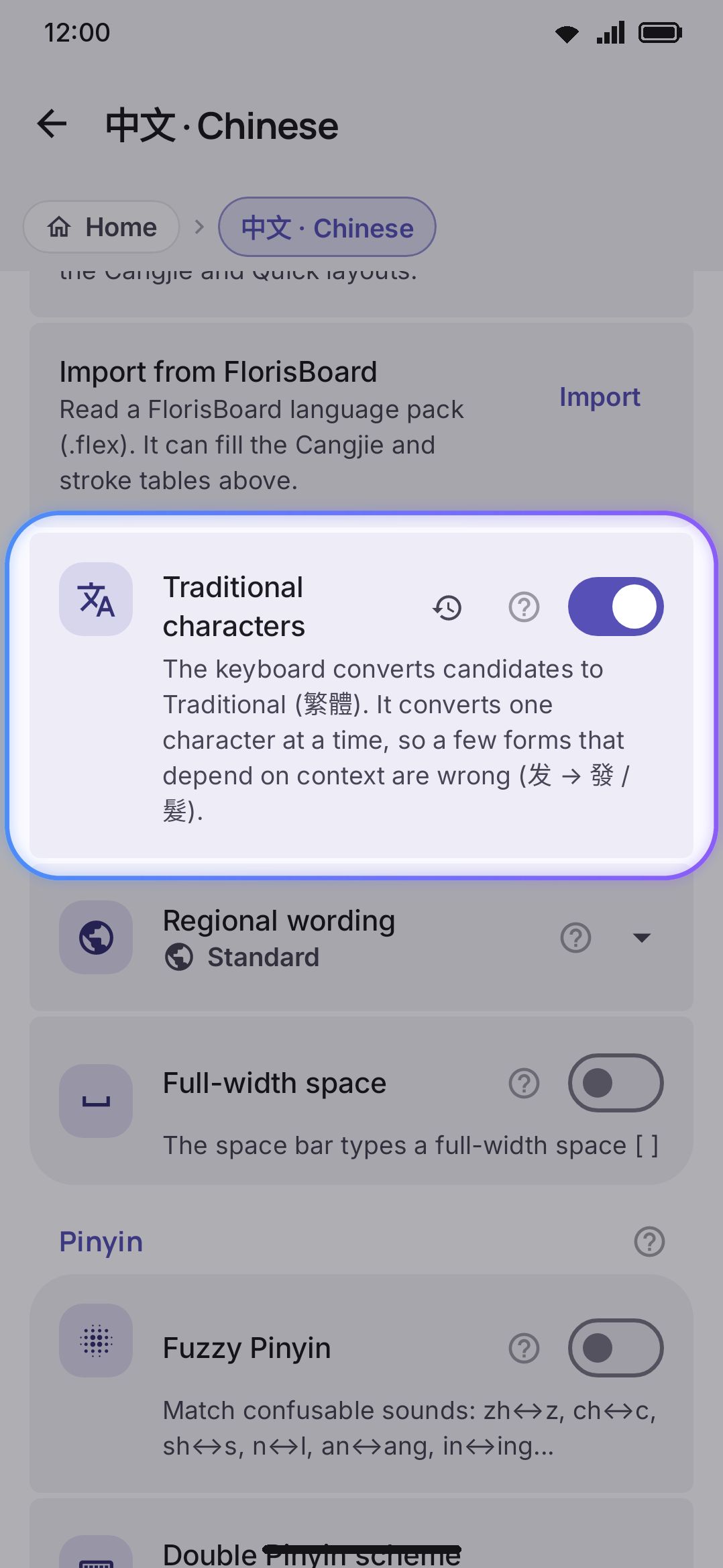
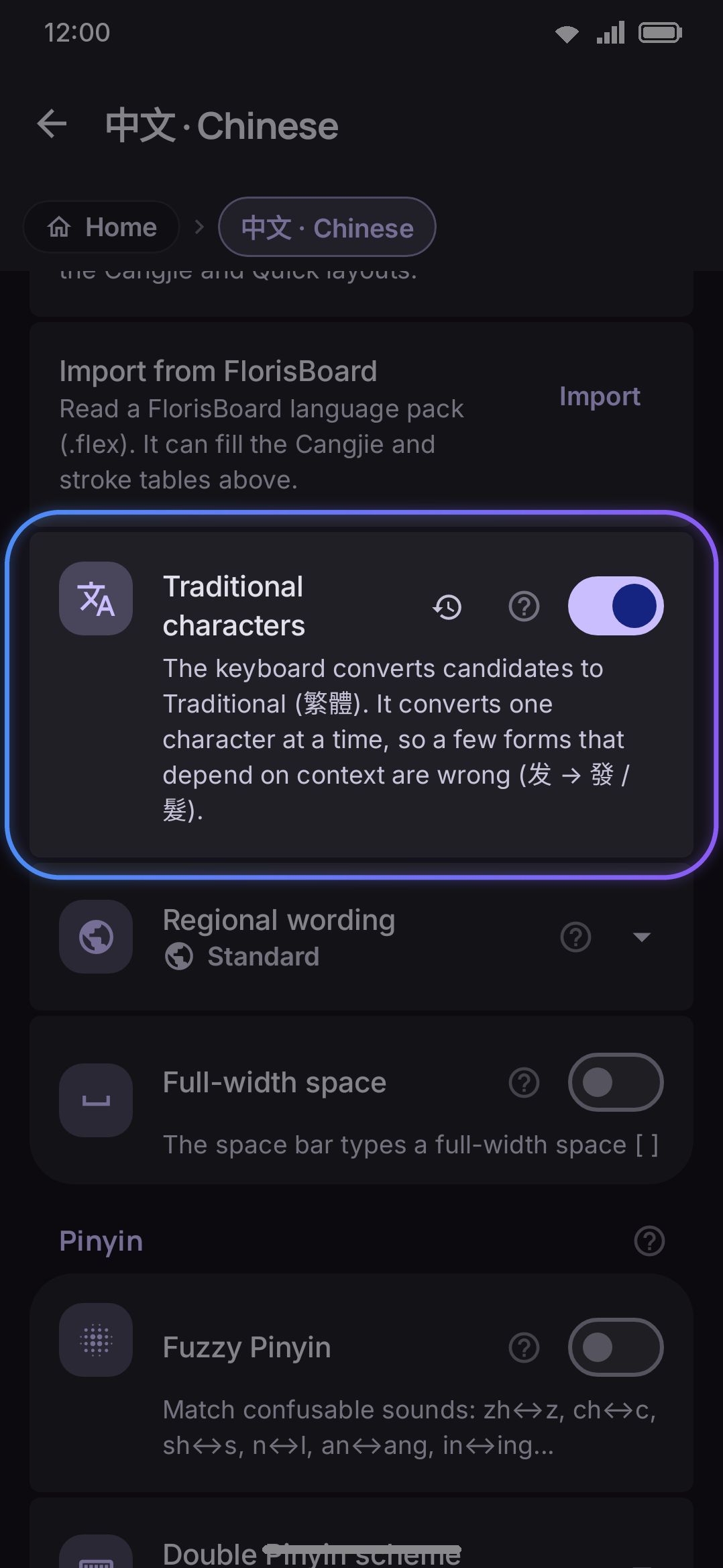
- Traditional characters (WM Keyboard Languages & layouts (a CJK language) (language) options Traditional characters, default off) converts candidates to Traditional script. This toggle renders on all three languages’ screens, including Japanese’s, even though it only has an effect on Chinese and Cantonese.
- With Traditional on, a Standard / Taiwan (臺灣) / Taiwan wording (臺灣用語) / Hong Kong (香港) region choice appears, defaulting to Standard. Taiwan and Hong Kong change only character forms; Taiwan wording also swaps words for their Taiwan equivalents (出租車 to 計程車).
- Cantonese only: Lazy pronunciation (懶音), default on, matches common sound mergers (n↔l, ng↔∅, and others) when spelling out a reading.
- Japanese only: Match kana without marks, default on, reads a plain kana typed on the Flick or Kana JIS layout as its small, ゛ or ゜ form too, so かつこう finds 学校 (がっこう). An exactly-typed reading wins a near tie, and Romaji typing isn’t affected.
- Chinese only: Jianpin (简拼) (default on) lets a syllable be its first letter alone, so
wmfinds 我们 andhaodfinds 好的. Each letter is one syllable,z/c/salso coverzh/ch/sh, and a syllable typed in full is never widened. It does nothing under a Double Pinyin scheme. See Jianpin. - Chinese only: Next-word suggestions (联想) (default on): once a conversion is committed, the strip offers the words that usually come next. Needs the word pairs pack. See What comes next.
- Chinese only: Date, time and numbers (default on):
rq,sjandxqoffer the date, time and weekday, andvwith a number offers it in Chinese numerals. See Dates and numbers. - Chinese only: Fuzzy Pinyin (default off) matches confusable sounds. Turn it on and the eleven confusable groups appear individually below it: zh↔z, ch↔c, sh↔s, n↔l, r↔l, f↔h, an↔ang, en↔eng, in↔ing, ian↔iang and uan↔uang. All eleven are on to begin with, and a Reset row joins them as soon as you switch any one off. The six initial groups cost precision on every syllable that starts with those sounds; the five nasal endings are closer to a regional accent.
- Chinese only: a Double Pinyin scheme list sits below that. Off is the default, meaning full Pinyin, and five two-key schemes follow (Microsoft, Sogou, Xiaohe, Ziranma and Pinyin++). All five ship their key tables, so all five are selectable. The last entry, Custom, types with a key table you write yourself.
- Chinese only: Custom Double Pinyin scheme opens that table in a text editor, in fcitx’s
sp.datformat, with Copy, Paste, Import, Export and Start from a scheme in its menu. Picking Custom for the first time opens it on a copy of the scheme you had. Save applies it and switches the list to Custom. See Your own scheme.
Options
Section titled “Options”| Setting | Where | Default |
|---|---|---|
| Your languages / Switch order | Languages | Seeded from your phone’s language list, plus QWERTY (max 4 layouts) |
| Suggested for you | Languages → Add language | Up to 6, from your phone’s languages then your region |
| Extra stop in the switcher | Languages → Switching language | None (also Language settings, Other keyboards) |
| Remember language per app | Languages → Per-app language | Off |
| List languages in the Android switcher | Languages → System language switcher | Off |
| Show app name first | Languages → System language switcher | Off (row shown only while the toggle above is on) |
| Select languages in the system settings | Languages → System language switcher | Opens Android’s settings (no stored value; row shown only while the toggle above is on) |
| Conjunct-aware backspace | Languages → (a language) → Clusters | Off, per language |
| Layouts (per layout) | Languages → (a language) → Layouts | On for the one layout that language was added with (its first); off for the rest |
| Fancy style | Languages → Fancy Text → Style | Bold (𝐁𝐨𝐥𝐝); the same value the strip over the keys writes |
| Only tone real syllables | Languages → Vietnamese → Tone marks | Off (Telex and VNI share it) |
| Fill in left-out marks | Languages → Vietnamese → Tone marks | Off (needs autocorrect and the Vietnamese word list) |
| Use known spellings | Languages → Bangla → Spellings | On (Bangla is the only language with the group) |
| Show the letter each key types | Languages → (a language) → Key hints | Off, per language (shown only for a language with an enabled transliterating layout) |
| Numeral system | Languages → (a language) → Numerals | The language’s own digits |
| Also suggest from (per other language) | Languages → (a language) → Also suggest from | Off, except romanized pairs on the same script, which are linked both ways when you add one |
| Keep the first two words in place | Languages → Bangla or Hindi → Suggestion strip | Off, per language (shown only with Avro or Hindi phonetic enabled) |
| Avro candidate list | Languages → Bangla → Suggestion strip | Off (shown only with Avro enabled) |
| Desktop Avro’s dictionary | Languages → Bangla → Suggestion strip | Downloaded when the candidate list is turned on (shown only then) |
| Suggestions after them | Languages → Bangla or Hindi → Suggestion strip | Smart, per language (row shown only while the toggle above is on) |
| Type English words as English | Languages → Bangla or Hindi → English words | Off, per language (group shown only with English under Also suggest from) |
| Switch on the suggestion strip | Languages → Bangla or Hindi → English words | On, shared by both languages |
| Download data automatically | Languages → Language data | On (off on F-Droid builds) |
| Downloads (on a metered connection) | Data saver | Ask each time |
| Link romanized languages automatically | Languages → Language data | On |
| Download all data | Languages → (a language) → Language data | A button (no stored value) |
| Dictionary size tier (per download) | Languages → (a language) → Dictionary | Large (up to 300,000 words) |
| Download automatically (emoji keywords) | Emoji → Emoji keywords | On |
| Traditional characters | Languages → (zh/ja/yue) → (language) options | Off |
| Region (Standard / Taiwan / Taiwan wording / Hong Kong) | Languages → (zh/ja/yue) → (language) options | Standard |
| Lazy pronunciation (懶音) | Languages → yue → Cantonese options | On |
| Match kana without marks | Languages → ja → Japanese options | On |
| Jianpin (简拼) | Languages → zh → Chinese options | On |
| Next-word suggestions (联想) | Languages → zh → Chinese options | On |
| Date, time and numbers | Languages → zh → Chinese options | On |
| Fuzzy Pinyin | Languages → zh → Chinese options | Off |
| Fuzzy Pinyin groups | Languages → zh → Chinese options | All eleven on |
| Double Pinyin scheme | Languages → zh → Chinese options | Off (full Pinyin) |
| Custom Double Pinyin scheme | Languages → zh → Chinese options | Empty |
Two related settings live outside this screen entirely: where a numeral choice gets typed, not just drawn, is WM Keyboard Layout & size Numerals; custom word-list import is WM Keyboard Typing Suggestions Custom dictionaries (also reachable from a language’s own Dictionary group above).
Details & edge cases
Section titled “Details & edge cases”- Settings search covers the rows, but every hit lands on the language list. Twenty-two rows are indexed by name: Add language, Remember language per app, all three System language switcher rows, and, from a language’s own screen, Conjunct-aware backspace, More layouts, Show the letter each key types, Keep the first two words in place, Suggestions after them, Avro candidate list, Fancy style, Only tone real syllables, Fill in left-out marks, Numeral system, Custom dictionaries, Emoji keywords, Traditional characters, Lazy pronunciation, Match kana without marks, Fuzzy Pinyin and Custom Double Pinyin scheme. The index has no language to put in the route, so a per-language hit drops you on WM Keyboard Languages & layouts and you pick the language from there. Key layouts is indexed too, but it now has its own screen under Layout & size and lands there directly instead. What isn’t indexed: Suggested for you, Switch order, the three Language data toggles, the layout cards, Spellings, Also suggest from, English words, Download all data, the word-list rows, the Traditional region choice, the Fuzzy Pinyin groups, Double Pinyin and Remove language. Those you find by browsing.
- Registering a subtype does not enable it. Android decides which subtypes are enabled, and with nothing explicitly enabled it derives the set from your phone’s system languages, which is usually one. Android 14 and newer let the keyboard enable them all itself; below that, use Select languages in the system settings or the switcher will keep showing a single entry.
- 826 is the catalogue size, not the enabled count. A fresh install enables at most four layouts, seeded from your phone’s language list; everything else in the catalogue sits inactive, loaded on demand, until you add it.
- Your region suggests, it never enables. The SIM, the network, the time zone and your locale’s region feed the Suggested for you list and nothing else. Seeding a fresh install uses only your phone’s language list, so landing in a country doesn’t rearrange your keyboard.
- Seeding runs once, and only over an untouched set. It happens when the setup wizard opens, and only if the enabled layouts are still exactly the built-in fallback. If you enabled the keyboard from Android’s settings and typed for a while before ever opening the app, whatever you set up there is kept.
- Only English and Bangla bundle a dictionary. Every other language starts with zero built-in suggestions until you download or import a wordlist on its Dictionary group.
- Removing a language removes every layout that belongs to it, not just the one you last used. If you’ve enabled two English layouts (QWERTY and AZERTY, say), removing English takes both out of the switch ring at once.
- Downloads can ask before spending mobile data. While Data saver is on (it’s off unless you pick a trigger) and its Downloads row is at Ask each time, which is the default, a download you start confirms first and the dialog names the size. Set it to Allow and every download on this screen, plus every automatic one behind Download data automatically, starts on whatever connection you have. See Downloads & mobile data for what each one costs.
- Any row here you’ve changed grows a restore button. Same as everywhere else in Settings; see Putting one setting back.
- Add language’s list order is registry order, not alphabetical, and it never re-sorts based on your search term either. It’s a filter over a fixed order, so identical prefixes stay in the same relative order regardless of what you typed.