
Selection actions
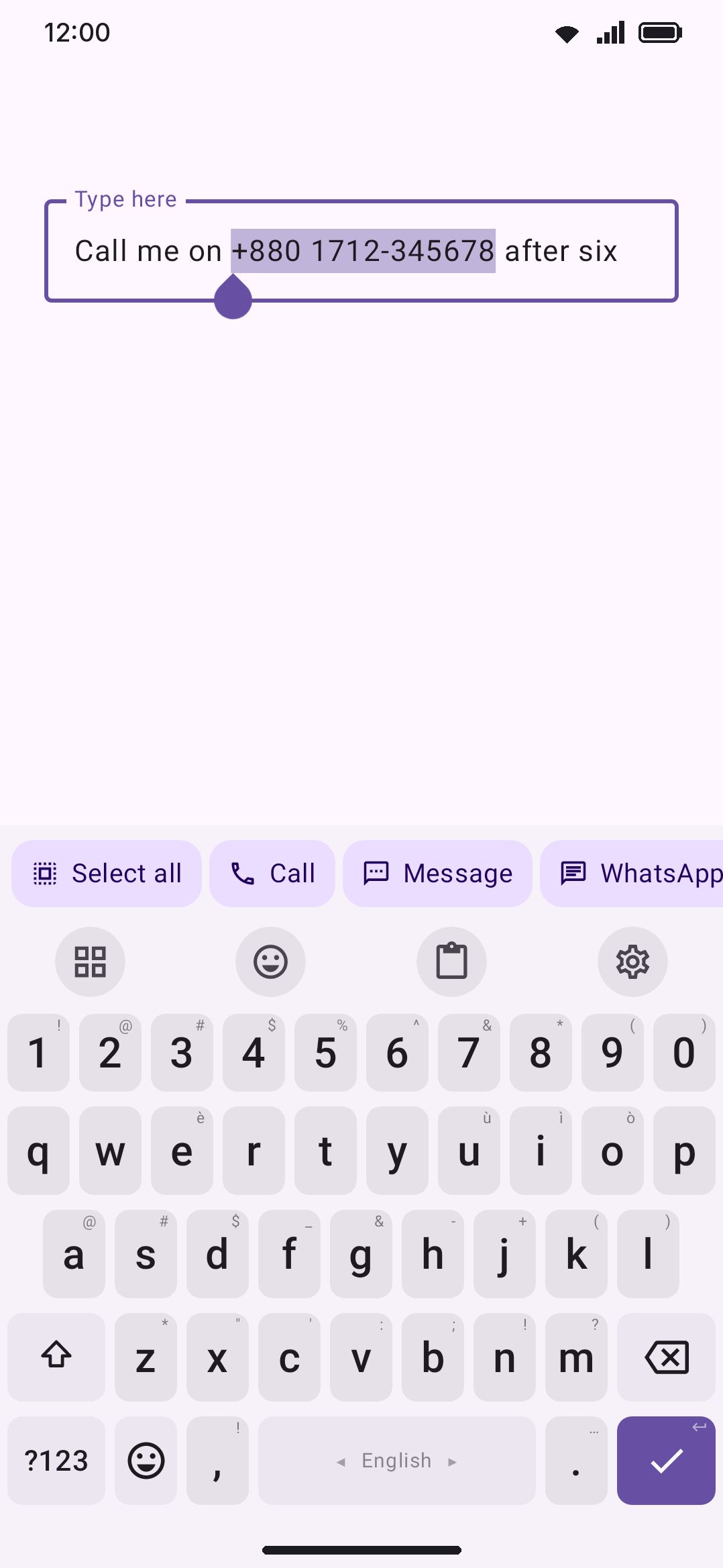
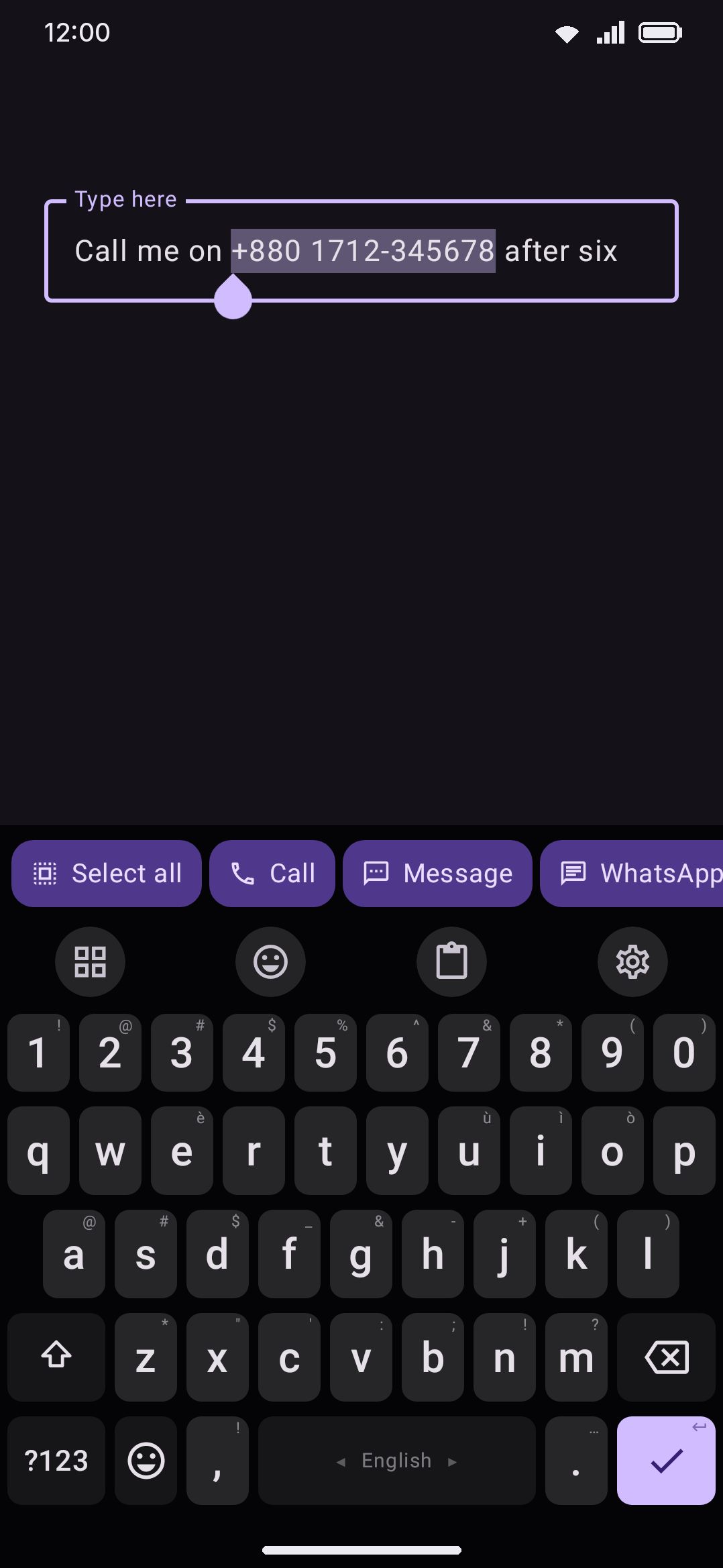
Select text and the keyboard offers what to do with it: edit it, reformat it, convert it, look it up, or hand it to another app. Off by default, under Advanced.
Selecting a phone number in a chat and then dialling it usually means copying it, leaving the app, opening the dialler and pasting. The keyboard already knows what you selected, so it can offer the things that shape of text is for, and a good deal more: the everyday edits, a find and replace, line tools, case and chat formatting, conversions, and a way to hand the text to your contacts, maps or calendar.
Select 01712345678 and the bar reads Select all, Call, Message, WhatsApp, Contact, Copy, Cut, Paste, Delete, Share, Format, Find, Replace. Select a sentence and it reads Select all, Copy, Cut, Paste, Delete, Share, Save as note, Format, Find, Replace, Grammar, AI, Bangla, Fancy and so on, with the actions that only make sense for what you selected (Sort on several lines, Colour on #336699, Zones on 5pm) appearing when they do.
This is off by default. It adds a bar that appears out of a gesture you already make for other reasons, so you have to ask for it.
Turning it on
Section titled “Turning it on”Turn on Selection actions. Select some text in any app. The bar appears while the selection is live and goes away when you clear it.
To switch it on and off without opening settings, add the Selection actions tool to your toolbar. One tap flips the same switch, and a message says which way it went. Text that is already selected gets its bar straight away.
What the keyboard reads
Section titled “What the keyboard reads”The keyboard reads your selection as a whole. That is the rule behind every result on this page, and it is deliberate:
01712345678is a phone number.call me on 01712345678 tomorrowis plain text. You selected the sentence, not the number in it.example.com/pageis a link.report.txtis not, becausetxtis not one of the endings a bare domain is allowed to have.- Two lines are never one thing, whatever the pieces look like on their own.
Pulling a fragment out of a longer span is a different job, and the clipboard already does it. That surface has the room to show you what it found and where it found it. This one does not, so it does not guess.
Phone numbers use the same formats as the clipboard, under Phone formats. With a format saved, a number has to match it, which is what keeps an invoice total or a row of figures from offering to dial itself. With no format saved, the plain shape rules apply.
On top of that reading, a few actions look at what the text holds: whether it has several lines, Bengali or Latin letters, digits in another script, a colour code, a date or time, a place. Those checks are cheap, and the dearer ones (dates, places) only run while an action that needs them is switched on.
The bar
Section titled “The bar”The bar is one row of chips that scrolls sideways, in an order you control under Actions (see Options). Every action is drawn only where it applies, so the row you see is shorter than the list: Call never appears on a sentence, Sort never appears on a single line.
Two things sit outside the order. Undo is always first while there is something to undo. And the actions whose answer is a pick rather than a single result (Format on text, Fancy, Colour, Zones) open a short row of choices in place of the bar, with an arrow on the left to come back.
| Action | Appears on | Shipped |
|---|---|---|
| Undo | Anything, after the bar changed it | On |
| Select all | Anything not already the whole field | On |
| Copy, Cut, Delete, Share | Anything | On |
| Save as note | Anything, once the phone has been unlocked; never a password field | On |
| Paste | Anything, while the clipboard holds text | On |
| Format | A number, link or address the rewrite would change; any text | On |
| Find | Anything, when the field could hold another copy | On |
| Replace | Anything | On |
| Sort, Unique, Number, Bullets | Two or more lines | On |
| Grammar | Text, with the Grammar tool on | On |
| DeepL Write | Text up to 2,500 characters, once DeepL Write is set up | On |
| Translate | Text, with the Translate tool on | On |
| AI, and the AI buttons | Text, with the AI tool on and set up | On |
| Bangla | Latin text, with Bengali among your languages | On |
| Banglish | Bengali text | On |
| Hindi | Latin text, with the Hindi phonetic layout enabled | On |
| Hinglish | Devanagari text, with the Hindi phonetic layout enabled | On |
| Digits | Digits in another script | On |
| Colour | A colour code | On |
| Call, Message, WhatsApp | A phone number | On |
| An address | On | |
| Open | A link or an address | On |
| Remove trackers | A link with tracking parameters | On |
| QR | A link, with the QR generator on | On |
| Contact | A phone number or an address | On |
| Fancy | Text | On |
| Search | Text, with the Web search tool on | Off |
| Bold, Italic, Strike, Mono | Text, in a chat app whose syntax the keyboard knows | Off |
| JSON | A JSON object or array | Off |
| Base64, Decode | Base64 text; a percent-encoded link | Off |
| Speak | Anything | Off |
| Zones | A time | Off |
| Calendar | A date or time | Off |
| Map | Coordinates or an address | Off |
| camelCase, snake_case, kebab-case, CONSTANT_CASE | Inside Format’s case options | Off |
Every rewrite the bar makes (a case, a style, a chat marker, a grammar fix, a conversion, a replace) is remembered while the selection stays live. Undo is the first chip whenever there is one, and each tap walks one step back: lower case, then Title Case, then bold, then three taps of Undo returns the original.
The memory ends with the selection. Move it onto other text, clear it, or leave the field, and there is nothing left to put back. Before putting anything back the keyboard checks the field still reads as the last rewrite, so an edit you made in between is never overwritten. Cut and Delete take the selection away and are not undone here; your editor’s own undo covers those.
Editing
Section titled “Editing”Select all selects the whole field. A long press usually selects only one word, so this is the fast way to act on everything you wrote. Copy, Cut and Paste are the editor’s own; Paste replaces the selection and only appears while the clipboard holds text. Delete removes the selection. Share opens the system chooser with the selected text. Save as note keeps the selection in the Notes tool as a new note, or adds it to the note you edited last when WM Keyboard Tools Notes Save as note from a selection says so; a toast says which. It appears only while the Notes tool is enabled.
Find and replace
Section titled “Find and replace”Find jumps to the next place the selected text appears, wrapping round to the top, and keeps it selected so the bar stays and a second tap walks on. The match is brought into view, even in an editor that would leave it under the keyboard or off the screen.
Replace opens the Find & replace panel above the keys, the same one its toolbar tool opens, with two fields: what to find, already holding the selection, and what to replace it with. Tap a field and type into it; the keys go to the panel, not to the app. The current match is selected in the field itself, where you can see it, and the panel says which one of how many. Enter in the find field goes to the next match; Enter in the replace field replaces the current one.
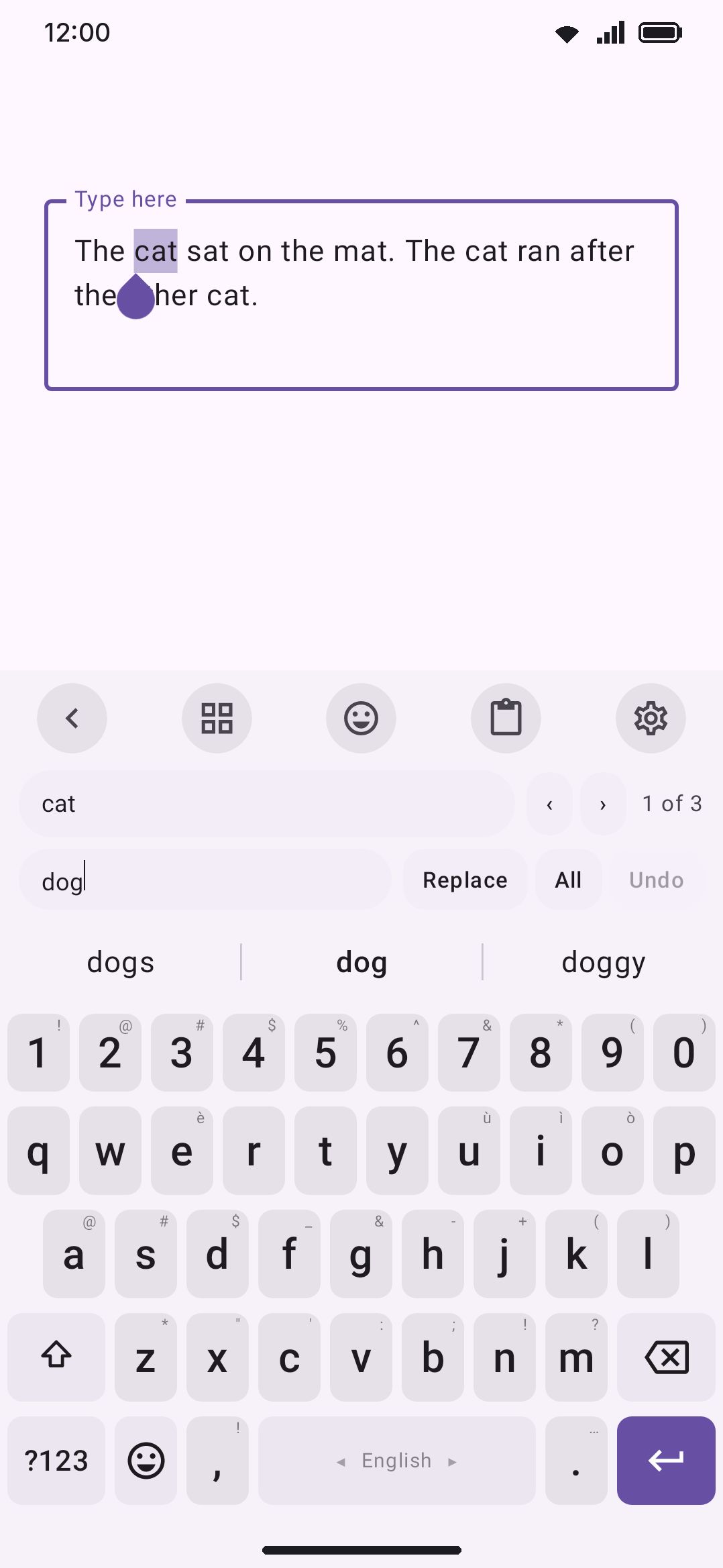
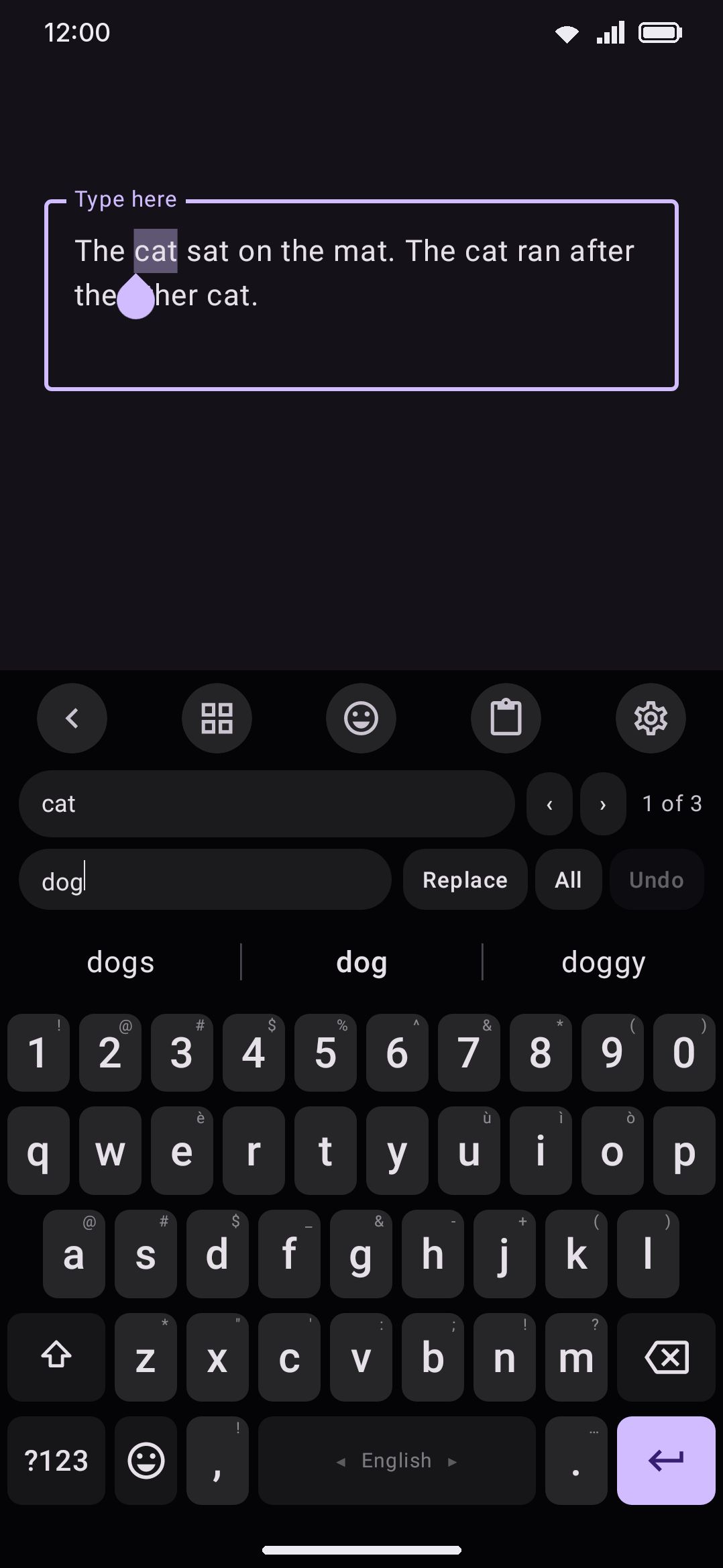
Three toggles: Aa matches case, [ab] matches whole words only (in any script, so a Bengali word is a whole word too), and .* reads the find field as a regular expression, with $1 in the replacement standing for the first group. A pattern that is not valid says so under the toggles, and one that takes too long on the text is stopped rather than left to hang.
Replace swaps the current match and moves to the next. All replaces every match in one go, which Undo takes back in one go too. A field that does not report where its text is (a few web views) still lets you find, but not replace in place.
With two or more lines selected, four chips appear. Sort puts them in order, digits compared as numbers so item2 comes before item10; sort a list that is already in order and it turns the other way round. Unique drops repeated lines. Number puts 1., 2., 3. in front of each line, and Bullets a bullet. Both are toggles: a list that already has the prefix on every line loses it, and either one converts into the other, so a bulleted list becomes a numbered one in a tap.
Format
Section titled “Format”Format rewrites the selection in place. What it does follows what the selection is:
- A phone number is written back in your own saved format. If you keep
+880 1XXX-XXXXXX, then01712345678becomes+880 1712-345678. The separators come from the format you wrote, not from a shape the keyboard invented. With no format saved, a number that names a country code becomes E.164 (+8801712345678) and any other number becomes its bare digits. - A link loses its tracking parameters.
utm_*,fbclid,gclid,igshidand about twenty others go; everything else in the query, the path and the fragment stay exactly as they were. A link with no scheme gainshttps://. - An address is lower-cased.
- Anything else opens the case options instead.
The Format chip is left off when the rewrite would change nothing. A number already in your format, or a link with nothing to strip, does not get a button that does nothing.
Case options
Section titled “Case options”On ordinary text, Format opens a row of chips in place of the bar: lower case, Title Case, UPPER CASE and Sentence case, plus, when you switch them on under Actions, the programmer’s cases camelCase, snake_case, kebab-case and CONSTANT_CASE. Those four read their input in any convention, so Hello World, hello_world and helloWorld all mean the same two words. The arrow on the left goes back to the actions.
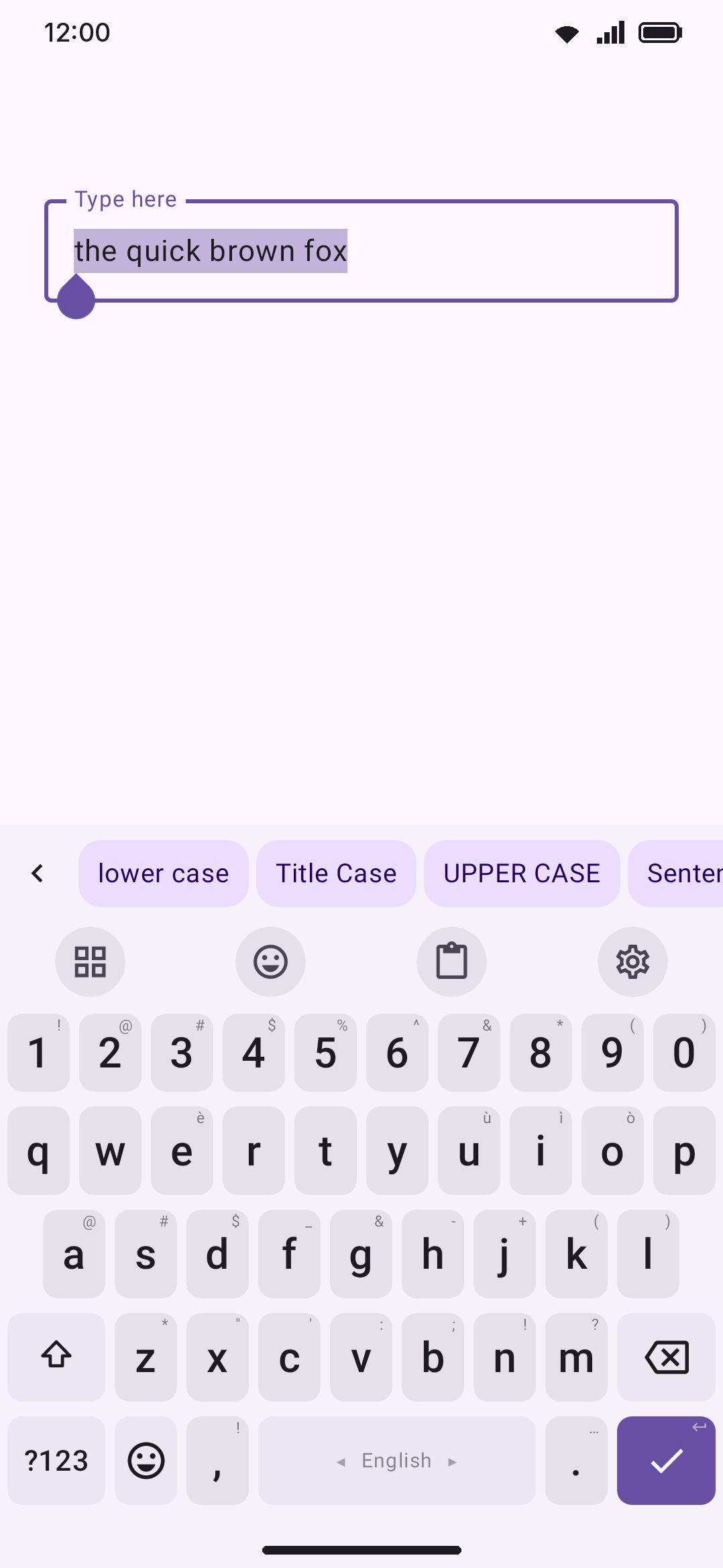
Each one rewrites the selection and leaves the result selected, so you can try Title, then Sentence, then UPPER without reselecting between taps. None of them changes the spelling: UPPER CASE writes ß as the capital ẞ rather than SS, so lower case gets the word back exactly.
Title case and Sentence case leave a word that is already all capitals alone, so an acronym in the middle of a sentence survives. the NASA launch becomes The NASA Launch, not The Nasa Launch. That rule is suspended when the whole selection is capitals, because somebody selecting HELLO THERE and reaching for Title case is fixing shouting, not protecting acronyms.
Fancy opens the Fancy Text styles, each chip written in itself, and restyles the selection in the one you pick.
Chat formatting
Section titled “Chat formatting”Bold, Italic, Strike and Mono wrap the selection in the markers the app you are typing in understands, and a second tap takes them off again. They only appear in apps whose syntax the keyboard knows, because markers an app does not read arrive as punctuation:
| Apps | Bold | Italic | Strike | Mono |
|---|---|---|---|---|
| WhatsApp, Viber | *text* | _text_ | ~text~ | ```text``` |
| Slack, Google Chat, Messenger, Rocket.Chat | *text* | _text_ | ~text~ | `text` |
| Threema | *text* | _text_ | ~text~ | none |
| Telegram | **text** | __text__ | ~~text~~ | `text` |
| Discord, Element, Beeper, Reddit, Mattermost, Zulip, GitHub | **text** | *text* | ~~text~~ | `text` |
Mono on several lines uses the app’s fenced block where it has one. These four are off to start with; find them under Actions.
Convert
Section titled “Convert”- Digits turns figures in another script into
0to9:০১৭১২becomes01712, and Devanagari, Arabic-Indic or Persian figures the same. - Colour appears on a colour code (
#336699,#f00,0xFF336699,rgb(51, 102, 153),hsl(210, 50%, 40%)), wears a swatch of the colour, and opens its other spellings; tap one to write it in place. - JSON pretty-prints a minified object or array with two-space indents, or minifies a pretty one. Key order and number literals survive either way.
- Remove trackers appears on a link that carries tracking parameters (
utm_source,fbclid,gclid,siand the like) and takes them off, leaving everything that says which page it is.youtu.be/abc?si=XyZbecomesyoutu.be/abc. It is on to start with; if you have already picked your own set of actions, switch it on under Actions. - Base64 decodes Base64 text, and Decode a percent-encoded link (
hello%20worldtohello world). Both are careful about what counts: an ordinary word is never mistaken for Base64, and50% offis not encoded.
Language
Section titled “Language”- Bangla turns Banglish into Bengali script, word by word: the spelling map first (
tmrto তোমার), then the same phonetic reading the suggestion strip uses, which is what letsasi,achiandachhiall land on আছি, and only then a literal transliteration. Digits and punctuation stay as they were. It appears on Latin text while Bengali is one of your languages. - Banglish goes the other way, writing Bengali script back in Latin letters by pronunciation (তোমার to
tomar, ধন্যবাদ todhonnobad, কী toki), with the most readable spelling from the map for words it knows. - Hindi does the same for Hinglish: the known-spellings list first (
theekto ठीक,nhito नहीं), then the downloaded Hindi word list through the same phonetic match the strip uses, then the rules. It needs the Hindi phonetic layout switched on, because that is what loads all three. On Latin text with both Bangla and Hindi available you get both chips, and you pick the language you wrote. - Hinglish writes Devanagari back in Latin letters the way it is said, not the way it is spelled: करना is
karnaand नमस्ते isnamaste, because spoken Hindi drops the inherent vowel in the first and keeps it in the second. Long vowels are doubled inside a word and single at its end (naam,theek,mera,ladki). - Grammar runs the Grammar checker over the selection alone and commits every suggestion at once, offline. It shows a spinner while it works and says so when there is nothing to fix.
- DeepL Write sends the selection to DeepL Write and puts DeepL’s rewrite in its place, in the writing style you picked. It shows only after you add a DeepL API Pro key and turn on DeepL Write under Tools / Translate, and it works in the Lite edition too. Undo brings the original back.
- AI opens the AI tool on the selection. Under AI buttons you can give any AI action a chip of its own (Formal, Shorter, Friendly and Summarize are made for it): one tap runs it on the selection and the result lands in the AI panel, ready to apply. Applying replaces the selection, not the field around it. The AI’s own Translate action reads AI translate as a chip, so it is not confused with the Translate chip below.
- Translate opens the Translate tool with the selection in its box and the translation under it, using the translation engine you picked there (online, or on the device). Replace text in the panel then replaces the selection, not the field around it. It sits just before AI on the bar and is on to start with; if you have already picked your own set of actions, switch it on under Actions. Opening the Translate tool from the toolbar with text selected does the same thing.
Look up
Section titled “Look up”Search opens the web search tool with the selection as the query. Speak reads the selection aloud with the phone’s speech engine (in Bengali for Bengali text) and turns into Stop while it does. Zones appears on a time and shows it in each of the zones you picked under Time zones, UTC and your own to start with; tap one to write it in place of the selection.
Open in
Section titled “Open in”Call and Message open your dialler and your messaging app with the number filled in. WhatsApp opens a chat with that number. Contact adds the number or address to your contacts. Open hands a link to your browser, and an address to your mail app. When the link belongs to an app instead (a YouTube link with YouTube installed, say), the chip wears that app’s icon and a small outward arrow, so you know where the tap goes before you make it. Email writes a new message to the selected address. QR opens the QR generator with the link already in it. Map opens coordinates (23.8103, 90.4125) or something that looks like a street address in your maps app. Calendar adds a selected date or time (14 Sep 2026, tomorrow 5pm, ১৪ সেপ্টেম্বর) as an event.
None of these send anything anywhere themselves: each hands the text to an app you picked and stops.
Where the bar draws
Section titled “Where the bar draws”Own row is the default. The bar gets a row of its own above the keys, which arrives with the selection and leaves with it. The keyboard is one row taller while it is there, and the app is asked to scroll the selected line back into view as the row opens, so the text you are working on does not end up behind the keyboard. That row is reorderable like any other under Rows & bars, so you can put it above or below the suggestion strip. While a panel such as Clipboard or Emoji is open, the row stays away: text selected under an open panel no longer makes the keyboard grow, and the row arrives when the panel closes.
Suggestion strip puts the actions over the strip instead, which costs no height at all. There are no word suggestions to show while text is selected, so the strip has nothing to give up. With a panel open the strip goes back to the toolbar, because the arrow on that row is how you get out of the panel.
Options
Section titled “Options”| Setting | Control | Default |
|---|---|---|
| Selection actions | Toggle | Off |
| Where it appears | Choice of 2 | Own row |
| Show on every selection | Toggle | Off |
| Read what is selected | Toggle | On |
| Actions | Screen | 33 of 48 on |
| AI buttons | Screen | None |
| Time zones | Screen | UTC and your own |
Show on every selection keeps the bar up on a selection too long to read. The keyboard does not read a selection past about 4,000 characters, so by default such a selection takes the whole bar away, Copy and Paste included, even though neither of those ever needed the text read, because the app does that work itself. Turn this on and the bar stays, carrying Select all, Copy, Cut, Paste and Delete, whichever of them you have switched on. Everything else still waits for a shorter selection, since every other action begins by reading the text.
Read what is selected is the entity half of the feature. Turn it off and every selection is read as plain text: you keep the edits, the case options and the conversions, and lose Call, Email, Open, QR and Contact. It is worth turning off if you find the guesses wrong more often than right, since the generic half is the half that always applies.
Actions is the list of everything the bar can offer, grouped, searchable, each with its own switch, and with a pencil that lets you drag the actions that are on into the order you want. The full list is on the settings reference.
Details and edge cases
Section titled “Details and edge cases”- The bar never appears over a password field. Putting a password in front of a Share chooser is the mistake this feature should not make.
- An action is only offered when it can work. WhatsApp is hidden when WhatsApp is not installed. Search, Translate, QR, Grammar and AI are hidden when their tools are switched off, which includes the tools that power saving and the lock screen have already taken away, and AI is hidden until a provider is set up. Hiding a tool from the toolbox is not switching it off: turn off Show in toolbox on the tool’s own page to keep, say, the AI chip here while the AI tool stays out of the toolbox grid.
- Nothing is stored and nothing is sent by the keyboard. Every action either edits the field you are already in, or hands the text to an app you picked. Grammar and the Bengali conversions run on the device. The one exception is DeepL Write, which you set up yourself: it sends the selection to DeepL.
- Before your first unlock, only the actions that touch the current field survive: the edits, the rewrites and Find. Paste needs a clipboard that is still locked, Speak needs a speech engine, and everything under Open in would have to start another app.
- A very long selection gets only the actions that need no reading. Past about 4,000 characters the keyboard stops reading the selection, so the case options, the rewrites and the entity actions all stand down. With Show on every selection off, which is how it ships, the bar goes away entirely and the toolbar’s own Copy tool is the answer; with it on, Select all, Copy, Cut, Paste and Delete stay on the bar, because the app does their work and the length costs them nothing.
- The bar follows the selection, not the caret. Extending a selection with selection mode or a trackpad drag re-reads it as you go, so the actions change under your finger as the selection grows into a whole phone number.
- This version resets the list of actions once. The list grew from thirteen actions to forty-five, and the shipped choices replace whatever you had picked before, so the new actions are there. Anything you switch off after that stays off.